
Acer PM161QBbmiuuxDeep Assessment
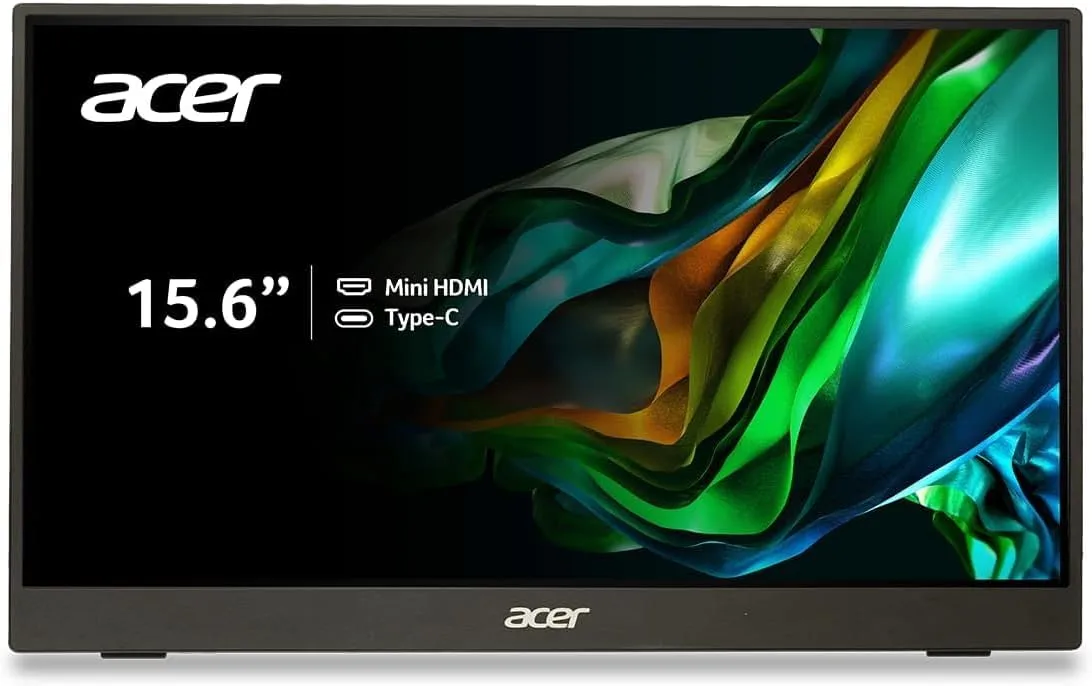
15.6” Full HD IPS with dual USB-C DisplayPort Alt Mode, Mini HDMI fallback, AMD FreeSync, and VESA 75mm mount. Tested against real workflows, not just spec sheets.
The 30-Second Decision
A sharp budget portable that earns its place with conditions.
The PM161Q Bbmiuux delivers a crisp 15.6” IPS with dual USB-C DP Alt Mode plus Mini HDMI fallback. For indoor productivity, it performs well above its price. Conditions: real-world brightness 170–220 nits (below marketed 250), 6-bit panel covers ~65% sRGB. Not for color-critical work or bright environments. Affiliate disclosure.
Who Should, and Should Not Buy This
The most valuable thing we can tell you is when to not buy. See our methodology and buying guide.
Buy It If…
- Budget second screen for documents, email, spreadsheets, video calls indoors
- Laptop has USB-C DP Alt Mode and you want single-cable + HDMI backup
- Presentations needing quick-deploy dual connectivity
- VESA mount for semi-permanent desk setup
- Testing dual-monitor workflows before investing in premium
Skip It If…
- Photo editing, graphic design, any color-critical work 65% sRGB insufficient
- Outdoors, cafes near windows, bright environments-170-220 nits washes out
- Need 60Hz+ for gaming or smooth development workflows
- Laptop lacks USB-C DP Alt Mode and no Mini HDMI cable
- Weight priority-B1bmiuux variant is nearly a pound lighter at 1.52 lbs
| Specification | Value | Specification | Value |
|---|---|---|---|
| Display | 15.6” diagonal | Resolution | 1920×1080, 16:9 |
| Panel | IPS, anti-glare | Brightness | 250 nits (marketed)Real: ~170–220 nits |
| Color | 6-bit, ~65% sRGBNot for color work | Response | 4ms GtG |
| Refresh | 60Hz | Sync | AMD FreeSync |
| HDR | HDR10 signalLimited at this brightness | Ports | 2× USB-C 3.1 (DP Alt, 15W) · Mini HDMI · 3.5mm |
| Speakers | 2× 1W | Weight | 2.45 lbs / 1.11 kg3.85 lbs w/ accessories |
| Dimensions | 355×221×10.2 mm | VESA | 75×75mm |
| Power | 10W typical | Model | UM.ZP1AA.B01 |
All Variants Compared
Confusingly similar names, meaningful differences. Comparison hub.
PM161Q Bbmiuux — Original
| Spec | Value |
|---|---|
| Status | Original — widely available |
| Display | 15.6” FHD IPS, 250 nits (marketed) |
| Sync | AMD FreeSync |
| Ports | 2× USB-C (DP Alt) + Mini HDMI + Audio |
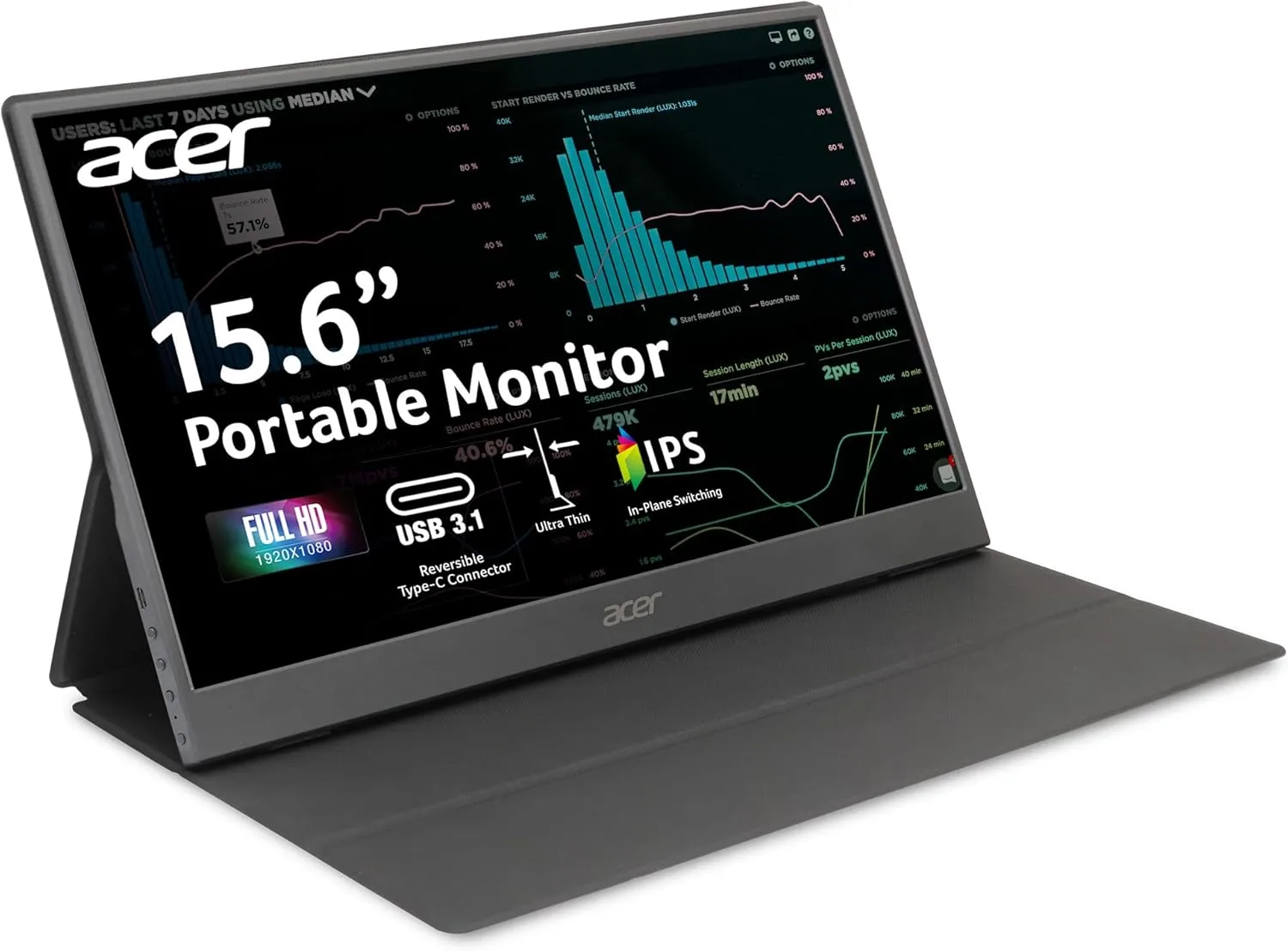
PM161Q B1bmiuux — Current Gen
| Spec | Value |
|---|---|
| Status | Current generation |
| Sync | Adaptive-Sync |
| Ports | 2× USB-C (DP Alt) + Full HDMI 1.4 + Audio |
PM161Q Cbmiuux — Newer
| Spec | Value |
|---|---|
| Status | Newer — limited data |
| Display | 15.6” FHD IPS (unverified) |
| Ports | USB-C + HDMI (unverified) |
Text Clarity
141 PPI. Sharp for docs and code.
Brightness
170–220 nits. OK indoors, washes near windows.
Color Accuracy
6-bit, ~65% sRGB. See glossary.
Battery Impact
10W. 1–1.5h less on 60Wh.
Build Quality
Slim 0.4”. 2.45 lbs. B1 at 1.52.
Connectivity
Dual USB-C DP Alt + Mini HDMI. See docking stations.
Brightness Simulator
Click a level to see impact
USB-C (DP Alt)
Single-cable video + power.
2 PortsMini HDMI
Fallback. Needs USB power.
1 Port3.5mm Audio
Headphone output.
1 PortHow Your Signal Reaches the Screen
Most "USB-C not working" issues happen because users don't understand the signal chain. Click each node to learn what can go wrong. See glossary for terms.
GPU Output
DP Alt Mode
Video-Rated
Display
Step 1: GPU Output
Your laptop's GPU generates the DisplayPort signal. Not all USB-C ports connect to the GPU — some are charge-only. Check your laptop's specs for "DP Alt Mode" or "Thunderbolt" on the specific port you plan to use. If unsure, use the compatibility checker below.Step 2: USB-C DP Alt Mode
The USB-C port must support DisplayPort Alternate Mode. This routes the GPU's DisplayPort signal through the USB-C connector. Power (up to 15W) and video travel on the same cable. Failure point: 40%+ of USB-C ports are charge/data only — no video capability.Step 3: Cable Quality
The cable must be rated for data + video transfer. Charge-only cables physically look identical but lack the internal wiring for video. Failure point: Cheap cables cause flickering, signal drops, or no connection. Use the cable included with the PM161Q or a certified USB-C 3.1 cable.Step 4: PM161Q Receives Signal
The PM161Q's USB-C controller accepts the DP Alt Mode signal and renders it on the IPS panel. Both USB-C ports are interchangeable. Fallback: If USB-C fails, use Mini HDMI with separate USB power via the other port. This is the PM161Q's key advantage vs competitors.HDMI Out
Type C cable
+ USB Power
HDMI path requires separate USB power source (wall adapter or docking station)
Misconceptions
Six beliefs that cost buyers money or cause setup failures. Click each card to see the data-backed reality.
"Any USB-C cable works for video"
Click to revealMost USB-C cables are charge-only
USB-C cables look identical but differ internally. Charge-only cables have no video wiring. You need a USB 3.1 Gen 1+ cable rated for DisplayPort Alt Mode. The cable included with the PM161Q works — cheap replacements often don't.
"250 nits is fine indoors"
Click to revealMarketed vs. measured differ by 30 nits
Acer rates it at 250 nits but real-world measurements land at 170–220 nits. Near a window with ambient light above 300 lux, the screen washes out noticeably. Works well in dim offices — not in cafes or bright rooms.
"HDR10 means real HDR"
Click to revealHDR10 here is signal support only
True HDR requires 400+ nits and 8-bit+ color depth. The PM161Q tops at ~220 nits with a 6-bit panel. It accepts the HDR10 signal but tone-maps it to SDR output. The HDR badge is technically accurate — practically misleading.
"Mini HDMI = Micro HDMI"
Click to revealDifferent physical connectors entirely
Mini HDMI (Type C) and Micro HDMI (Type D) are physically incompatible — you cannot force one into the other. The PM161Q uses Mini HDMI. Buying the wrong cable means no connection. Check the label before purchasing.
"FreeSync makes it good for gaming"
Click to revealFreeSync only eliminates tearing at 60Hz
FreeSync reduces screen tearing when frame rate fluctuates. It does not increase the 60Hz cap. Competitive gaming needs 144Hz+. This monitor is a productivity tool with a tearing-reduction bonus — not a gaming display.
"Heavier = better built"
Click to revealThe B1 is lighter and equally well built
The Bbmiuux weighs 2.45 lbs. The B1bmiuux weighs 1.52 lbs — nearly a pound lighter — with comparable build quality, a full HDMI port, and Adaptive-Sync. Weight here reflects an older chassis design, not superior construction.
Compatibility Checker
3 questions
Competitive Landscape
Three direct competitors in the same portable monitor class. Each has a different strength. Here is where the PM161Q wins, loses, and ties — so you can make the right call. Full breakdowns at our comparison hub.
PM161Q Bbmiuux vs Lenovo ThinkVision M15
The ThinkVision M15 is the premium alternative — 1.76 lbs, a slimmer chassis, and a brighter 300-nit panel that holds up better near windows. It is USB-C only with no HDMI fallback. The PM161Q counters with Mini HDMI, making it compatible with older laptops, docking stations, and HDMI-only sources the M15 simply cannot connect to.
PM161Q wins: connectivity flexibility, HDMI fallback, broader device compatibility.
ThinkVision M15 wins: brightness, build quality, weight.
PM161Q Bbmiuux vs MSI Pro MP161 E2
The MSI Pro MP161 E2 is the closest direct competitor — same screen size, same resolution, same connectivity class. The key differentiator is the MSI includes a protective cover that doubles as a stand, giving it better out-of-box usability. Both panels are 60Hz IPS with similar brightness. The PM161Q and MSI are neck-and-neck on specs — the decision comes down to which is available at the better price when you check.
PM161Q wins: often lower street price, VESA 75mm mount.
MSI MP161 E2 wins: built-in cover/stand, slightly more refined build.
PM161Q Bbmiuux vs Lenovo L15
The Lenovo L15 is the lightweight option at ~1.7 lbs — noticeably lighter than the PM161Q's 2.45 lbs. It runs USB-C only with no HDMI port, which is fine for modern laptops but a hard blocker for anyone using an older device or docking station without USB-C DP Alt Mode output. The PM161Q's Mini HDMI port is its decisive advantage here.
PM161Q wins: Mini HDMI for older laptops and docks, VESA mount support.
Lenovo L15 wins: weight, portability for daily carry.
"Not detected via USB-C"
Cause: Your laptop’s USB-C port does not support DP Alt Mode. This is the most common compatibility gap — charging-only USB-C ports carry no video signal regardless of cable quality.
Fix: Switch to Mini HDMI for video + a second USB-C cable for 15W power. Alternatively, a DisplayLink dock bypasses DP Alt Mode entirely via USB software rendering — useful if your laptop has no HDMI out either.
Verify first: Check your laptop spec sheet for “DP Alt Mode” or “Thunderbolt” on that specific port. Not all USB-C ports on the same laptop are equal.
Fixable"Too dim for my environment"
Cause: The PM161Q peaks at 170–220 nits in real-world use. That is adequate for dim offices and indoor use at night, but it washes out noticeably in daylight or near windows.
Workaround: Set OSD brightness to 100%, reduce ambient light exposure, and angle the screen away from direct light sources. This buys usability in most indoor scenarios.
Honest note: If your workspace is bright or you regularly work outdoors, this monitor is the wrong choice — not fixable by settings. Look for 300+ nit panels in our portable monitor guide.
Dealbreaker in bright environments"Screen flickering"
Cause: Most flickering on this monitor traces back to the cable — either a non–video-rated USB-C cable, a loose Mini HDMI connection, or an underpowered USB-C port that is dropping voltage under load.
Fix: Replace with a USB-C cable explicitly rated for video (look for “Full-Featured” or “Thunderbolt” certification). For Mini HDMI, ensure the connector seats firmly — the port is snug by design. Flicker that persists after cable swap is rare but may indicate a driver conflict; update your GPU driver and retry.
Fixable"Wrong cable in the box"
Cause: The PM161Q uses Mini HDMI (Type C) — not the standard full-size HDMI most people expect. The included cable connects Mini HDMI to standard HDMI Type A, but users frequently grab a random HDMI cable from their drawer and wonder why it does not fit.
Fix: Use the bundled cable or purchase a dedicated Mini HDMI to HDMI Type A cable. Do not confuse Mini HDMI with Micro HDMI — they are physically different. See our connector glossary if unsure.
Fixable"Black screen after sleep or wake"
Cause: USB-C portable monitors rely on the host laptop to re-negotiate the display handshake after sleep. Some laptops — particularly older AMD and Intel integrated graphics — fail to re-establish the DP Alt Mode session on wake, leaving the monitor black.
Fix: Unplug and replug the USB-C cable to force re-negotiation. If this happens consistently, disable sleep mode for external displays in your OS power settings, or switch to the Mini HDMI connection which handles wake cycles more reliably.
Fixable"Stuck at wrong resolution"
Cause: The monitor targets 1920×1080 but some laptops auto-assign a lower resolution on first connect, especially over HDMI on older graphics drivers.
Fix: On Windows, go to Display Settings → Advanced Display → Display adapter properties and manually set 1920×1080 @ 60Hz. On macOS, hold Option while clicking Scaled in Display preferences to reveal the full resolution list. Update GPU drivers if the target resolution does not appear.
FixableShould You Buy?
Answer 4 questions. Get a personalized recommendation based on your use case and environment. Full framework in our buying guide.
Should I Buy?
4 questions
The Decision Framework
Buy If…
- Reliable indoor second screen at lowest price
- USB-C DP Alt + HDMI backup flexibility
- VESA mount for desk/arm
Skip If…
- Color accuracy matters—65% sRGB
- Bright environments—170–220 nits
- Weight—B1 saves a pound
Consider…
- ThinkVision M15 for premium build
- PM161Q B1 same panel, lighter
- MSI MP161 E2 if overpriced
Acer PM161Q Bbmiuux - Your Verdict
Budget portability champion for indoor productivity. Dual USB-C + Mini HDMI fallback. Conditions apply.
Check Price on AmazonAs an Amazon Associate, ScreenExtendersHub earns from qualifying purchases. Full disclosure.