
MacBook USB-C Dock: Multiscreen Support & Travel-Friendly Extenders
Boost MacBook efficiency on-the-go! Explore multiscreen workflows using a USB-C dock with multiple displays and travel-friendly extenders for ultimate productivity.
Have you ever found yourself juggling multiple windows on your MacBook, wishing there was a way to seamlessly transition between tasks without the constant tab switching? If so, you’re not alone. We know the struggle of trying to make the most of a single screen, especially when we’re on the go. That’s where the magic of a multiscreen workflow comes into play, transforming our productivity game entirely.
Using a USB-C dock with multiple displays, coupled with travel-friendly extenders, offers us the ultimate solution. Combining sleek design and power, this setup allows us to maximize our efficiency without compromising portability. Let us explore this setup in detail to uncover the benefits and steps needed to enhance our MacBook’s capabilities.
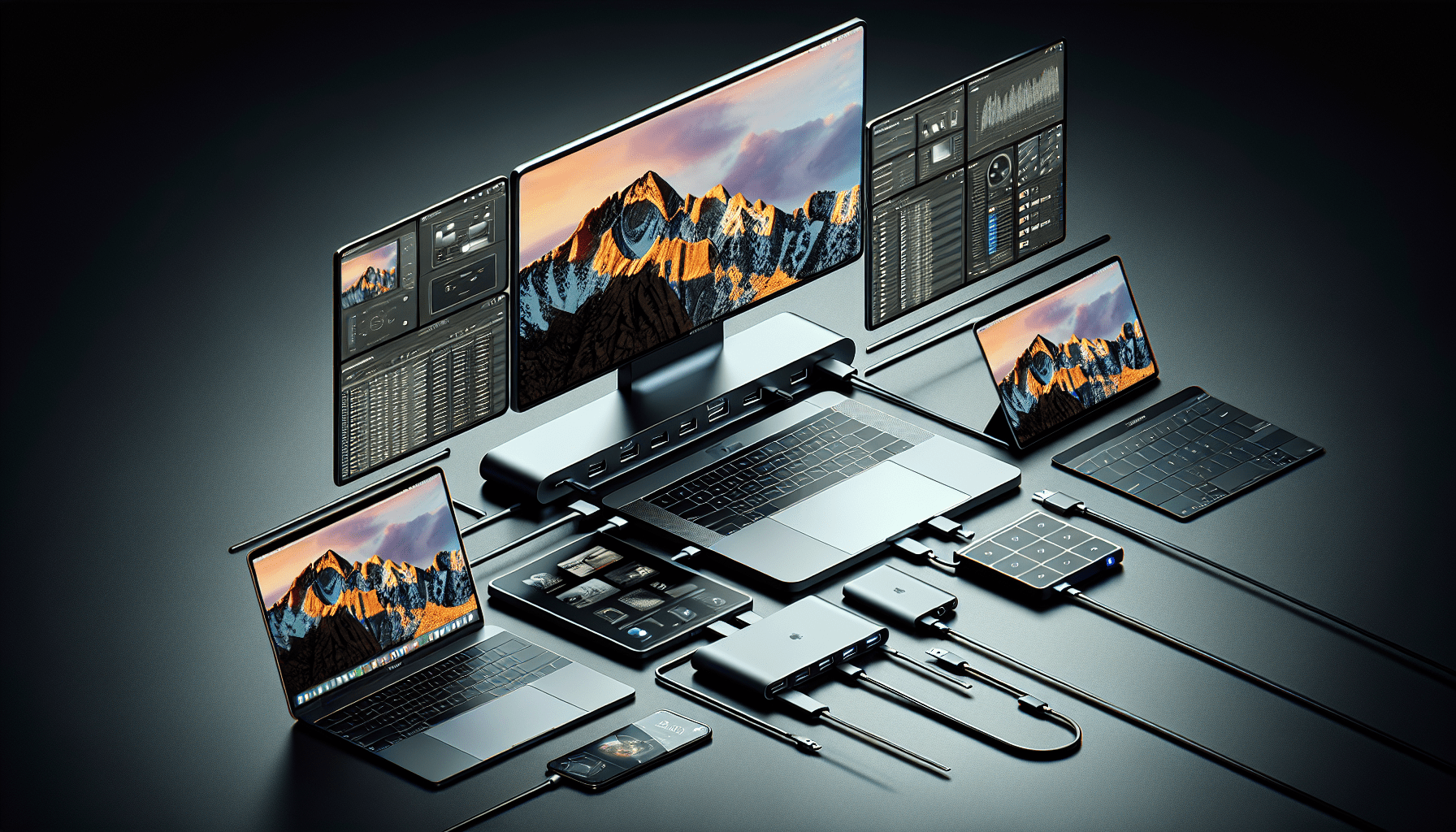
Understanding the MacBook Multiscreen Workflow
We’ve all been there—trying to cram all of our work onto the limited real estate of a single screen. It’s not just a simple nuisance; it can impact our productivity and focus. A multiscreen workflow facilitates multitasking by spreading out our workspace, reducing clutter, and allowing us to focus on multiple tasks without constantly switching between apps.
Benefits of a Multiscreen Workflow
Let’s dive into why we love using multiple screens:
- Increased Productivity: With more screen space, we can keep reference materials on view while handling primary tasks.
- Simplified Task Management: Having different applications open across multiple screens reduces the time we spend on switching tabs.
- Enhanced Focus: By dedicating specific screens to tasks, our attention remains where it needs to be.
- Better Organization: No more messy, overlapping windows; our desktops can breathe.
The Role of USB-C Docks
A USB-C dock acts as the linchpin in our multiscreen setup. It connects our MacBook to several external displays and peripherals, giving us a workstation that mirrors a desktop experience. Let’s take a moment to list out the capabilities of a USB-C dock:
- Multiple Display Outputs: Accommodates HDMI, DisplayPort, and even VGA for those legacy screens lying around.
- Peripheral Connections: Provides USB-A and USB-C ports, Ethernet connections, and audio inputs; ideal for keyboard, mouse, and additional connectivity.
- Charging Capabilities: Pass-through charging allows us to power our MacBook without the need for extra chargers.
- Data Transfer: High-speed data transfers ensure we’re never slowed down.
The versatility is clear—not only does the dock connect multiple displays, but it also transforms our mobile device into a powerful workstation.
Portable Solutions with Travel-Friendly Extenders
Now, while we all relish the benefits of a multiscreen setup in a stationary location, what about when we’re traveling? Enter the travel-friendly extenders. These nifty devices allow us to connect additional screens while retaining the portability we value.
Here’s what makes them stand out:
- Compact Design: Small enough to fit into a carry-on, they don’t add bulk to our travel gear.
- Ease of Use: Quick setup means we’re ready to work in minutes—no fiddling with complex configurations.
- Compatibility: Works seamlessly with our existing hardware, including older monitors.
If we often find ourselves working on the go, these extendable solutions enhance our ability to stay productive no matter where we are.
Setting Up a Multiscreen Workflow
With a clear understanding of the benefits, it’s time to roll up our sleeves and put together our multiscreen workstation. Whether in our home office or a hotel room, setting up additional displays is simpler than we might think.
Choosing the Right USB-C Dock
Before we start connecting, we need to select the right dock. Here are some factors we should consider:
- Number of Ports: Depending on how many displays or peripherals we intend to use, this can be a crucial decision-maker.
- Power Delivery: If our MacBook is a power-guzzler, the dock should support higher wattage for pass-through charging.
- Video Outputs: Confirm compatibility with our displays—HDMI, DisplayPort, VGA, or a mix.
- Portability vs. Performance: While a high-performance dock might be heavier, it ensures smoother multitasking.
Here’s a simple comparison table for choosing our ideal dock:
| Feature | Portable Dock | High-Performance Dock |
|---|---|---|
| Number of Ports | 3-4 USB, 2 video outputs | 6+ USB, 3-4 video outputs |
| Power Delivery | Up to 60W | 85W – 100W |
| Video Compatibility | HDMI, some with DisplayPort | HDMI, DisplayPort, VGA |
| Weight | Light (<200g)< />d> | Heavier (>500g) |
| Price Range | $75 – $150 | $150 – $300 |
Connecting Multiple Displays
Once we’ve secured the right dock, we start connecting our displays. Here’s a step-by-step that simplifies the process:
- Check Compatibility: Ensure our displays can connect with the dock’s output options.
- Connect Displays to Dock: Link each monitor to the dock using the appropriate cables (HDMI, DisplayPort).
- Link Dock to MacBook: Use a USB-C cable to connect the dock to the MacBook. Bonus points if our dock supports power delivery—no extra chargers required!
- Configure Display Settings: Identify and adjust our monitor preferences through macOS’s “Displays” setting.
Trial and error might be warranted as we test different display configurations to determine what best aids our workflow.
Maximizing the Benefits of a Multiple Display Setup
With our multiscreen workspace now a reality, the next step is to ensure we’re making the most out of it. A couple of quick strategies can take our productivity to the next level.
Arranging Windows Effectively
One of the most effective ways to manage windows is to arrange them efficiently using MacOS’s built-in tools like Split View. Additionally, third-party apps such as Magnet or Divvy can fine-tune window placement to suit our needs.
- Primary Monitor: Traditionally, we reserve this for our most important task, perhaps our main browser or writing app.
- Secondary Monitor(s): Keep emails, Slack, chat apps, or reference material visible but not intrusive.
With deliberate layout planning, we can cut down on unnecessary app switching, maintaining our focus.
Utilization of Keyboard Shortcuts
Keyboard shortcuts are our best friends in a multiple monitor setup. Key combinations allow us to seamlessly shift windows between screens, adjust volume, and control playback without scrambling for the mouse.
Here are handy shortcuts we frequently use:
- Move Window to Next Display: Control + Command + Arrow Key
- Split View Activation: Hold down green expand button
- Quick App Switch: Command + Tab
As we grow accustomed to these shortcuts, workflow fluidity becomes second nature.
Optimizing Applications for Multidisplay
Many applications offer advanced features for multi-monitor usage. Tools like Adobe’s suite and Final Cut Pro offer dedicated windows or workspaces for different tasks. In productivity suites like Microsoft Office and Google Workspace, dragging content across screens improves presentation creation, document editing, and data analysis.
Common Challenges and Solutions
As elaborate as multiple monitor setups can be, they’re not without potential hiccups. Let’s address some common challenges and straightforward solutions:
Display Detection Issues
Challenge: Sometimes, external displays may not be automatically detected by MacOS.
Solution: Go to System Preferences, navigate to “Displays,” and click “Detect Displays.”
Resolution Mismatch
Challenge: Differences in resolution between screens can result in annoying distortions.
Solution: To ensure consistency, each monitor’s resolution should be manually set to the same standard in “Displays” within System Preferences.
Dock Compatibility
Challenge: Not all docks are created equal, risking display flickering or power delivery issues.
Solution: Verify compatibility between dock and monitor, updating firmware or modifying settings where possible to resolve issues.
The Future of Portable Multiscreen Solutions
The landscape of computing is evolving rapidly, with multiscreen setups gaining traction beyond traditional workstations. As technology advances, we see innovations catering to the need for productivity without sacrificing mobility.
Progress in Dock Technologies
Developers are working to make docks even more versatile, with wireless docking solutions promising to cut cable dependency. Modular designs with detachable components aim to satisfy both stationary and on-the-road users.
Improvements in Display Portability
From foldable screens to rollable displays, the portability of our workstations is poised for a revolution. As these become mainstream, our multiscreen workflow will face fewer constraints and smoothly integrate with devices such as AR glasses and interactive surfaces.
Integration with Emerging Technologies
Our future workspaces might involve seamless AR/VR integration, Quantum computing interfaces, or even AI-driven workspace optimization. Compatibility with these emerging technologies promises to make multiscreen setups even more intuitive and tailored.
Conclusion
There we have it: the ultimate guide to setting up a seamless MacBook multiscreen workflow. Embracing the multiscreen mentality takes our productivity to new heights, helping us become masters of multitasking. By combining sophisticated USB-C docks with portable display extenders, we find ourselves bridging the gap between powerful in-office setups and travel-ready flexibility. As our technological landscape continues to expand, who knows what innovations lie just over the horizon? However it unfolds, we are ready, devices plugged in, and multiscreens ablaze.

I evaluate docking stations the way they actually get used — against real bandwidth budgets, power-delivery ceilings, and the OS handshakes that quietly cap what a port can do — not spec-sheet promises. Every constraint that can break a multi-display setup is disclosed before any affiliate link.
Docking Station Intelligence
The standards are confusing by design. These three panels decode what manufacturers won’t explain clearly. Applicable to every docking station.
The USB-C Confusion Matrix
The USB-C connector is the single greatest source of buyer confusion in docking stations. The physical plug looks identical whether it carries USB 2.0 at 480 Mbps or Thunderbolt 5 at 120 Gbps — a 250x difference in capability hidden behind the same shape. Manufacturers exploit this by labeling everything "USB-C compatible" without specifying which protocol runs through it. Two docks can look identical on the outside and behave completely differently once you plug them in.
The hierarchy matters because it determines everything: how many monitors your dock can drive, how fast files transfer, whether your laptop charges while docked, and whether you need third-party drivers. Here is the real capability ladder, from slowest to fastest:
The practical takeaway: if your laptop has Thunderbolt 4, buy a Thunderbolt dock. If it only has generic USB-C, verify whether it supports DisplayPort Alt Mode before buying anything with multi-monitor claims. Our buying guide walks through verification steps for every major laptop brand.
Power Delivery: What the Watts Mean
Power Delivery (PD) determines whether your docking station can charge your laptop while you work, or whether you need a separate charger cluttering your desk. The math is simple but rarely explained: your laptop draws a specific wattage under load, and the dock must match or exceed it. If the dock delivers less than your laptop needs, the battery slowly drains even while plugged in — defeating the purpose of a docking station entirely.
Most ultrabooks need 45–65W. Standard business laptops need 65–100W. Gaming and workstation laptops can demand 100–140W or more. The dock’s advertised PD wattage is the maximum it can deliver to your laptop — but this drops if you charge other devices (phones, tablets) through the dock simultaneously. Always leave a 15–20W margin above your laptop’s requirement.
Check your laptop’s original charger wattage — that’s your baseline. Our FAQ covers how to find this for every major brand.
Native Display vs DisplayLink: The Hidden Factor
This is the decision most buyers don’t know they’re making. When a docking station outputs video to your monitors, it uses one of two fundamentally different methods: native (the dock passes your laptop’s GPU signal directly to the monitor) or DisplayLink (the dock compresses video over USB and a software driver renders it). The difference is invisible in marketing materials but profoundly affects your daily experience.
Native output through DisplayPort Alt Mode or Thunderbolt uses your laptop’s actual graphics hardware. There is zero added latency, full DRM support for streaming services, no CPU overhead, and no driver to install. DisplayLink, by contrast, adds 5–15ms of latency (noticeable in video calls and cursor movement), blocks DRM content on connected monitors (Netflix, Disney+ show black screens), consumes 3–8% of your CPU constantly, and requires a driver that Apple’s macOS security updates occasionally break.
DisplayLink exists for one reason: Apple Silicon base chips (M1, M2, M3) can only drive one external display natively. If you need two or more monitors on a base MacBook Air or 13” MacBook Pro, DisplayLink is your only option. For everyone else — Windows users, Mac Pro/Max chip users, Intel/AMD laptops — native is always the better choice.
Native (Alt Mode / Thunderbolt)
DisplayLink (USB compression)
The bottom line: if your laptop supports native multi-display output, always choose a native dock. DisplayLink is a workaround, not an upgrade. See our glossary for detailed definitions.
COMMAND CENTERCOMMAND CENTER
Six tools that decode the confusion manufacturers create. Port protocols, power budgets, display configurations, compatibility, desk planning, and future-proofing. Full buying guide →
Port Protocol DecoderWhat does your connection type actually support? Glossary
Power Delivery CalculatorCan this dock keep your laptop charged?
Display Configuration PlannerCan your dock push enough pixels?
Laptop-to-Dock CompatibilityWill this dock work with YOUR laptop?
Desk Setup ArchitectWhat ports do you actually need?
Select everything you need to connect: