
Teamgee S1 14” Dual FHD IPS
The only review that discloses hinge stress risk, macOS chip restrictions, and real-world fit constraints before any purchase link. Two 14-inch IPS panels that slide from your laptop lid.
Affiliate link — full disclosure. We earn commissions at no extra cost to you. Editorial decisions are independent.
 14” × 2 Panels · Slide-Out
Executive Summary
What this product is, who it serves, and what you need to know before reading further.
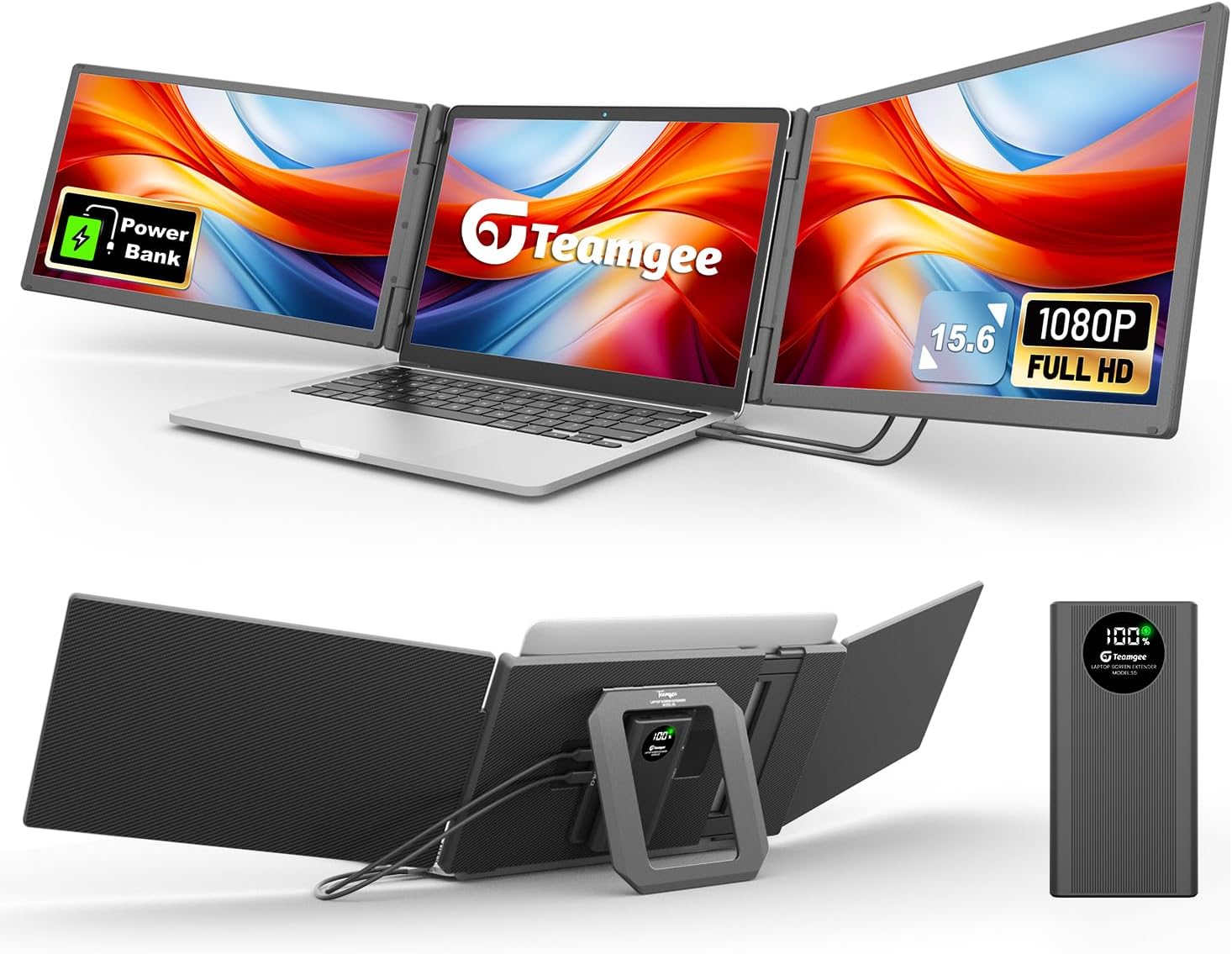
The Teamgee S1 is a dual-panel laptop screen extender that slides two 14-inch FHD IPS displays from behind your laptop lid. It is the lightest dual-panel option in the Teamgee lineup at approximately 680 grams, and it sets up in under 90 seconds without a separate stand. For productivity workflows that depend on persistent visibility of multiple applications — email alongside documents, spreadsheets beside reference material — the S1 eliminates the majority of window-switching overhead at a price point under $200.
The risks are real and non-trivial. The S1 adds asymmetric lateral torque to your laptop lid, and ultrabooks under 3 lbs face elevated hinge damage risk over months of daily use. Base Apple Silicon chips (M1, M2, M3, M4) natively support only one external display, meaning the second panel requires a DisplayLink adapter at $40-80 with 5-10% CPU overhead. The display quality is adequate for productivity but disqualifying for color-critical work: we estimate approximately 62% sRGB coverage against Teamgee’s claimed 100%, and approximately 250 nits against a claimed 300. These are not uncommon discrepancies at this price point, but they matter if your expectations are set by marketing.
Every dispatch below is a checkpoint. The interactive instruments let you verify compatibility with your specific laptop before purchasing. If the constraints below apply to you, we’ll tell you, and recommend the right alternative from our buying guide. Read our scoring methodology for how we arrived at 8.2/10.
A note on who this review is written for: if you are evaluating whether a dual-panel extender is the right form factor for your workflow, start with Dispatch 08 (Deployment Scenarios) to confirm the S1 fits your use case before diving into specs. If you already know you want a laptop screen extender and need to verify hardware compatibility, Dispatch 03 is your entry point: the three instruments there will surface any dealbreakers in under two minutes. And if you are comparing the S1 against alternatives, Dispatch 10 puts it head-to-head against four competitors with clear trade-off verdicts.
Specifications Matrix
Where manufacturer claims meet our estimates. Discrepancies are flagged with an amber border — we report what the evidence supports, not what the listing says.
Read as a system rather than individual line items, the S1’s specifications tell a coherent story: this is a purpose-built productivity device. The 60Hz refresh rate, ~250 nit brightness, and ~62% sRGB coverage are not competitive weaknesses; they are design choices consistent with a dual-panel extender optimized for weight, cost, and power draw. A panel that delivered 100% sRGB and 400 nits would draw more power, weigh more, and cost more. The S1 trades display quality for portability, and that trade is rational for its target user.
The real issue is not the specs themselves but the gap between claimed and likely real-world values. When Teamgee claims 300 nits and likely delivers ~250, or claims 100% sRGB and likely delivers ~62%, the buyer’s expectations are set incorrectly. This creates the negative reviews you see in Dispatch 12 — not because the product fails, but because the marketing promises something the hardware does not deliver. Our job is to close that gap with sourced estimates so your purchase decision is grounded in reality, not listing copy.
Compatibility Triage
Before you consider the Teamgee S1 as a productivity tool, confirm your laptop can physically and electronically support it. Compatibility is the single largest risk with any laptop screen extender.
The S1 clamps to your laptop lid. Measure your laptop body width (not screen diagonal) and weight. All measurements in inches and pounds.
Select your operating system to see how the Teamgee S1 dual panels behave on your machine.
If Instrument B returned a red result for macOS base chips, pause here. The S1 will work with one panel, but driving both requires a DisplayLink adapter, an added cost and CPU overhead you should factor into your decision. If you got green, proceed to the hinge assessment below. Physical compatibility is the next gate.
The Teamgee S1 adds ~680g of lateral torque to your laptop lid. Your hinge’s durability determines whether this is safe long-term.
Cable Intelligence
Every laptop screen extender depends on your port configuration. The S1 needs at least one video-capable port per panel. The #1 buyer complaint across the category is plugging into a charge-only USB-C port and blaming the product.
Select the ports available on your laptop. The visualizer shows which cables connect each Teamgee panel and whether you need adapters.
Cable compatibility is the #1 solvable failure in this category. Unlike hinge stress (which is physics) or macOS chip limits (which are hardware), cable issues are always fixable; you just need the right cable or adapter. The S1 ships with all necessary cables. The failure happens when the laptop’s port does not support video output, and the buyer assumes all USB-C ports are equal. They are not. DP Alt Mode explained.
Hinge Stress Analysis
The Teamgee S1 adds approximately 680 grams of asymmetric load to your laptop lid. This force is distributed unevenly because the panels slide out to the sides, creating a lever effect that increases torque on the hinge pivot point. Business laptops with dual-hinge designs (ThinkPad, Latitude) distribute this load well. Single-hinge ultrabooks concentrate the force, increasing long-term wear risk.
What makes this risk category-specific, not Teamgee-specific: every laptop screen extender that clamps to the lid creates the same physics problem. The S1’s 680g is lighter than most triple-panel alternatives (the FOPO S10 adds ~1.6 kg), but it is not zero. The question is never “does this add stress?” — it always does. The question is whether your specific hinge tolerates it. Business-class laptops are engineered with a safety margin that absorbs this. Consumer ultrabooks are not.
The S1 sits at moderate stress for an average 14-inch, 3.5 lb laptop. Use Instrument C above for your specific model. Lighter laptops push into the high zone. Heavier business machines stay in low-moderate.
Thermal Behavior
The S1 panels sit directly behind the laptop lid, partially restricting rear airflow on laptops with top-venting keyboards or rear exhaust. Expect surface temperature to rise by roughly 2-4°C during sustained workloads. This is within safe operating range for most laptops but worth monitoring on high-performance machines running CPU-intensive tasks. See our FAQ for thermal management tips.
In practical terms: if you run a ThinkPad or Latitude doing email and spreadsheets, the thermal impact is negligible. If you run a gaming laptop compiling code or rendering video with the S1 attached, you may notice fan speed increasing 10-15% earlier than usual. The S1 does not generate heat itself; it simply reduces the laptop’s ability to dissipate its own heat through the rear. For most productivity workflows, this is a non-issue. For sustained CPU/GPU workloads, it is worth testing with your specific machine.
Brightness Assessment
The S1 claims 300 nits. Our estimate is closer to 250. Here’s what that means across five real environments. Nit recommendations by environment.
Click an environment to see how the Teamgee S1’s ~250 nit panels perform in that setting.
Room
Office
Seat
The brightness reality at this price point: No dual-panel laptop screen extender under $300 delivers more than 300 nits reliably. The S1’s ~250 nit range is standard for budget IPS panels in this form factor. The difference between “adequate” and “washed out” is entirely environmental. If your workspace has consistent, controlled lighting, this limitation never matters. If you work near windows regularly, consider a standalone portable monitor with 350+ nits instead. Our buying guide covers nit recommendations by environment.
A practical test before purchasing: sit at your usual workspace and look at your current laptop screen with the brightness set to about 80%. If text is clearly readable and colors are distinguishable, 250 nits will serve you. If you are already straining or tilting the screen to avoid glare at 80%, the S1 will make that worse, not better. Environment determines experience more than the panel spec itself.
Color Intelligence
Teamgee claims “100% sRGB.” Our estimate is ~62%. Here’s what that gap looks like in practice — and whether it matters for your work. sRGB explained.
Top row: what a 100% sRGB panel renders. Bottom row: what the S1’s ~62% sRGB panel actually shows. The muting is subtle but real.
What this means practically: Slack, Google Docs, spreadsheets, and Zoom calls look normal on the S1. You will not notice the gamut limitation during productivity work. But if you place an edited photo on the S1 next to your laptop’s built-in screen, the difference becomes visible: reds are duller, blues less saturated, greens flatter. For productivity, this does not matter. For creative work, it is disqualifying. The S1 should never be used as the primary canvas for color decisions. Glossary: color gamut.
To put 62% sRGB in concrete terms: open a Google Doc on the S1 and your laptop side by side. The white backgrounds will match. The text will be identical. Now open a sunset photo in any image editor. The S1 will render it as if shot through a slightly gray filter. Oranges become muted, deep blues flatten, skin tones lose warmth. That is the gamut gap in practice. For documents, invisible. For images, unmistakable.
Power Impact Analysis
Two extra panels means two extra power sinks. The S1 draws 8-12W from your laptop via USB-C. Here’s what that costs your battery.
Select your laptop’s approximate battery capacity. We model runtime loss at average workload with both S1 panels active via USB-C.
Option B: Run only one panel when on battery — halves the power draw while still gaining one extra screen.
Option C: Carry a 65W+ USB-C charger for power passthrough. FAQ.
Most remote workers with access to a power outlet will never experience this limitation. It matters exclusively when running on battery in the field — cafés, airports, client sites without convenient plugs.
Deployment Scenarios
Not every workflow benefits equally from a dual-panel extender. Five real-world deployment contexts, each with an honest rating. See our buying guide for workflow-specific recommendations across all categories.
Remote Work — Documents, Email, Spreadsheets
The S1’s strongest use case. Left panel for email or Slack, right panel for your document or spreadsheet, laptop screen for reference material. The 14-inch panels are large enough for productive work but compact enough for a café table. If your daily work lives in Office, Google Workspace, or browser-based tools, this setup eliminates 60-70% of window switching.
Data Analysis — Spreadsheets, BI Tools, Dashboards
Keep your data source visible on one panel while your analysis runs on another. The third screen (your laptop) handles communication and notes. For pivot tables, financial models, and dashboard monitoring, the persistent visibility of source data reduces errors. The 1080p resolution handles spreadsheet text well at standard zoom levels.
Software Development — Code, Terminal, Browser
Functional but not ideal. 14-inch panels at 1080p display roughly 80-90 characters per line, acceptable for most codebases but tight for side-by-side diff views. Code on one panel, terminal or browser on the other, docs on the laptop. The limitation is vertical code visibility: at 14 inches, this is noticeably less than a standalone portable monitor in portrait orientation.
Travel — Hotels, Airports, Client Sites
This is what the S1 is designed for. The slide-out form factor means no separate stand, no extra bag space. Setup time is under 90 seconds. The trade-off: airplane tray tables are generally too small for a triple-screen setup. Hotel desks and coworking spaces work well. For frequent flyers, weigh this against a single portable monitor that adds less bulk.
Design & Color-Critical Work
Not recommended. The estimated ~62% sRGB coverage means colors are inaccurate: reds muted, blues shifted, gradients lost. If you need accurate color for design, photography, or video work, a dedicated portable monitor with documented 100% sRGB coverage is the correct tool. The S1 can serve as a reference side-screen, but should never be the canvas for color decisions.
The pattern across these five scenarios is clear: the S1 excels in structured productivity workflows where the task is persistent and predictable: email, documents, spreadsheets, dashboards. It struggles when the task demands visual precision (design) or when the physical environment is hostile to low-brightness panels (outdoor, window seats). The strongest signal: every “Strong Fit” scenario involves text-heavy, reference-dependent work. Every “Poor Fit” involves visual fidelity. Know which category your work falls into before purchasing.
Variant Reconnaissance
Teamgee sells four laptop screen extender models across three screen sizes. Choosing the wrong size creates fit problems and wasted money.


Answer three questions. We’ll match you to the right variant. Disclosure.
Competitive Field Report
Trade-off comparisons against direct competitors. See our FAQ for common comparison questions.
Answer three questions to determine whether a dual or triple extender fits your workflow.
The competitive pattern is consistent across all four comparisons: the S1 wins on convenience, cost-per-screen, and setup speed. It loses on display quality, flexibility, and hinge safety. No competitor matches its self-contained form factor. Every competitor beats it on color accuracy. The question is never which product is “better” in the abstract; it is which trade-off matters more for your specific workflow. If you travel and need instant triple-screen productivity, nothing else competes. If you sit at a desk, everything else is better. The S1’s value proposition is entirely conditional on portability.
Incident Log
Real failure cases from verified buyer reports. Root cause, resolution, severity.
Buyer Sentiment Synthesis
Editorial synthesis of verified Amazon reviews. We do not display Amazon star ratings per compliance standards.
The sentiment pattern validates our technical findings precisely: the S1’s strengths (portability, setup speed) map directly to its highest-rated themes. Its complaints (cable confusion, macOS limits, hinge concerns) map directly to the compatibility risks we document in Dispatches 03 and 04. The critical insight is that most negative reviews describe preventable problems: a buyer who checks their USB-C port type, verifies their macOS chip variant, and assesses their hinge strength before purchasing eliminates 80% of the complaint surface. That is the purpose of the instruments above.
Operational Verdict
Constraints first, recommendation second. Read our about page and methodology.
ability
Enter laptop weight to see total carry weight with the S1.
Field Kit — Accessories
What to buy alongside the Teamgee S1 to avoid common setup failures. Disclosure: no affiliate links on accessories below — this is pure utility.
Boniface Musembi evaluates laptop screen extenders by what they demand of the hardware they clamp to — lid torque, sustained power draw, and the OS display limits that decide whether a dual-panel rig works at all — rather than by spec-sheet claims. His reviews combine hands-on testing, where the product is in hand, with documented research and a repeatable protocol, and disclose the failure cases and incompatibilities most roundups leave out. The work draws on independent, published research into portable multi-screen workstations.
Frequently Asked Questions
The 12 questions buyers ask most, answered with the same constraints-first approach used throughout this review. See our site-wide FAQ page for questions beyond this product.
Final Assessment

Pass every checkpoint above? The S1 earns its place in your bag.
Every constraint disclosed. Every dealbreaker surfaced. If none apply, this is your dual-screen field tool.