
Dell WD19TB Thunderbolt Docking Station Review
Tame desk chaos with the Dell WD19TB Dock. This sleek lifesaver offers ports a-plenty and no-fuss setup. Perfect for power users, with a fashionable twist!
Have you ever been tangled in the mess of cables on your desk, unsure which one leads to what device, or feeling the pang of frustration because you can’t find a port for your latest gadget? I know the feeling all too well. It’s like being in your own episode of gadget chaos. But then, I stumbled upon the Dell WD19TB Thunderbolt Docking Station with its sleek power adapter – my potential escape from the tech carnage looming over my workspace. I must say, it was like finding a life raft in a sea of wires.

Design and Portability
Streamlined Aesthetic Appeal
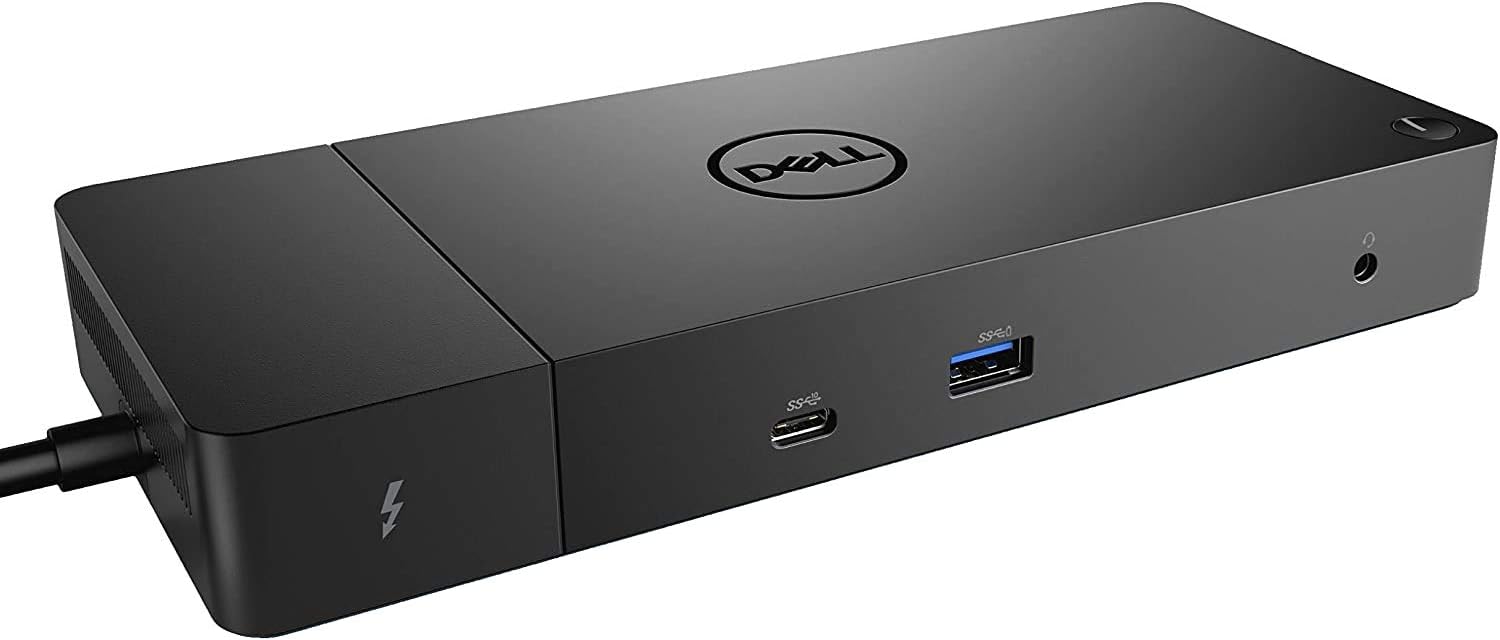
The first thing I noticed when unboxing the Dell WD19TB was its design. It’s like the supermodel of docking stations: slim, sleek, and ready to mingle with the other devices on my desk. Measuring 8.1 inches in width, 3.5 in depth, and standing at a proud 1.1 inches high, it’s quite the space-saver. Its weight, a mere 20.63 ounces, makes it incredibly portable if you’re one of those people who moves from office to home and vice versa. But in all honesty, I’m more of a “let’s keep it in one spot so I never have to organize again” kind of person.
Built for Travel
While the docking station does its best to masquerade as a slim desktop accessory, its portability makes it an excellent travel companion. I can easily slip it into my backpack, though you might want to think twice before stowing it next to a leaky water bottle—speaking from experience here.

Dell WD19TB Thunderbolt Docking Station with 180W AC Power Adapter (130W Power Delivery)
Connectivity Options
A Pleasant Surprise: Ports Galore
Okay, so I might sound like one of those infomercial people, but the range of connectivity options here is a life-changer. Exploring the variety of ports gave me the feeling of unlocking new achievements in a video game. Here’s a breakdown that might just make you giddy with cable joy:
| Port Type | Number | Purpose/Use |
|---|---|---|
| USB-C 3.1 (Gen 2) | 1x | Fast and versatile power/data exchange |
| USB-A 3.1 (Gen 1 with power Share) | 1x | Connect legacy devices and share power |
| Combo Audio/Headset | 1x | Listen or detect an impending family drama |
| Audio Out | 1x | External speaker connection |
| DisplayPort 1.4 | 2x | Dual monitors for when one screen just won’t do |
| HDMI 2.0B | 1x | Plug in your TV or another screen |
| USB-C Multifunction DisplayPort | 1x | All-in-one video transfer |
| USB-A 3.1 (Gen 1) | 2x | Additional peripherals—because why not? |
| Gigabit Ethernet RJ45 | 1x | Stable wired internet, perfect for work demons |
| Thunderbolt 3 | 1x | High-speed transfers, the hero we need |
The Joy of Simplicity
I didn’t have to fumble and mumble trying to connect everything. With everything laid out beautifully across the dock, I could reduce my connections to a single plug-and-play operation. It felt like finding out your jeans have a hidden pocket – efficiency with a hint of magic.

Power and Performance
Charging Like a Champ
If there’s a holy grail of docking stations, the Dell WD19TB’s power delivery might just be it. Equipped with a robust 180W AC power adapter, it delivers up to 130W of power to compatible devices. This means that even power-hungry laptops will not drain me (or themselves) of patience and battery life. Simultaneous charging and powering multiple devices seems to be this dock’s party trick, except instead of magic, it’s burly tech muscles flexing.
Reliable and Consistent
From streaming my favorite shows while “working” (you know what I mean, we’ve all been there) to handling what feels like a million files during a typical workday, the performance was smooth as butter. No lagging, no awkward pauses, just work-slash-play rhythm uninterrupted.
Compatibility and Setup
Playing Nice with Others
The beauty of the Dell WD19TB is its ability to get along with several devices, much like a nerdy diplomat at a tech summit. Although it’s advised to double-check the compatibility specification, especially with non-Dell products, I found it rather accommodating. PC, Mac, or even your outdated gadget collection like mine—most devices seemed to work just fine with this docking station.
Setup So Easy, My Cat Could Do It
Setting this up was as straightforward as things get in the tech world. I dare say, even a person with minimal tech knowledge would thrive. I simply plugged it as advised, and let it do its thing. And before I knew it, I had transformed my desk into a multi-functional workspace without the sweat or swearing.
Should You Buy It?
Weighing the Pros and Cons
Now, you might think this docking station sounds way too good to be true. That’s because it might just be, for most people at least. The benefits are numerous: a multitude of ports, significant power delivery, excellent compatibility, and ease of use. But there are always two sides to a digital coin.
Pros:
- Versatile ports for connecting multiple devices
- Remarkable power delivery
- Compact and sleek design
- Simple setup process
- Multi-device compatibility
Cons:
- Premium price tag
- May require compatibility checking for non-Dell devices
- It may spoil you with convenience (which isn’t really a bad thing, is it?)
Conclusion
Would I recommend the Dell WD19TB Thunderbolt Docking Station with 180W AC Power Adapter? Absolutely, with a sprinkle of caution. For power users bogged down with cables and devices, it’s a game-changer. For someone who just occasionally connects a mouse or a printer, the price might not justify the luxury. Either way, this little tech wonder certainly earns its keep with functionality, elegance, and oh-so-much convenience. Here’s to hoping tech chaos finds its peace—or at the very least, stays neatly on the desk.
Disclosure: As an Amazon Associate, I earn from qualifying purchases.
Docking Station Intelligence
The standards are confusing by design. These three panels decode what manufacturers won’t explain clearly. Applicable to every docking station.
The USB-C Confusion Matrix
The USB-C connector is the single greatest source of buyer confusion in docking stations. The physical plug looks identical whether it carries USB 2.0 at 480 Mbps or Thunderbolt 5 at 120 Gbps — a 250x difference in capability hidden behind the same shape. Manufacturers exploit this by labeling everything "USB-C compatible" without specifying which protocol runs through it. Two docks can look identical on the outside and behave completely differently once you plug them in.
The hierarchy matters because it determines everything: how many monitors your dock can drive, how fast files transfer, whether your laptop charges while docked, and whether you need third-party drivers. Here is the real capability ladder, from slowest to fastest:
The practical takeaway: if your laptop has Thunderbolt 4, buy a Thunderbolt dock. If it only has generic USB-C, verify whether it supports DisplayPort Alt Mode before buying anything with multi-monitor claims. Our buying guide walks through verification steps for every major laptop brand.
Power Delivery: What the Watts Mean
Power Delivery (PD) determines whether your docking station can charge your laptop while you work, or whether you need a separate charger cluttering your desk. The math is simple but rarely explained: your laptop draws a specific wattage under load, and the dock must match or exceed it. If the dock delivers less than your laptop needs, the battery slowly drains even while plugged in — defeating the purpose of a docking station entirely.
Most ultrabooks need 45–65W. Standard business laptops need 65–100W. Gaming and workstation laptops can demand 100–140W or more. The dock’s advertised PD wattage is the maximum it can deliver to your laptop — but this drops if you charge other devices (phones, tablets) through the dock simultaneously. Always leave a 15–20W margin above your laptop’s requirement.
Check your laptop’s original charger wattage — that’s your baseline. Our FAQ covers how to find this for every major brand.
Native Display vs DisplayLink: The Hidden Factor
This is the decision most buyers don’t know they’re making. When a docking station outputs video to your monitors, it uses one of two fundamentally different methods: native (the dock passes your laptop’s GPU signal directly to the monitor) or DisplayLink (the dock compresses video over USB and a software driver renders it). The difference is invisible in marketing materials but profoundly affects your daily experience.
Native output through DisplayPort Alt Mode or Thunderbolt uses your laptop’s actual graphics hardware. There is zero added latency, full DRM support for streaming services, no CPU overhead, and no driver to install. DisplayLink, by contrast, adds 5–15ms of latency (noticeable in video calls and cursor movement), blocks DRM content on connected monitors (Netflix, Disney+ show black screens), consumes 3–8% of your CPU constantly, and requires a driver that Apple’s macOS security updates occasionally break.
DisplayLink exists for one reason: Apple Silicon base chips (M1, M2, M3) can only drive one external display natively. If you need two or more monitors on a base MacBook Air or 13” MacBook Pro, DisplayLink is your only option. For everyone else — Windows users, Mac Pro/Max chip users, Intel/AMD laptops — native is always the better choice.
Native (Alt Mode / Thunderbolt)
DisplayLink (USB compression)
The bottom line: if your laptop supports native multi-display output, always choose a native dock. DisplayLink is a workaround, not an upgrade. See our glossary for detailed definitions.
COMMAND CENTERCOMMAND CENTER
Six tools that decode the confusion manufacturers create. Port protocols, power budgets, display configurations, compatibility, desk planning, and future-proofing. Full buying guide →
Port Protocol DecoderWhat does your connection type actually support? Glossary
Power Delivery CalculatorCan this dock keep your laptop charged?
Display Configuration PlannerCan your dock push enough pixels?
Laptop-to-Dock CompatibilityWill this dock work with YOUR laptop?
Desk Setup ArchitectWhat ports do you actually need?
Select everything you need to connect: