
j5create USB C 4K Triple Display Hub review
Explore the j5create USB C 4K Triple Display Hub! Tangle-free, 3-screen magic for your laptop, perfect for tech lovers seeking streamlined connectivity joy.
Have you ever found yourself tangled in a web of cords and connectors, each one promising to turn your humble laptop into a command center, but ending up feeling more like a mission to the moon? If so, perhaps what has been missing from your tech arsenal is the j5create USB C 4K Triple Display Hub. Imagine a device that’s compact yet loaded with everything you wish your laptop had but was just too small to pack in. Buckle up, folks; we’re about to spend some serious time with this little marvel and see what magic it can work.
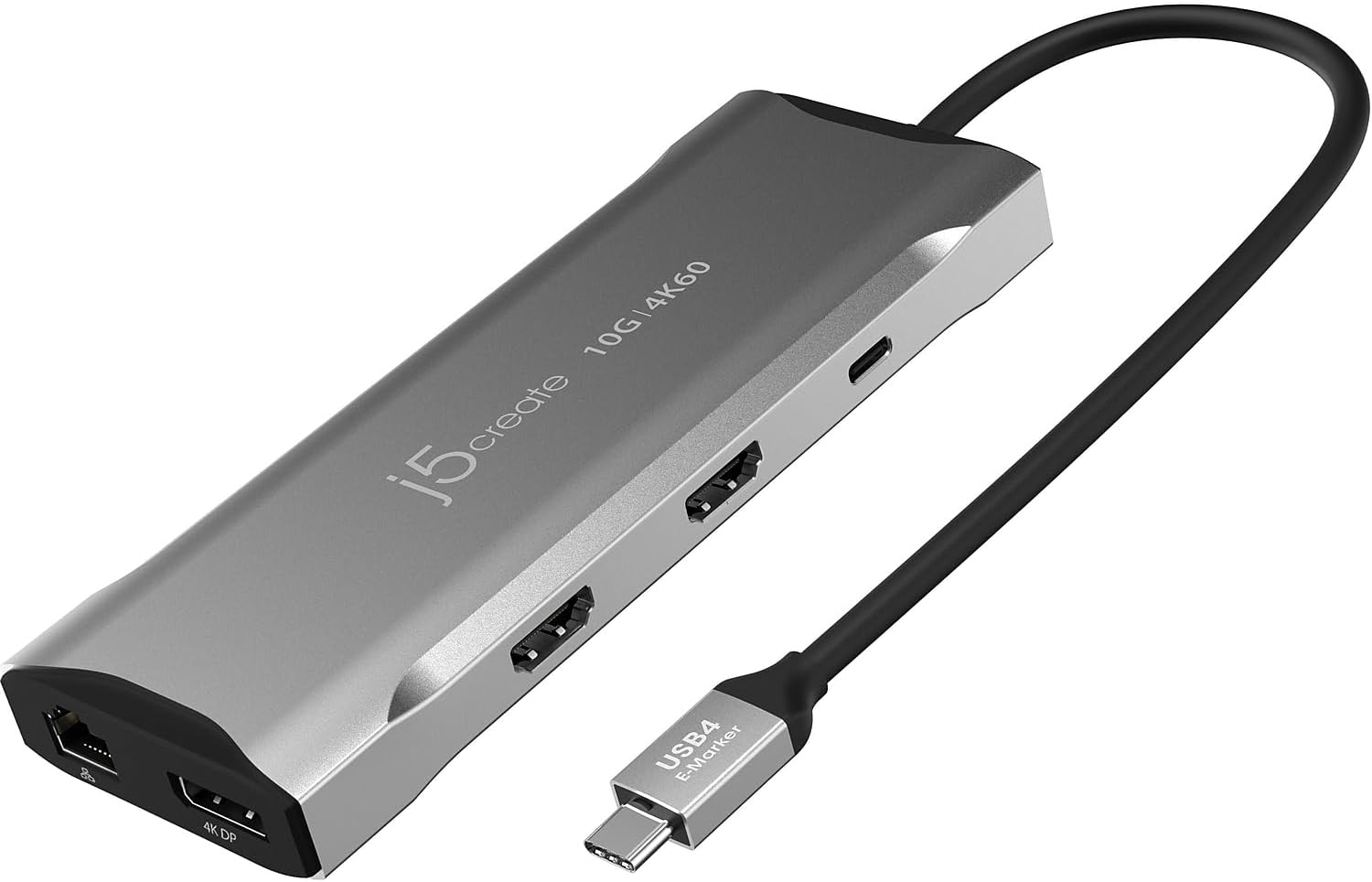

A World of Displays: HDMI, DisplayPort, and More
Supporting Up to Three 4K Displays
One of the most striking features of the j5create USB C 4K Triple Display Hub is its ability to support a dual or even triple 4K workstation. When connected to a compatible USB-C laptop with DisplayPort 1.4 and Multi-Stream Transport (MST), the hub offers two HDMI outputs and a DisplayPort output. Whether you’re looking to mirror your screen like a high-tech DJ at an upscale night club or extend it for a sprawling digital masterpiece, this hub has got you covered.
Display Options for Different Needs
It’s not just about the number of screens; it’s how you use them. The hub allows one display to extend up to 3840 x 2160 at 60Hz. If you’re aspiring to conquer the world of esports, switching to a higher refresh rate of 2560 x 1440 at 144Hz via HDMI, or 1920 x 1080 at 240Hz via the DP Port, is where the action gets frantic—and when the crowd goes wild. If you’re using a Windows OS, your gaming experience won’t just be smooth; it’ll be an adrenaline-pumped joy ride.
Display Output Flexibility
| Feature | Capabilities |
|---|---|
| Max Resolution | 3840 x 2160 @ 60Hz |
| Enhanced Refresh Rate over HDMI | 2560 x 1440 @ 144Hz |
| Enhanced Refresh Rate over DP | 1920 x 1080 @ 240Hz |
| Number of Outputs | 3 (2 HDMI, 1 DisplayPort) |
| Supported with | USB-C laptops with DisplayPort 1.4 and MST |

j5create USB C 4K Triple Display Hub - 4K HDMI x2, 4K DP, 2 USB-A and USB-C 10Gbps, PD 100W, Ethernet, SD 4.0 Card Reader | for XPS, Surface Pro (JCD397)
Connectivity: A Hub that Defines Versatility
USB SuperSpeed Ports
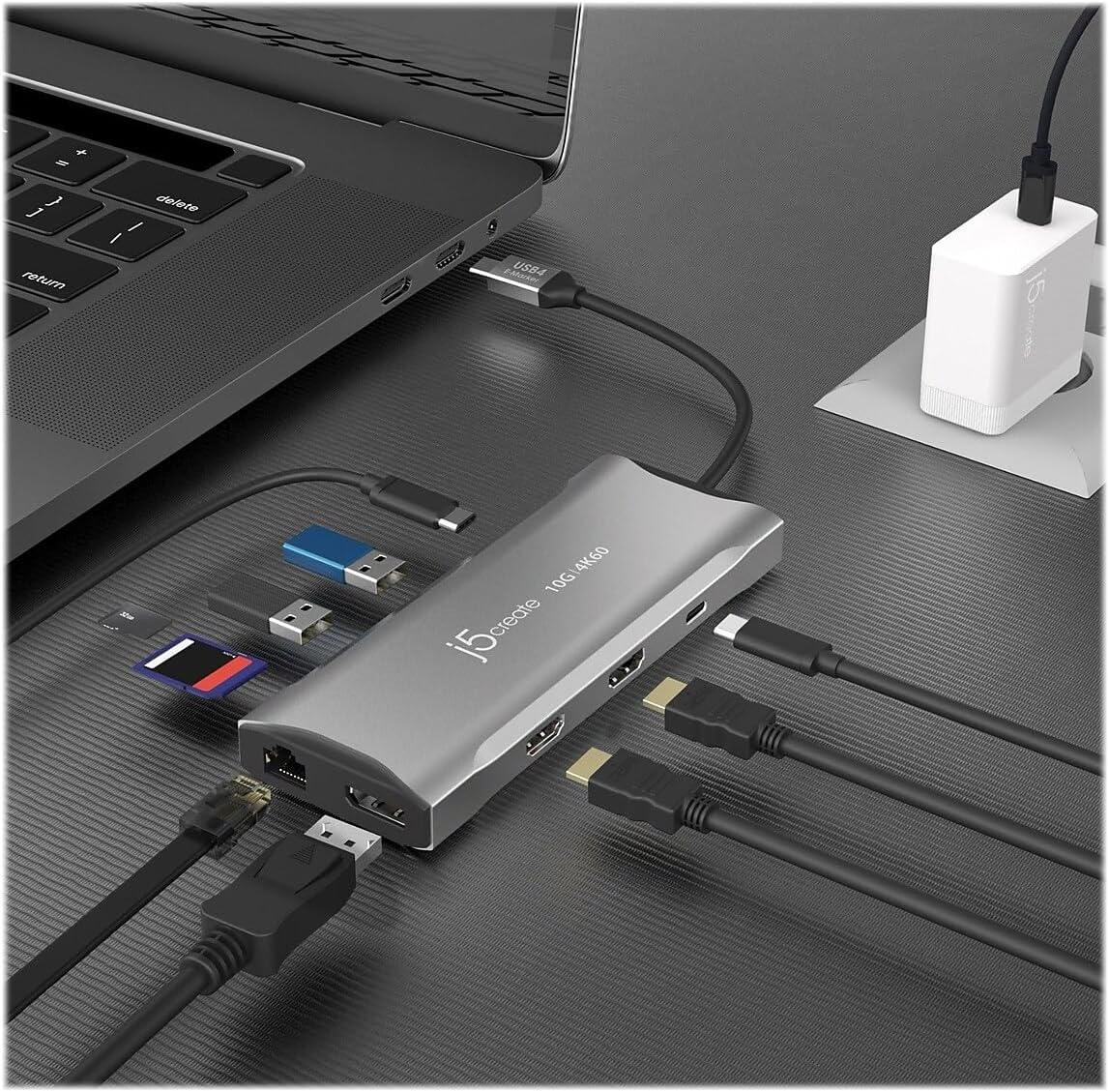
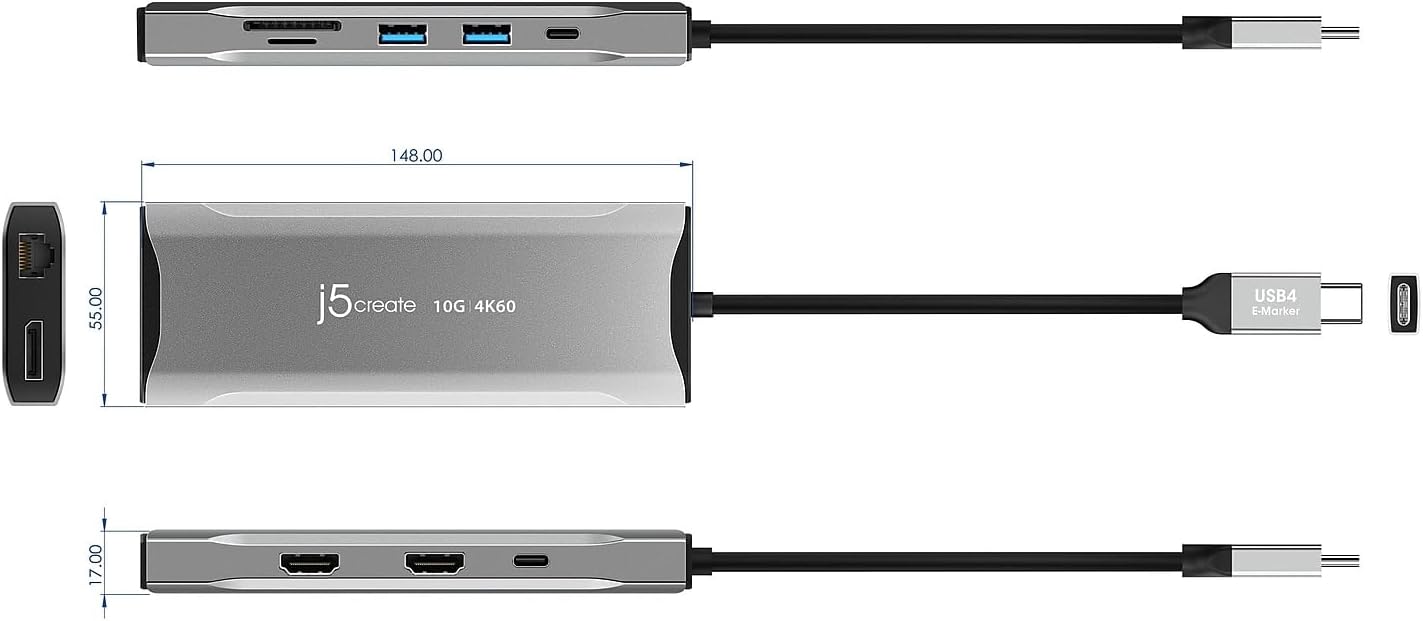
In a world of perpetual connectivity, the j5create hub is nothing less than a lifeline. The hub provides three USB SuperSpeed 10 Gbps ports, including two USB-C and one USB Type-A. These ports are perfect for peripheral connectivity or even downstream charging. Thinking about hooking up a keyboard, a mouse, maybe a fancy external drive? No problem—this hub sets you up to be the king of your cubicle.
Ethernet and SD Card Reader
Now imagine it’s a bright Monday morning and the Wi-Fi feels lazier than your cat after lunch. The j5create hub comes with a Gigabit Ethernet port, so you won’t find yourself shaking your fist at your laptop as if it had betrayed you. Need to manage those vacation photos or your boss’s presentation file? The integrated SD 4.0 and microSD card reader/writers have your media needs covered, ensuring you’re never more than a few clicks away from retrieving or saving important files.
Connectivity Specs in a Nutshell
| Feature | Specifications |
|---|---|
| USB Ports | 2 USB-C, 1 USB Type-A, all SuperSpeed 10 Gbps |
| Ethernet Port | Gigabit Ethernet |
| SD/MicroSD Card Reader | SD 4.0 |
| Charging | Downstream charging available |
Power Delivery: Keeping You and Your Laptop Charged
Power Delivery 3.0
Gone are the days of lugging around half a dozen chargers in a bag that could double as your gym workout. This hub supports Power Delivery 3.0, providing up to 100W pass-through charging. Whether you’re powering connected peripherals or charging your host laptop, it’s all about simplifying your world with one convenient power adapter. Forget the scramble for available outlet space during coffee shop office hours—this hub has your back.
Efficiency and Convenience
This isn’t just about plugging in and powering up. It’s about transforming your workspace into an efficient, streamlined setup where cables vanish from sight, stress dissipates like fog, and you can almost hear your laptop sighing with relief.
A Perfect Companion for Various Models
Compatibility with Top Brands
The j5create hub isn’t just a jack-of-all-trades; it’s a tailor-made suit for devices like the XPS and Surface Pro. If you’ve ever found yourself pulling your hair out because your laptop wasn’t living up to its potential, consider this your little slice of peace of mind.
Perfect Partner for Modern Laptops
The only challenge you might face is the sudden urge to brag about how connected your life has become. Those who weren’t born with a techie chromosome might assume you’re speaking another language. But that’s alright—because you’ve got the j5create USB C 4K Triple Display Hub, and that’s worth a small bit of misunderstanding.
Compatibility At a Glance
| Compatible Devices | Benefits |
|---|---|
| Dell XPS, Microsoft Surface Pro | Effortless display and peripheral management |
| More USB-C enabled devices | Versatility across different hardware |
Final Thoughts: Why the j5create Hub Might Be Your Next Must-Have
A Game Changer for Tech Enthusiasts
This review might read as something penned in love letters to technology, but that’s because once you get your hands on the j5create USB C 4K Triple Display Hub, you feel an almost poetic rush of excitement. The hub shakes hands with your laptop in a way that makes you wonder if you’ve been underestimating your tech setup all along.
Why You Need This Hub
From turning your workspace into a multi-display battleground to fastening a safety net for always being connected—this hub checks all boxes. It’s not just a device; it’s a promise of a more connected, seamless working experience. So, while those brilliant screens continue to sparkle with 4K magic, remember: it wasn’t always this easy, and we have innovation like the j5create hub to thank for it. Isn’t that a marvelous thing?
Disclosure: As an Amazon Associate, I earn from qualifying purchases.
Docking Station Intelligence
The standards are confusing by design. These three panels decode what manufacturers won’t explain clearly. Applicable to every docking station.
The USB-C Confusion Matrix
The USB-C connector is the single greatest source of buyer confusion in docking stations. The physical plug looks identical whether it carries USB 2.0 at 480 Mbps or Thunderbolt 5 at 120 Gbps — a 250x difference in capability hidden behind the same shape. Manufacturers exploit this by labeling everything "USB-C compatible" without specifying which protocol runs through it. Two docks can look identical on the outside and behave completely differently once you plug them in.
The hierarchy matters because it determines everything: how many monitors your dock can drive, how fast files transfer, whether your laptop charges while docked, and whether you need third-party drivers. Here is the real capability ladder, from slowest to fastest:
The practical takeaway: if your laptop has Thunderbolt 4, buy a Thunderbolt dock. If it only has generic USB-C, verify whether it supports DisplayPort Alt Mode before buying anything with multi-monitor claims. Our buying guide walks through verification steps for every major laptop brand.
Power Delivery: What the Watts Mean
Power Delivery (PD) determines whether your docking station can charge your laptop while you work, or whether you need a separate charger cluttering your desk. The math is simple but rarely explained: your laptop draws a specific wattage under load, and the dock must match or exceed it. If the dock delivers less than your laptop needs, the battery slowly drains even while plugged in — defeating the purpose of a docking station entirely.
Most ultrabooks need 45–65W. Standard business laptops need 65–100W. Gaming and workstation laptops can demand 100–140W or more. The dock’s advertised PD wattage is the maximum it can deliver to your laptop — but this drops if you charge other devices (phones, tablets) through the dock simultaneously. Always leave a 15–20W margin above your laptop’s requirement.
Check your laptop’s original charger wattage — that’s your baseline. Our FAQ covers how to find this for every major brand.
Native Display vs DisplayLink: The Hidden Factor
This is the decision most buyers don’t know they’re making. When a docking station outputs video to your monitors, it uses one of two fundamentally different methods: native (the dock passes your laptop’s GPU signal directly to the monitor) or DisplayLink (the dock compresses video over USB and a software driver renders it). The difference is invisible in marketing materials but profoundly affects your daily experience.
Native output through DisplayPort Alt Mode or Thunderbolt uses your laptop’s actual graphics hardware. There is zero added latency, full DRM support for streaming services, no CPU overhead, and no driver to install. DisplayLink, by contrast, adds 5–15ms of latency (noticeable in video calls and cursor movement), blocks DRM content on connected monitors (Netflix, Disney+ show black screens), consumes 3–8% of your CPU constantly, and requires a driver that Apple’s macOS security updates occasionally break.
DisplayLink exists for one reason: Apple Silicon base chips (M1, M2, M3) can only drive one external display natively. If you need two or more monitors on a base MacBook Air or 13” MacBook Pro, DisplayLink is your only option. For everyone else — Windows users, Mac Pro/Max chip users, Intel/AMD laptops — native is always the better choice.
Native (Alt Mode / Thunderbolt)
DisplayLink (USB compression)
The bottom line: if your laptop supports native multi-display output, always choose a native dock. DisplayLink is a workaround, not an upgrade. See our glossary for detailed definitions.
COMMAND CENTERCOMMAND CENTER
Six tools that decode the confusion manufacturers create. Port protocols, power budgets, display configurations, compatibility, desk planning, and future-proofing. Full buying guide →
Port Protocol DecoderWhat does your connection type actually support? Glossary
Power Delivery CalculatorCan this dock keep your laptop charged?
Display Configuration PlannerCan your dock push enough pixels?
Laptop-to-Dock CompatibilityWill this dock work with YOUR laptop?
Desk Setup ArchitectWhat ports do you actually need?
Select everything you need to connect: