
JSAUX FlipGo Pro 16″ Review
UltraView creates one logical workspace across two real panels. The seam remains. Compare it with DuoViews and check your laptop’s connection route before buying.
One desktop, still a seam. JSAUX FlipGo Pro 16 UltraView presents its two panels as one logical workspace. The physical hinge gap remains. Keep important text, faces and controls inside a panel; use the comparison below to choose UltraView or two independent displays.
Evidence reviewed: 23 October 2026 · Version 1.1. This is a documentation-based review of the Pro 16, not a hands-on test. AI assisted the research and editing; claims were checked against the manufacturer sources linked below. Compare display modes and connection checks ↓

JSAUX FlipGo Pro 16" Dual Portable Monitor, 2.5K IPS Laptop Extender | One-cable dual-screen setup with 2.5K IPS displays, magnetic design and DisplayLink; supports Windows, Linux and macOS
Key Specifications
The following are manufacturer-listed Pro 16 specifications, not our measurements. Do not transfer specifications from the Touch, Lite or other-size models.
| Feature | Pro 16 details |
|---|---|
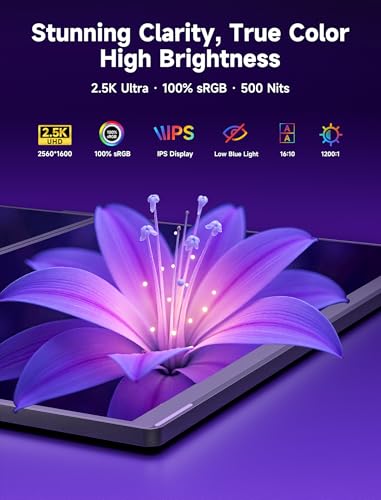
| Panels | Two 16-inch IPS displays; 2560 × 1600 per panel; 16:10; 60 Hz |
| Finish and weight | Matte; 1.59 kg for the monitor. Carry accessories add weight. |
| Brightness and color | 500 nits typical; 100% sRGB coverage claimed. These are not independent accuracy or outdoor-readability results. |
| Modes | UltraView combines the logical workspace; DuoViews provides separate displays. The physical seam remains in either mode. |
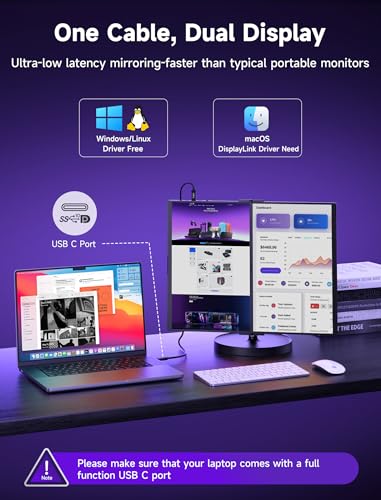
| Connections | USB-C DP and USB-C DisplayLink are different host routes. Mini HDMI is another input. Match the cable, port symbol, power and mode to the manual. |
| Box contents | Manufacturer lists a USB4 cable, mini-HDMI-to-HDMI cable, 65 W charger, stand holder and folio for Pro 16. Check the seller’s exact bundle. |
Source: JSAUX model comparison and specifications.
Compare UltraView and DuoViews
Choose UltraView for one workspace
The host sees one display area across both panels. Arrange the app around the hinge gap; it cannot become a seamless panel.
Choose DuoViews for independent displays
Use separate app windows that maximize independently. Confirm the two-display route for your host and OS. JSAUX documents the Pro DisplayLink route for macOS.
Choose Mirror for duplicate content
Check the input and mode combination. HDMI does not provide two independent extended displays on this Pro model.
A useful layout check: identify the content you must read continuously. Keep that content inside one panel. Use the other panel for a secondary region. If a face, chart label or editing control must cross the hinge, a continuous monitor may suit that task better.
Source: JSAUX Pro setup guide. “Stacked” describes an arrangement, not a third logical display mode.
Check the Host Port and Power
- Choose the mode first. One logical workspace and two independent displays have different connection requirements.
- Read the host specification. A USB-C connector alone does not establish native video support. For the DP route, verify DP Alt Mode; the native two-display route also depends on MST support.
- Use the matching FlipGo input. The Pro manual identifies a D-shaped DP symbol and an overlapping-rectangles DisplayLink symbol. For macOS DuoViews, install a currently compatible DisplayLink Manager and use the DisplayLink input. Do not assume the same route for every operating system.
- Account for external power. JSAUX’s setup guide uses its included 65 W charger or a suitable higher-rated supply. Brightness is limited when powered only by the host. A single host cable does not mean there is no charger cable.
- Verify the result in display settings. Check detected display count, extension versus mirroring, orientation and scaling. If the required arrangement is unavailable, resolve host, port, software and power compatibility before purchase.
Reverse charging depends on the power source and a compatible laptop. Do not infer a guaranteed charging rate from the charger’s label. For HDMI, the guide requires external power and restricts the available modes; check the exact host output.
Brightness and Workspace Tradeoffs
The matte Pro 16 differs from the glossy Touch model. Resolution, brightness and color-gamut specifications do not prove calibrated color accuracy, reflection handling or performance in your room. No measured brightness, color, latency or power tests were performed for this review.
Consider your text size and viewing distance as well as the pixel count. A stacked layout keeps the footprint narrower but moves the upper screen farther above the keyboard. Place frequently used controls where you can reach and read them comfortably.
Mounting and Desk Setup
Use a stand intended for the exact FlipGo model and orientation. The magnetic design is not evidence of tested retention strength, hinge durability or stability. This review does not provide those measurements.
Allow room for the stand, laptop, charger and cable bends. Keep a connector clear of the hinge and avoid routing a taut cable across the working area. Confirm the included accessories against the chosen seller’s bundle before ordering extras.
Carry Weight
JSAUX lists the Pro 16 monitor at 1.59 kg. The previous 2.98 kg figure on this page was incorrect. Budget separately for the stand, charger and cables. Compare complete travel kits using the same included items; a monitor-only weight cannot establish which total setup is lighter.
Drawbacks
| Tradeoff | Why it matters |
|---|---|
| Physical seam | UltraView cannot remove the gap. Keep continuous reading and editing targets within one panel. |
| Host and software dependencies | The required mode may depend on DP Alt Mode, MST or DisplayLink. Check your exact laptop and OS. |
| Power and accessories | A tidy host connection still leaves a power supply and stand to carry and place. |
| 60 Hz refresh | Buy for workspace flexibility; do not assume high-refresh gaming performance. |
| Unmeasured performance | This documentation review does not establish sustained brightness, calibration, latency or physical durability. |

Who Is This Monitor For
Consider the Pro 16 if you want a folding dual-panel workspace and can verify the exact connection route for your laptop. UltraView suits a workspace designed around a seam; DuoViews suits separate windows that you want to manage as independent displays.
Choose a continuous display if your main task needs uninterrupted imagery across its center. Compare a single portable monitor if low total carry weight matters more than a second panel. Neither recommendation depends on an unmeasured productivity gain.
Final Verdict
The Pro 16 offers a choice between one logical workspace and two independent displays, subject to the host connection. Its seam is a physical design tradeoff, not a software setting. Start with the mode comparison and host checklist above; then check the seller’s model, bundle, return terms and current price.

Frequently Asked Questions
Does UltraView remove the seam?
No. It combines the logical display area. The bezel and hinge gap remain visible.
Can I use two independent displays on a Mac?
JSAUX documents DuoViews through the Pro’s DisplayLink input with DisplayLink Manager running. Verify the current software supports your exact macOS version and hardware.
Does one cable mean no power supply?
No. It can describe the host connection only. The setup guide uses external power, and host-only operation limits brightness.
Which finish and weight apply here?
The current Pro 16 comparison lists matte panels and 1.59 kg monitor weight. Other FlipGo variants differ.
Sources and correction record
Checked against the manufacturer comparison and Pro setup guide on 23 October 2026. Version 1.1 corrects the old seamless-display claim, weight, finish and overbroad connection claims. This page reports documentation research, not hardware testing.
Disclosure: As an Amazon Associate, I earn from qualifying purchases.
End of editorial review · Interactive tools below
FIELD TOOLSFIELD TOOLS
These six tools address the critical decisions every laptop screen extender buyer faces — physical fit, hinge safety, OS display limits, setup complexity, form factor selection, and travel readiness. Each tool is category-level: they work for any extender, not just the one reviewed above. Full buying guide →