
Acer USB C Hub with 4K HDMI Review
Discover the Acer USB C Hub with 4K HDMI in this witty review. Unravel electronic chaos as you explore its impressive 9-in-1 capabilities!
Have you ever found yourself buried under a chaotic mess of cables and adapters, wondering if maybe, just maybe, there’s a simpler way to achieve electronic harmony? Well, let me tell you about the Acer USB C Hub. This gadget might just be the solution to your digital clutter woes. With a name that reads like a grand title bestowed upon a hero in a sci-fi saga, it’s officially titled the “Acer USB C Hub with 4K HDMI, 9-in-1 USB C to Ethernet Adapter, 5Gbps USBA 3.0 Docking Station, VGA Splitter, SD Card Reader, PD 100W Charging for MacBook, Acer, Laptops, Surface and More.” Yes, it’s quite a mouthful, but remember, great power comes with a lengthy label.
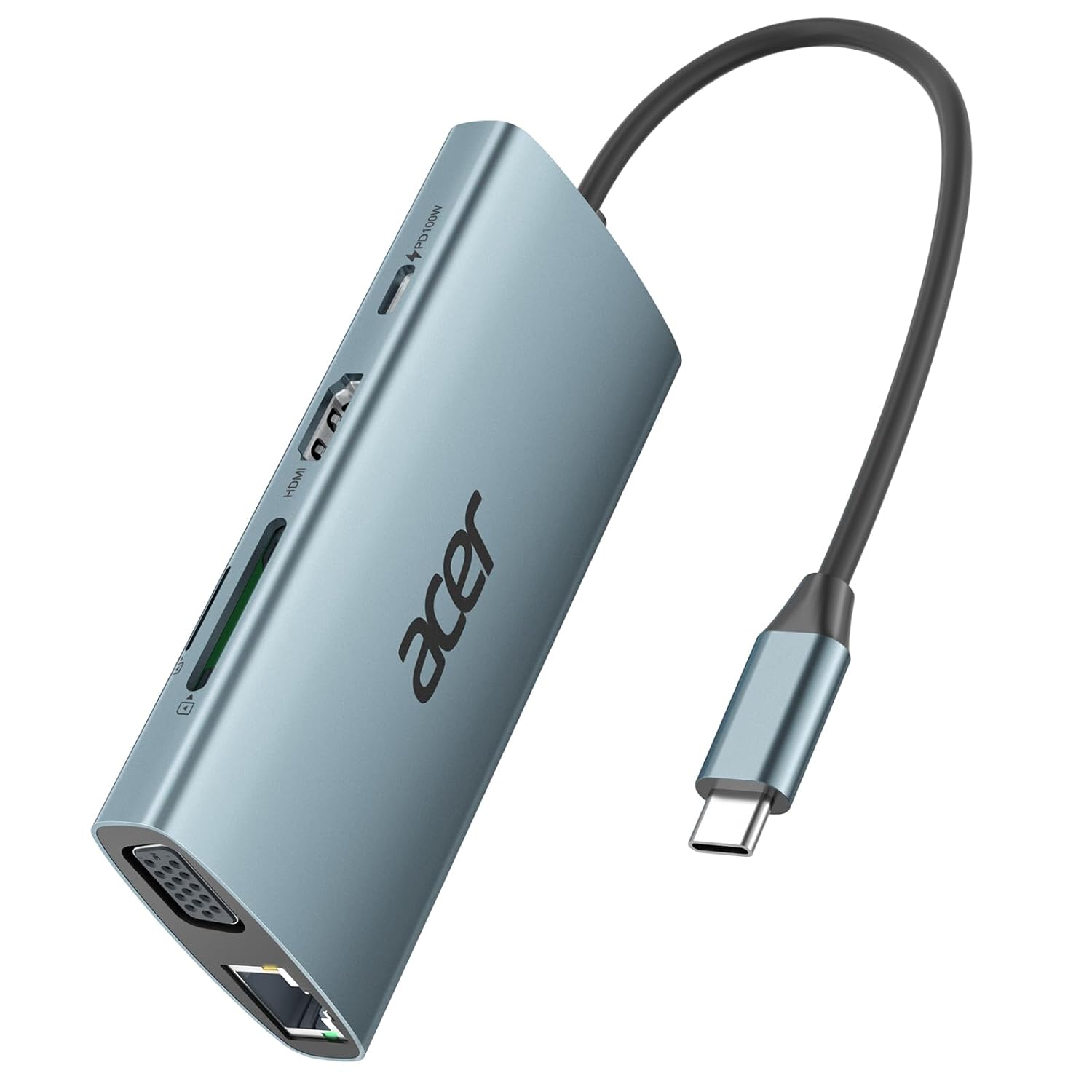

All the Ports You Could Dream Of
Think of this hub as the Swiss Army knife of ports. It’s like walking into an all-you-can-eat buffet and realizing all your favorite dishes are lined up just for you. This adapter offers nine distinct functionalities. To break it all down, here’s a concise table:
| Feature | Details |
|---|---|
| HDMI | 4K@30Hz high-quality output, for vivid cinematic views |
| VGA | For traditional displays, supports dual display functionality |
| Ethernet | 1Gbps hyper-speed connection for stable internet |
| USB 3.0 Ports | Three ports, super-fast data transfer up to 5 Gbps |
| SD/TF Card Slots | Read high-capacity memory cards of up to 1TB |
| PD Charging | 100W power delivery for fast charging |
HDMI and VGA: Dual Display Wonder
The fondness for screens is akin to my love for chocolate. If given the choice, one is never enough. The hub’s HDMI offers a brilliant 4K@30Hz experience, streaming what can best be described as visual poetry to your screen, provided you have the right arsenal of displays. Meanwhile, the VGA port is your trusty, seasoned friend, comfortably hanging around to support dual displays if the HDMI isn’t sufficient. Should you decide to connect to both the HDMI and VGA simultaneously, they will showcase the same content—a graceful dance of mirroring, ideal for presenting or showing off pictures from your last vacation.
Ethernet: The Speed You Didn’t Know You Needed
Buffering is the nemesis of productivity and my favorite TV shows. With the Acer Hub, those agonizing spins of doom are history thanks to its 1Gbps Ethernet capability. This promises seamless gigabit-speed downloads and smooth surfing, whether you’re gaming, Zoom-calling, or perusing cat videos online. However, you’ll need to use a CAT6 cable or better to get that sweet, sweet 1Gbps speed.
USB Data Transfer: As Swift as a Breeze
The phrase “time is money” never resonates more than when I’m watching a file transfer crawl across a progress bar. USB 2.0 to USB 3.0 is like graduating from a unicycle to a sports car. The Acer Hub offers up to a 5 Gbps data transfer rate—10 times faster than its predecessors. Imagine clicking and instantly being transported to the specific file you need. Whether you’re copying over the latest episode of your favorite show for offline viewing or transferring heavy-duty graphic files, this speed is unmatched.
Charging: Power on the Go
What is it about low battery warnings that gives me the same pulse-racing anxiety as when I lose my Wi-Fi signal during a video call? The Power Delivery (PD) charging feature of this hub is designed to calm those nerves, fast-charging compatible devices at up to 100 watts. It’s like caffeine for your electronics—giving them that jolt of energy to take on the day.

Acer USB C Hub with 4k HDMI, 9-in-1 USB C to Ethernet Adapter, 5Gbps USBA 3.0 Docking Station, VGA Splitter, SD Card Reader, PD 100W Charging for MacBook, Acer, Laptops, Surface and More
Design and Construction: Aluminum Affection
Aluminum is to electronics as velvet is to couches. The Acer USB C Hub comes with a sleek aluminum shell, not just to win beauty contests but also to enhance durability and manage heat like the accomplished assistant it is. The design seamlessly merges into any workspace ambiance, ensuring that function doesn’t come at the cost of style.
Suitability for Your Operating System
This hub proves to be the universal plug-and-play solution for many devices. Be it MacBook, Windows, ChromeOS, Linux, or tablets, compatibility is its middle name. A word of advice, however: if you’re still holding on to Windows 7 or Windows XP, driver installation is required, but fear not; a detailed guide awaits you online.

Practical Usage: Things to Keep in Mind
Though the hub caters to various needs, not all USB-C ports are created equal. Your device must support USB Type-C DP Alt Mode for HDMI or VGA video transmission. Also, a gentle reminder that the USB-C port on the hub is strictly for charging. Attempting to send data through it would be like trying to squeeze toothpaste back into the tube.
Samsung Users, Take Note!
Oh, dear tablet-toting friends of the Samsung variety, heed this: engaging Samsung DeX Mode is essential to unlocking the full potential of this mighty hub. It’s like turning an unassuming caterpillar into a butterfly—or something a bit less about nature and more about gadget optimization.
Final Thoughts
In the world of modern electronics, where we are so often encumbered by the proverbial spaghetti of cables, stands this effortlessly efficient solution—the Acer USB C Hub. It’s as if someone gathered all my wishes into one sleek package that seems to inherently understand the digital trials and tribulations of today.
From glorious streaming to effortless uploads, rapid charging to extensive compatibility, this gadget is a marvel. The next time you’re faced with the endless tangle of cords, remember there exists a device as succinct in its utility as it is in its elegant simplicity.
May your digital world be forever untangled and effortlessly connected. Now, if you’ll pardon me, there’s a particular episode I need to stream in stunning 4K, with zero interruptions.
Disclosure: As an Amazon Associate, I earn from qualifying purchases.
Docking Station Intelligence
The standards are confusing by design. These three panels decode what manufacturers won’t explain clearly. Applicable to every docking station.
The USB-C Confusion Matrix
The USB-C connector is the single greatest source of buyer confusion in docking stations. The physical plug looks identical whether it carries USB 2.0 at 480 Mbps or Thunderbolt 5 at 120 Gbps — a 250x difference in capability hidden behind the same shape. Manufacturers exploit this by labeling everything "USB-C compatible" without specifying which protocol runs through it. Two docks can look identical on the outside and behave completely differently once you plug them in.
The hierarchy matters because it determines everything: how many monitors your dock can drive, how fast files transfer, whether your laptop charges while docked, and whether you need third-party drivers. Here is the real capability ladder, from slowest to fastest:
The practical takeaway: if your laptop has Thunderbolt 4, buy a Thunderbolt dock. If it only has generic USB-C, verify whether it supports DisplayPort Alt Mode before buying anything with multi-monitor claims. Our buying guide walks through verification steps for every major laptop brand.
Power Delivery: What the Watts Mean
Power Delivery (PD) determines whether your docking station can charge your laptop while you work, or whether you need a separate charger cluttering your desk. The math is simple but rarely explained: your laptop draws a specific wattage under load, and the dock must match or exceed it. If the dock delivers less than your laptop needs, the battery slowly drains even while plugged in — defeating the purpose of a docking station entirely.
Most ultrabooks need 45–65W. Standard business laptops need 65–100W. Gaming and workstation laptops can demand 100–140W or more. The dock’s advertised PD wattage is the maximum it can deliver to your laptop — but this drops if you charge other devices (phones, tablets) through the dock simultaneously. Always leave a 15–20W margin above your laptop’s requirement.
Check your laptop’s original charger wattage — that’s your baseline. Our FAQ covers how to find this for every major brand.
Native Display vs DisplayLink: The Hidden Factor
This is the decision most buyers don’t know they’re making. When a docking station outputs video to your monitors, it uses one of two fundamentally different methods: native (the dock passes your laptop’s GPU signal directly to the monitor) or DisplayLink (the dock compresses video over USB and a software driver renders it). The difference is invisible in marketing materials but profoundly affects your daily experience.
Native output through DisplayPort Alt Mode or Thunderbolt uses your laptop’s actual graphics hardware. There is zero added latency, full DRM support for streaming services, no CPU overhead, and no driver to install. DisplayLink, by contrast, adds 5–15ms of latency (noticeable in video calls and cursor movement), blocks DRM content on connected monitors (Netflix, Disney+ show black screens), consumes 3–8% of your CPU constantly, and requires a driver that Apple’s macOS security updates occasionally break.
DisplayLink exists for one reason: Apple Silicon base chips (M1, M2, M3) can only drive one external display natively. If you need two or more monitors on a base MacBook Air or 13” MacBook Pro, DisplayLink is your only option. For everyone else — Windows users, Mac Pro/Max chip users, Intel/AMD laptops — native is always the better choice.
Native (Alt Mode / Thunderbolt)
DisplayLink (USB compression)
The bottom line: if your laptop supports native multi-display output, always choose a native dock. DisplayLink is a workaround, not an upgrade. See our glossary for detailed definitions.
COMMAND CENTERCOMMAND CENTER
Six tools that decode the confusion manufacturers create. Port protocols, power budgets, display configurations, compatibility, desk planning, and future-proofing. Full buying guide →
Port Protocol DecoderWhat does your connection type actually support? Glossary
Power Delivery CalculatorCan this dock keep your laptop charged?
Display Configuration PlannerCan your dock push enough pixels?
Laptop-to-Dock CompatibilityWill this dock work with YOUR laptop?
Desk Setup ArchitectWhat ports do you actually need?
Select everything you need to connect: