
LASUNEY USB C Hub 10-in-1 Triple Display Review
LASUNEY's 10-in-1 USB-C hub adds two HDMI ports, a DisplayPort, 100W pass-through charging, gigabit Ethernet, fast USB and SD/microSD slots to one laptop port. This review explains what its triple display means on Windows and Mac, the charging limit and who it suits.
LASUNEY’s 10-in-1 USB-C hub turns one USB-C or Thunderbolt port into two HDMI outputs and a DisplayPort output, 100W USB-C pass-through charging, gigabit Ethernet, two 5 Gbps USB 3.0 ports, one USB 2.0 port, and SD and microSD card slots that read at the same time. It all sits in a grey aluminium shell measuring 4.3 x 2.2 x 0.6 inches and weighing 4.2 oz, and it needs no drivers. It’s a small, well-priced way to give a thin laptop a desk setup through one cable, with one thing to understand before you buy: the “triple display” in the name counts your laptop’s own screen, so you get two extra screens on Windows and only one on a Mac.
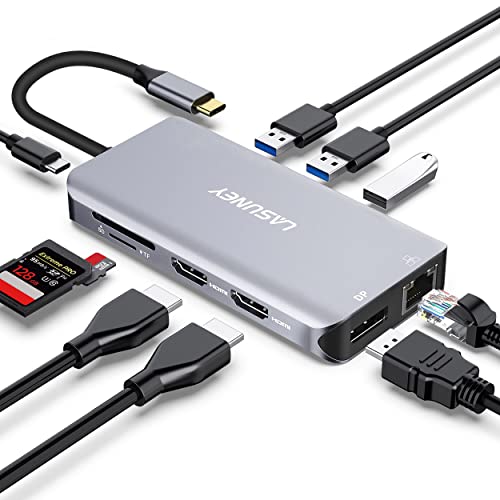
USB C Hub 10-in-1, Triple Display 2 HDMI DP, PD3.0, Ethernet, 3 USB, SD/TF
Key Specifications at a Glance
| Specification | Detail |
|---|---|
| Ports | 10: 2 x HDMI, 1 x DisplayPort, 1 x USB-C PD charging, 1 x gigabit Ethernet, 2 x USB 3.0, 1 x USB 2.0, SD, microSD |
| Laptop Connection | USB-C or Thunderbolt (video needs a port with DisplayPort output) |
| Maximum Resolution | 4K (refresh rate not stated) |
| Screens on Windows | Laptop plus two different external pictures (HDMI 2 and DisplayPort show the same image); LASUNEY claims laptop plus three with a DisplayPort 1.4 laptop that has AMD graphics |
| Screens on Mac | Laptop plus one extended picture; all three video ports show the same image |
| USB-A Data | 2 x USB 3.0 at 5 Gbps, 1 x USB 2.0 at 480 Mbps |
| Card Readers | SD and microSD, both usable at once (speed not stated) |
| Ethernet | Gigabit (1000 Mbps) |
| Charging | USB-C PD 3.0 pass-through: up to 100W in, up to 87W to the laptop |
| Audio | Not confirmed; a mic/audio jack is mentioned but isn’t one of the ten ports |
| Body | Aluminium, grey |
| Size | 4.3 x 2.2 x 0.6 inches |
| Weight | 4.2 oz |
| Drivers | None needed |
| Warranty | Not stated |

Our Quick Take
For a Windows laptop that needs two extra monitors, a wired network, a couple of USB drives and charging through one cable, the LASUNEY is a good buy at a hub price, and it’s small enough to live in a laptop bag. Mac owners get one extra screen from it, which is fine for a single monitor but not for a two-monitor desk. The things to be careful about are the refresh rates, which LASUNEY doesn’t give, and the 87W charging ceiling on larger laptops.
Displays: What “Triple Display” Really Means
The hub has three video ports, but it doesn’t drive three separate pictures in the normal case. It carries two separate pictures down your laptop’s single USB-C video connection, and two of its ports, the second HDMI and the DisplayPort, share one of those pictures. On Windows that gives you your laptop screen plus two different external screens: one on HDMI 1, and one on either HDMI 2 or DisplayPort. Plug monitors into both of those last two and they show the same thing. LASUNEY says a fourth, separate picture is possible if the laptop has DisplayPort 1.4 and AMD graphics, but on most laptops you should plan on three screens including the laptop’s own.

Macs are more limited. macOS doesn’t support sending several separate pictures down one USB-C cable, the trick these hubs rely on, so on a MacBook every video port on the hub shows the same picture, and you get your laptop screen plus one extended external screen. To stop the external screen mirroring the laptop, open the display settings and set it as an extended display rather than a mirror. For owners of base M1 and M2 MacBooks this isn’t a real loss, because those machines only drive one external screen anyway. If you want two or three separate monitors on a Mac, you need a DisplayLink dock instead, covered below.
Resolution is the other thing to check. LASUNEY promises 4K but gives no refresh rates. Hubs like this share one USB-C video link between their screens and their USB 3.0 ports, and many of them run 4K at 30Hz, which is fine for spreadsheets and video but noticeably jerky when you move the mouse or scroll. If you need 60Hz on two screens, 1080P monitors are the lower-risk choice, and if smooth 4K matters to you, confirm the refresh rate with the seller before you buy.
Your laptop’s USB-C port decides whether any of this works. It needs to carry video, which Thunderbolt ports and USB-C ports with DisplayPort Alt Mode do. A USB-C port that only charges and moves data won’t show a picture through the hub, however good the hub is.

Ports for Everyday Work
Data ports are where the LASUNEY is at its most modest. You get two USB 3.0 ports at 5 Gbps for drives and cameras, and one USB 2.0 port at 480 Mbps, which is plenty for a keyboard or a mouse receiver. Three USB-A ports fill up quickly: a keyboard, a mouse and one drive and you’re done, so desks with more gadgets will want a bigger dock or a small USB hub on the end.
The SD and microSD slots are genuinely useful for anyone who shoots on a camera or a drone, and both can be read at the same time, so you can copy from two cards at once. LASUNEY doesn’t give a card reader speed. The gigabit Ethernet port is the other standout for a laptop with no network socket: a wired connection is steadier than Wi-Fi for video calls and large uploads.
Audio is the one grey area. LASUNEY mentions a mic/audio jack, but it isn’t one of the ten ports the hub is sold with, so ask the seller to confirm before you count on plugging in a headset.
Charging: 100W In, 87W Out
Plug your laptop’s own USB-C charger into the hub’s PD port and the hub passes power through to the laptop while everything else stays connected. It accepts up to 100W and passes up to 87W to the laptop, a limit LASUNEY says is set for safety. That covers most ultrabooks, which come with 45W to 65W chargers, with room to spare. A laptop that ships with a 96W or bigger charger, such as a 16-inch MacBook Pro, will usually charge more slowly and may run its battery down under heavy load. Many gaming laptops use barrel-plug chargers and won’t charge through a USB-C hub at all, so check yours before relying on it. The laptop has to support USB-C Power Delivery charging for any of this to work.
LASUNEY describes the PD port only as a charging pass-through, so don’t plan on using it for USB-C accessories. As with many hubs, plugging in or pulling out the charger can make connected screens and drives drop out for a moment while the power is renegotiated, so eject drives before you move the charger.
Build and Portability
The shell is milled aluminium, which looks smart next to a MacBook or a Dell XPS and stands up to life in a bag better than plastic. At 4.3 x 2.2 x 0.6 inches and 4.2 oz it fits in a laptop bag’s front pocket, which makes it as useful in a hotel room or a meeting room as on a home desk.
Compatibility
LASUNEY names Dell Latitude, HP Spectre and Lenovo Yoga laptops, MacBook Pro models from 2016 to 2021, MacBook Air and Mac mini models from 2018 to 2020, and the Chromebook Pixel. The list is dated, but the rule behind it is simple: any laptop whose USB-C or Thunderbolt port carries video should work with it, including newer models, with the same Windows and Mac screen limits described above. Pass-through charging also needs a laptop that charges over USB-C. It’s plug and play on Windows, macOS and ChromeOS, with no drivers to install.
How It Compares
The NOVOO USB C docking station is the closest rival we’ve reviewed: another dual-HDMI hub with Ethernet, PD charging, SD and TF slots and an audio jack, and four USB ports instead of three. If you need two or three separate monitors on a Mac, the TobenONE DisplayLink triple 4K dock gets around macOS’s limit with a DisplayLink driver, at a higher price. And if you only ever connect one monitor, the BENFEI 5-in-1 USB C hub keeps things simpler with one 4K HDMI port, 100W charging and three USB-A ports.
Potential Drawbacks to Consider
| Consideration | Detail |
|---|---|
| “Triple display” includes the laptop screen | On Windows you get two different external pictures; HDMI 2 and DisplayPort mirror each other. |
| One extended screen on a Mac | macOS mirrors all three video ports. Use a DisplayLink dock for more. |
| Refresh rates not stated | Many hubs like this run 4K at 30Hz. Confirm before buying for smooth 4K. |
| 87W to the laptop | Laptops with 96W or bigger chargers charge more slowly. |
| Only three USB-A ports | A keyboard, mouse and one drive fill them. |
| Audio jack unclear | It isn’t one of the ten ports. Confirm with the seller if you need one. |
| Needs a video-capable USB-C port | Charge-and-data-only ports won’t show a picture. |
| No warranty stated | Confirm the warranty with the seller. |
Who This Hub Is For
Windows laptop users who want two extra monitors on a budget: laptop plus two external screens, Ethernet and charging through one cable, for hub money rather than dock money.
People who move between desks: it’s light and small enough to carry every day, so a hotel desk, a meeting room or a hot desk becomes a proper workstation in one plug.
Photographers and drone pilots: SD and microSD slots that work at the same time, next to fast USB 3.0 ports for a backup drive.
Mac owners who only need one external monitor: one extended screen, charging, Ethernet and a card reader is a tidy setup for a MacBook Air.

Who Should Look Elsewhere
Mac users who want two or more separate monitors: this hub can’t do it on macOS. A DisplayLink dock can.
Anyone who needs smooth 4K on two screens: with no refresh rates stated and a shared link, this isn’t the hub for two 4K monitors at 60Hz. A Thunderbolt dock is the safer route.
Owners of power-hungry laptops: if your laptop came with a 96W or bigger charger, 87W pass-through will slow its charging under load.
Desks with lots of USB gadgets: three USB-A ports is a small number for a full desk setup.
Pros and Cons
| Pros | Cons |
|---|---|
| Laptop plus two different external screens on Windows | Only one extended screen on a Mac |
| Two HDMI ports and a DisplayPort in one small hub | HDMI 2 and DisplayPort mirror each other |
| 100W PD pass-through, up to 87W to the laptop | 87W is short of what large laptops draw |
| Gigabit Ethernet | Refresh rates not stated |
| SD and microSD readable at the same time | Only three USB-A ports |
| Two 5 Gbps USB 3.0 ports | Audio jack not clearly confirmed |
| Aluminium shell, 4.2 oz, no drivers | No warranty stated |
Final Verdict
The LASUNEY 10-in-1 is a solid, compact hub that does what most laptop owners need from one cable: two extra screens on Windows, a wired network, fast USB, card readers and charging, in an aluminium body that travels well. For a Windows ultrabook with a video-capable USB-C port, it’s an easy recommendation at its price.
Its limits come from how it drives screens. The “triple display” counts the laptop’s own screen, the second HDMI and DisplayPort share one picture, and Macs get a single extended screen. Add the missing refresh rates and the 87W charging ceiling, and it’s the lower-risk choice for 1080P monitors and 45W to 65W laptops. Mac owners who want a two-monitor desk should go straight to a DisplayLink dock.
Frequently Asked Questions
Can it run three separate external monitors?
Not on most laptops. On Windows you normally get your laptop screen plus two different external pictures, because the second HDMI and the DisplayPort show the same image. LASUNEY says a laptop with DisplayPort 1.4 and AMD graphics can drive three separate external screens.
Can a MacBook extend to two monitors through it?
No. macOS doesn’t support sending several separate pictures down one USB-C cable, which this hub relies on, so all its video ports show the same picture and you get one extended screen. For two or three separate monitors on a Mac, use a DisplayLink dock.
Does it do 4K at 60Hz?
LASUNEY promises 4K but doesn’t give refresh rates. Many hubs of this type run 4K at 30Hz, so ask the seller before buying if you need smooth 4K. For 60Hz on two screens, 1080P monitors are the lower-risk choice.
Will it charge my laptop at full speed?
Up to 87W reaches the laptop, which is full speed for laptops with 45W to 65W chargers. Laptops that come with 96W or bigger chargers will usually charge more slowly, especially under load, and many gaming laptops don’t charge over USB-C at all.
Does it work with Thunderbolt ports?
Yes. Thunderbolt 3 and 4 ports carry USB-C video, so the hub works in them the same way it does in a video-capable USB-C port.
Disclosure: As an Amazon Associate, I earn from qualifying purchases.

I evaluate docking stations the way they actually get used — against real bandwidth budgets, power-delivery ceilings, and the OS handshakes that quietly cap what a port can do — not spec-sheet promises. Every constraint that can break a multi-display setup is disclosed before any affiliate link.
Docking Station Intelligence
The standards are confusing by design. These three panels decode what manufacturers won’t explain clearly. Applicable to every docking station.
The USB-C Confusion Matrix
The USB-C connector is the single greatest source of buyer confusion in docking stations. The physical plug looks identical whether it carries USB 2.0 at 480 Mbps or Thunderbolt 5 at 120 Gbps — a 250x difference in capability hidden behind the same shape. Manufacturers exploit this by labeling everything "USB-C compatible" without specifying which protocol runs through it. Two docks can look identical on the outside and behave completely differently once you plug them in.
The hierarchy matters because it determines everything: how many monitors your dock can drive, how fast files transfer, whether your laptop charges while docked, and whether you need third-party drivers. Here is the real capability ladder, from slowest to fastest:
The practical takeaway: if your laptop has Thunderbolt 4, buy a Thunderbolt dock. If it only has generic USB-C, verify whether it supports DisplayPort Alt Mode before buying anything with multi-monitor claims. Our buying guide walks through verification steps for every major laptop brand.
Power Delivery: What the Watts Mean
Power Delivery (PD) determines whether your docking station can charge your laptop while you work, or whether you need a separate charger cluttering your desk. The math is simple but rarely explained: your laptop draws a specific wattage under load, and the dock must match or exceed it. If the dock delivers less than your laptop needs, the battery slowly drains even while plugged in — defeating the purpose of a docking station entirely.
Most ultrabooks need 45–65W. Standard business laptops need 65–100W. Gaming and workstation laptops can demand 100–140W or more. The dock’s advertised PD wattage is the maximum it can deliver to your laptop — but this drops if you charge other devices (phones, tablets) through the dock simultaneously. Always leave a 15–20W margin above your laptop’s requirement.
Check your laptop’s original charger wattage — that’s your baseline. Our FAQ covers how to find this for every major brand.
Native Display vs DisplayLink: The Hidden Factor
This is the decision most buyers don’t know they’re making. When a docking station outputs video to your monitors, it uses one of two fundamentally different methods: native (the dock passes your laptop’s GPU signal directly to the monitor) or DisplayLink (the dock compresses video over USB and a software driver renders it). The difference is invisible in marketing materials but profoundly affects your daily experience.
Native output through DisplayPort Alt Mode or Thunderbolt uses your laptop’s actual graphics hardware. There is zero added latency, full DRM support for streaming services, no CPU overhead, and no driver to install. DisplayLink, by contrast, adds 5–15ms of latency (noticeable in video calls and cursor movement), blocks DRM content on connected monitors (Netflix, Disney+ show black screens), consumes 3–8% of your CPU constantly, and requires a driver that Apple’s macOS security updates occasionally break.
DisplayLink exists for one reason: Apple Silicon base chips (M1, M2, M3) can only drive one external display natively. If you need two or more monitors on a base MacBook Air or 13” MacBook Pro, DisplayLink is your only option. For everyone else — Windows users, Mac Pro/Max chip users, Intel/AMD laptops — native is always the better choice.
Native (Alt Mode / Thunderbolt)
DisplayLink (USB compression)
The bottom line: if your laptop supports native multi-display output, always choose a native dock. DisplayLink is a workaround, not an upgrade. See our glossary for detailed definitions.
COMMAND CENTERCOMMAND CENTER
Six tools that decode the confusion manufacturers create. Port protocols, power budgets, display configurations, compatibility, desk planning, and future-proofing. Full buying guide →
Port Protocol DecoderWhat does your connection type actually support? Glossary
Power Delivery CalculatorCan this dock keep your laptop charged?
Display Configuration PlannerCan your dock push enough pixels?
Laptop-to-Dock CompatibilityWill this dock work with YOUR laptop?
Desk Setup ArchitectWhat ports do you actually need?
Select everything you need to connect: