Screen Extender Comparisons | Side-by-Side Analysis | ScreenExtendersHub
Comparison Intelligence

Head-to-Head
Analysis
You Can Trust

Data-driven comparisons across 39+ products, 4 categories, and 12 brands. Every verdict backed by our comprehensive buying guide. No guesswork.

Live Comparison Preview
Laptop Extender
13.3" ร— 2 ยท USB-C
VS
Portable Monitor
15.6" ยท IPS ยท 144Hz
Portability
Screen Size
Setup Speed
Flexibility
0+
Products Compared
0
Categories
0
Test Points
0
Brands
Category Radar

How Categories Compare

Each category excels in different dimensions. This radar chart maps strengths across 6 key axes. Toggle categories to compare. Not sure which category? Start with our buying guide.

Portability Screen Size Price Value Setup Speed Flexibility Display Quality
Laptop Extenders
Portable Monitors
Docking Stations
Desktop Extenders

Laptop Extenders Lead Portability

Clip-on extenders score highest on portability and setup speed โ€” they travel as one unit with your laptop. Trade-off: smaller screens (11-14") and hinge stress concerns.

Explore laptop extenders

Portable Monitors: The All-Rounder

Best balance across all six axes. Flexible deployment, wide size range (13-24"), and strong display quality. Weakest on setup speed compared to clip-on solutions.

Explore portable monitors

Desktop Extenders: Quality King

Unmatched display quality and screen size โ€” designed for permanent setups. Zero portability, but that's by design. Paired with a docking station, they form the ultimate desk command center.

Explore desktop extenders
Side-by-Side Comparator

Compare Any Two Products

Select two products below. Specs align, differences highlight, winner auto-calculated. All data from our hands-on buying guide. See our affiliate disclosure.

VS
Quick Verdicts

Most-Searched Comparisons

Definitive answers to the "vs" questions buyers ask most. Each verdict informed by our testing methodology.

Laptop Extender
VS
Portable Monitor
Depends on your travel style

Laptop extenders clip on and travel as one unit โ€” maximum portability but 11-14" screens. Portable monitors offer larger screens (15-17"+) but require separate carrying and setup.

Portability: Extender Screen Size: Portable Flexibility: Portable
USB-C Dock
VS
Thunderbolt wins for power users

Thunderbolt 4 docks deliver 40Gbps bandwidth, supporting dual 4K@60Hz displays natively. USB-C docks (10-20Gbps) often rely on DisplayLink compression for multi-monitor. See our full dock analysis.

Bandwidth: TB4 Compatibility: USB-C Multi-Monitor: TB4
Dual Screen
VS
Triple Screen
Dual is the sweet spot for most

Triple screens add 40-60% more weight, double the power draw, and most users underutilize the third panel. Dual setups offer the best productivity-to-weight ratio. Exception: traders and data analysts who genuinely use all three.

Productivity: Dual Max Screens: Triple Value: Dual
13" Monitor
VS
15-17" Monitor
15" is the productivity sweet spot

13" screens work for quick reference but are too small for sustained work. 15-16" offers usable workspace without excessive bulk. 17"+ is ideal for desk-permanent setups where weight doesn't matter.

Travel: 13" Productivity: 15" Desk Use: 17"+
Spec Showdown

Every Product, One Table

Sort by any column. Filter by category. All specs from our hands-on testing, not manufacturer claims.

Product โ†• Category โ†• Size โ†• Resolution โ†• Panel โ†• Refresh โ†• Weight โ†• Rating โ†• Review
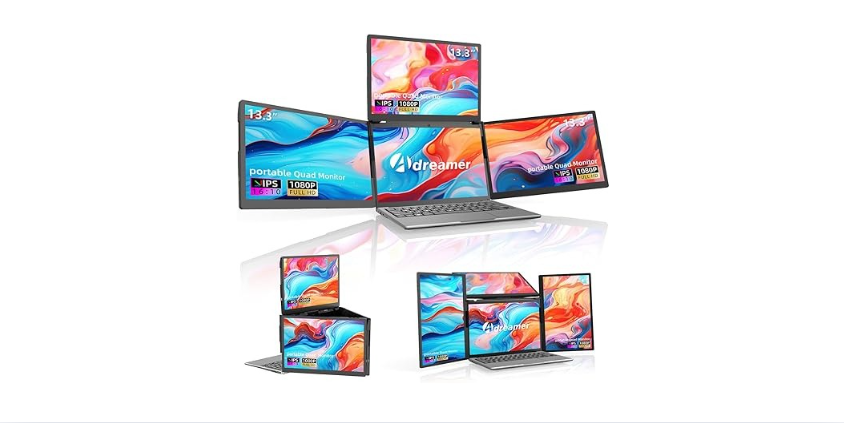
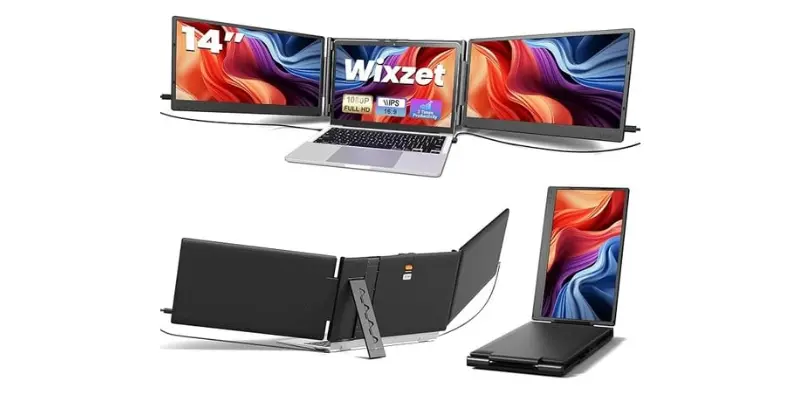
ADREAMER 13.3 TripleADREAMER 13.3" TripleLaptop13.3"1920ร—1200IPS60Hz1.5 lbs9.2Review โ†’
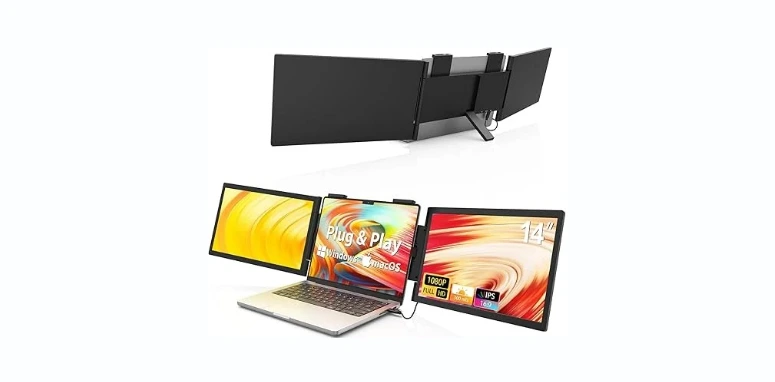
HotYeah 14 TripleHotYeah 14" TripleLaptop14"1080pIPS60Hz1.6 lbs8.4Review โ†’
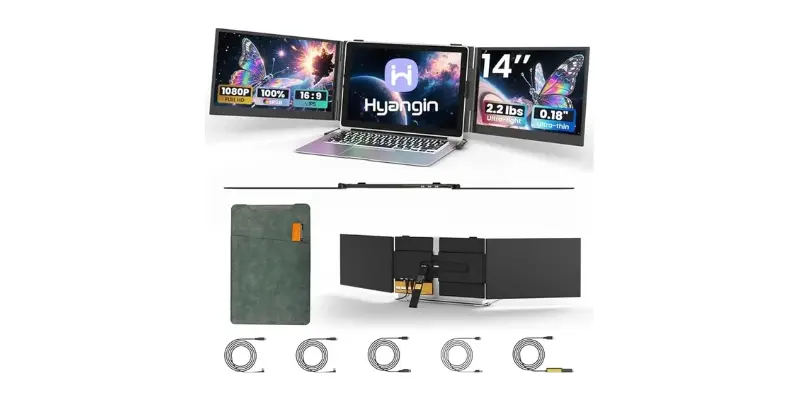
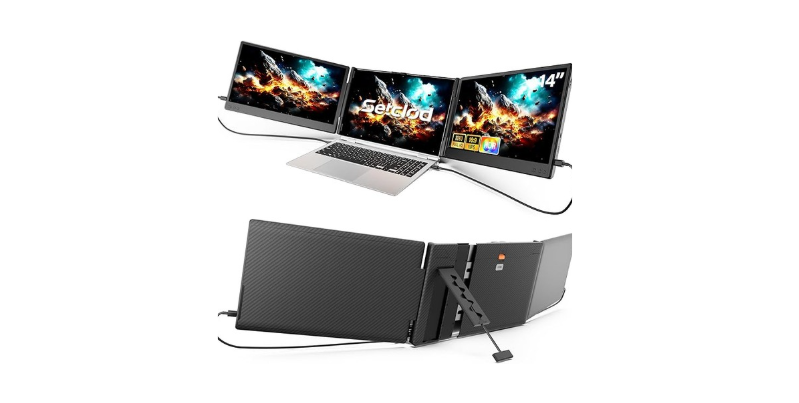
2025 Upgraded 14 Triple2025 Upgraded 14" TripleLaptop14"1080pIPS60Hz1.4 lbs8.6Review โ†’
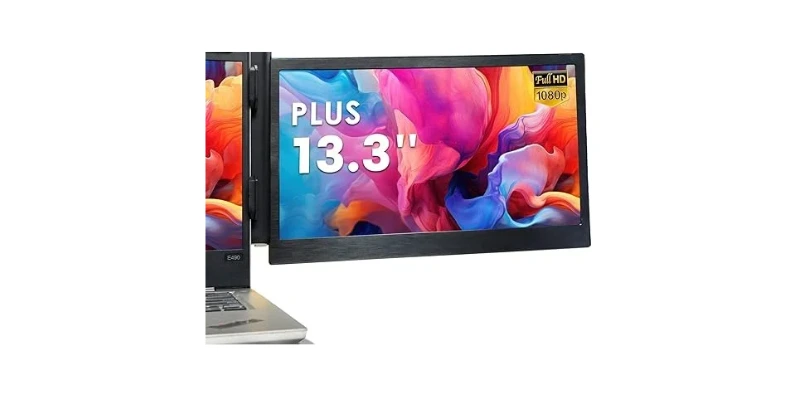
Teamgee P1 PlusTeamgee P1 Plus 13.3"Laptop13.3"1080pIPS60Hz1.5 lbs8.5Review โ†’
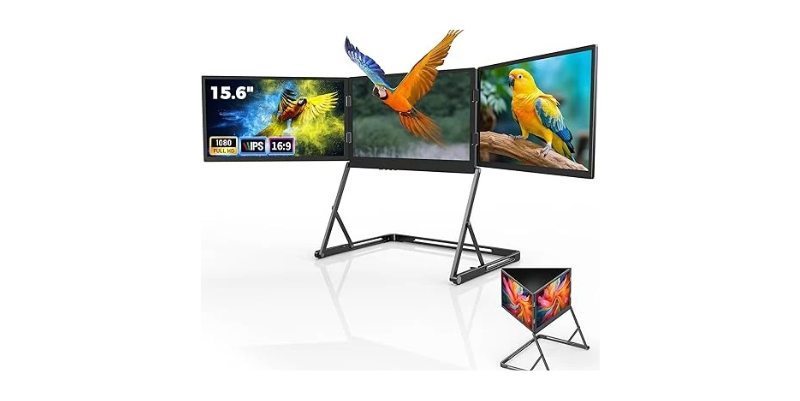
15.6 Triple Monitor15.6" Triple FoldableLaptop15.6"1080pIPS60Hz2.0 lbs8.3Review โ†’
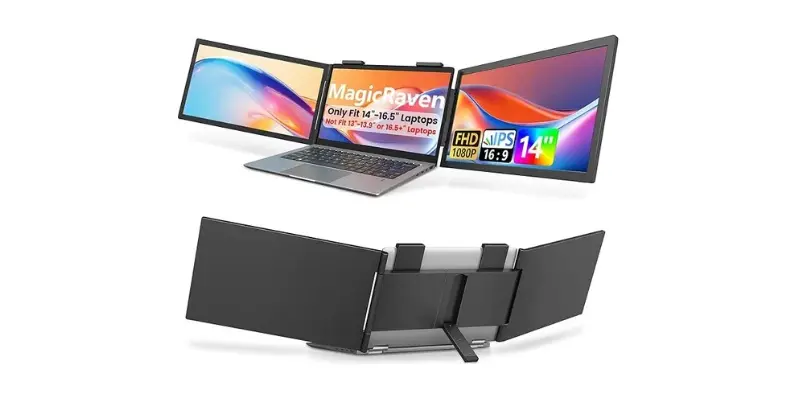
Dual 14 Screen ExtenderDual 14" Screen ExtenderLaptop14"1080pIPS60Hz1.5 lbs8.5Review โ†’
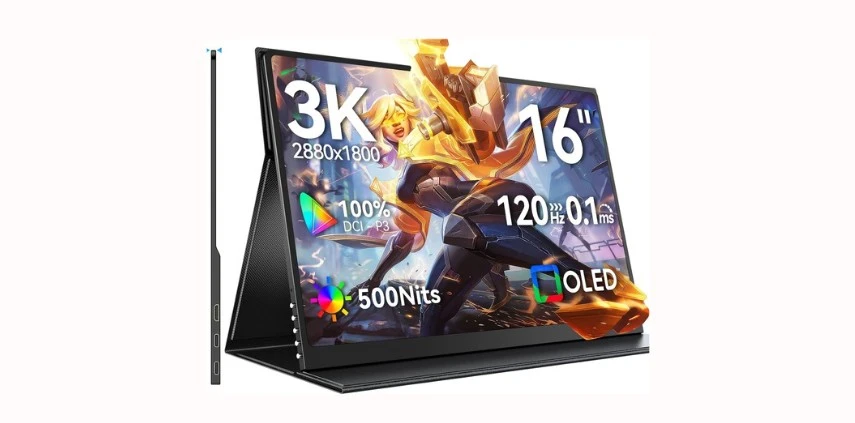
UPERFECT OLED 16 3KUPERFECT OLED 16" 3KPortable16"2880ร—1800OLED60Hz1.8 lbs9.3Review โ†’
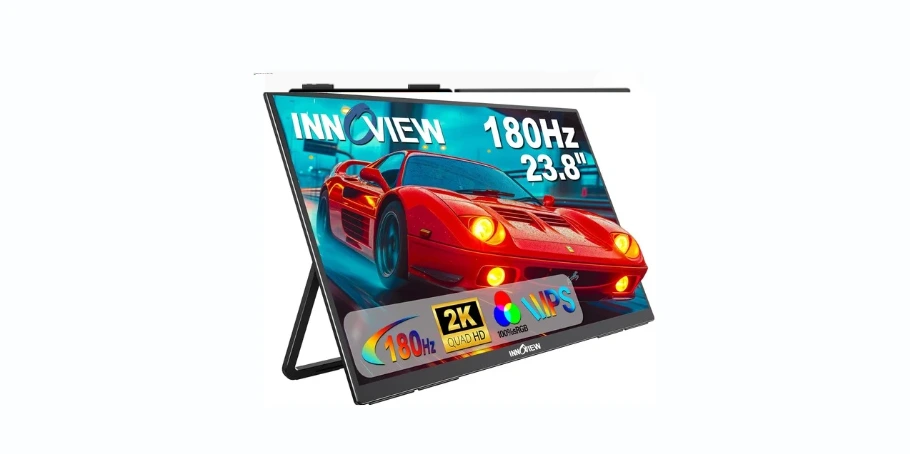
2K 180Hz 23.8 Gaming Monitor23.8" 2K 180Hz GamingPortable23.8"2560ร—1440IPS180Hz4.2 lbs9.0Review โ†’
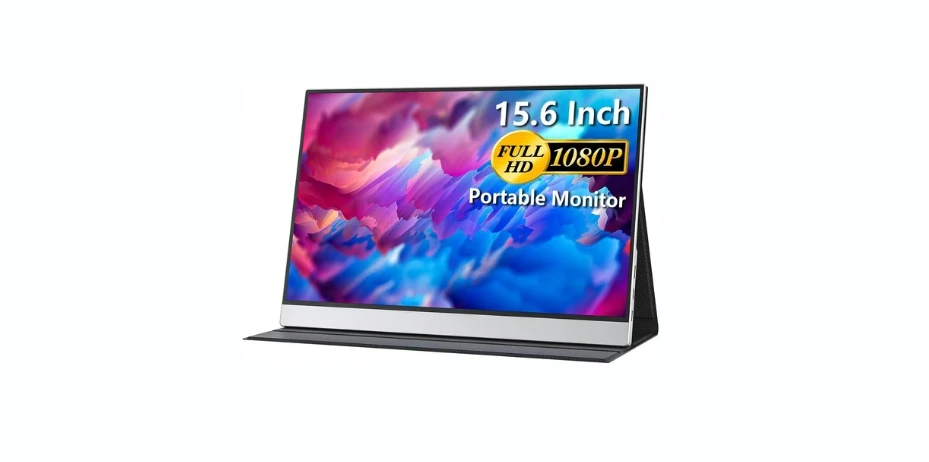
cocopar 15.6 Portablecocopar 15.6" TravelPortable15.6"1080pIPS60Hz1.7 lbs8.5Review โ†’
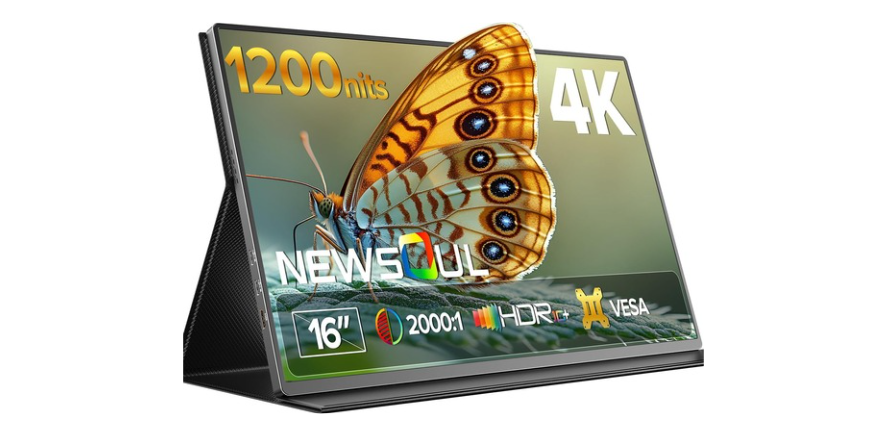
Newsoul 16 4KNewsoul 16" 4K 1200nitPortable16"4KIPS60Hz2.0 lbs9.1Review โ†’
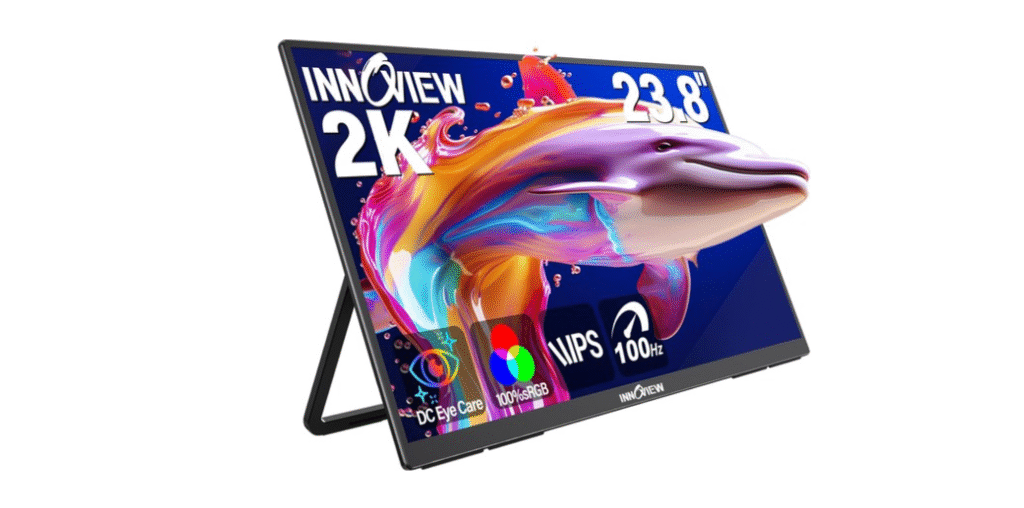
InnoView 23.8 2KInnoView 23.8" 2K 100HzPortable23.8"2560ร—1440IPS100Hz4.0 lbs8.8Review โ†’
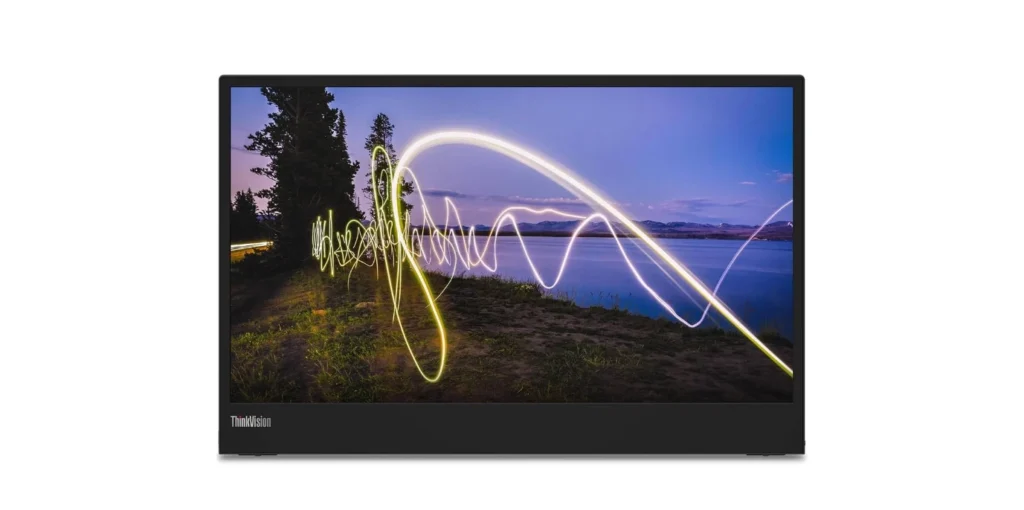
Lenovo ThinkVision M15Lenovo ThinkVision M15Portable15.6"1080pIPS60Hz1.8 lbs8.7Review โ†’
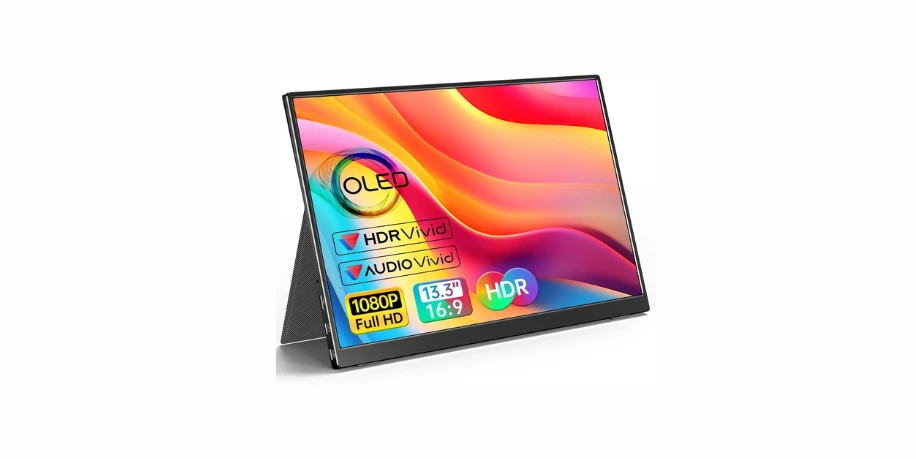
VILVA OLED 13.3VILVA OLED 13.3"Portable13.3"1080pOLED60Hz0.9 lbs8.6Review โ†’
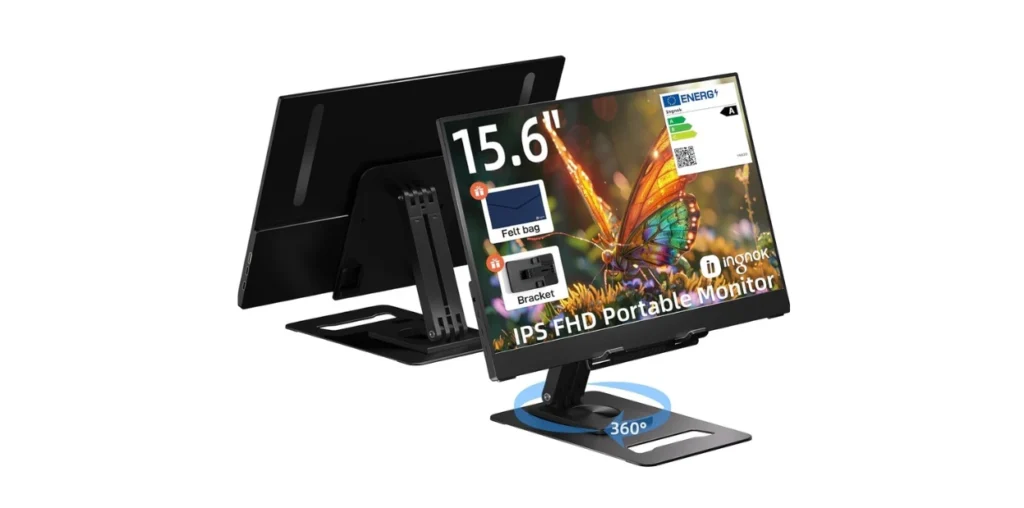
Ingnok 15.6Ingnok 15.6" FHDPortable15.6"1080pIPS60Hz1.6 lbs8.2Review โ†’
Newsoul 4K DesktopNewsoul 4K 16" DesktopDesktop16"4KIPS60Hz2.0 lbs9.1Review โ†’
InnoView 23.8 DesktopInnoView 23.8" 2K DesktopDesktop23.8"2560ร—1440IPS100Hz4.0 lbs8.8Review โ†’
14 FHD Desktop Extender14" FHD Desktop ExtenderDesktop14"1080pIPS60Hz1.3 lbs8.4Review โ†’
2025 Upgraded Desktop2025 Upgraded 14" DesktopDesktop14"1080pIPS60Hz1.4 lbs8.5Review โ†’
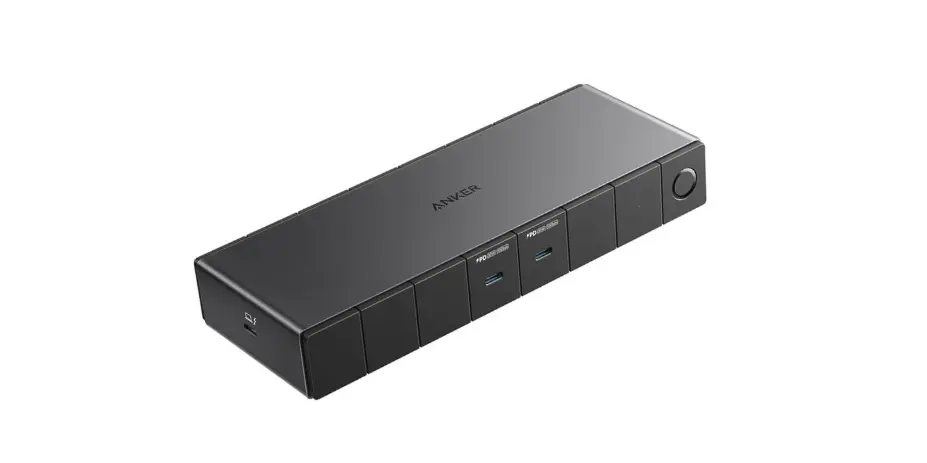
Anker 778 TB4Anker 778 Thunderbolt 4Docking12 ports2ร—4K@60Hzโ€”โ€”0.8 lbs9.3Review โ†’
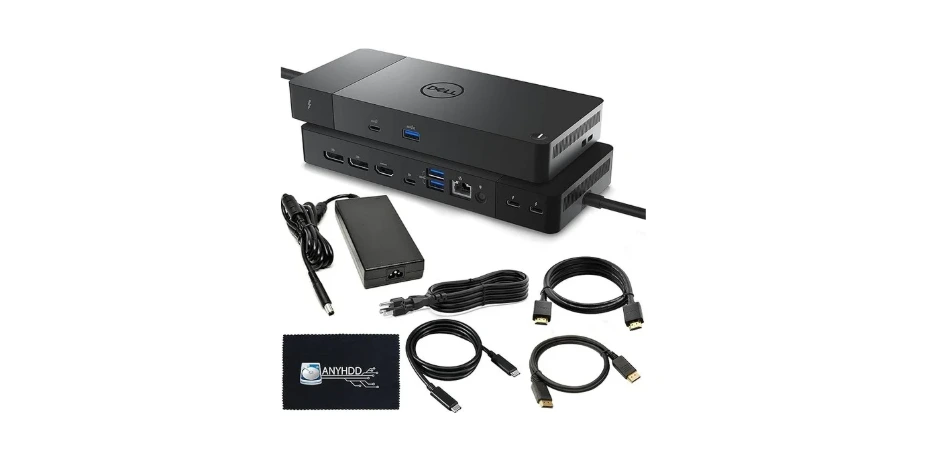
Dell WD22TB4Dell WD22TB4 TB4Docking10 ports2ร—4K@60Hzโ€”โ€”1.1 lbs9.0Review โ†’
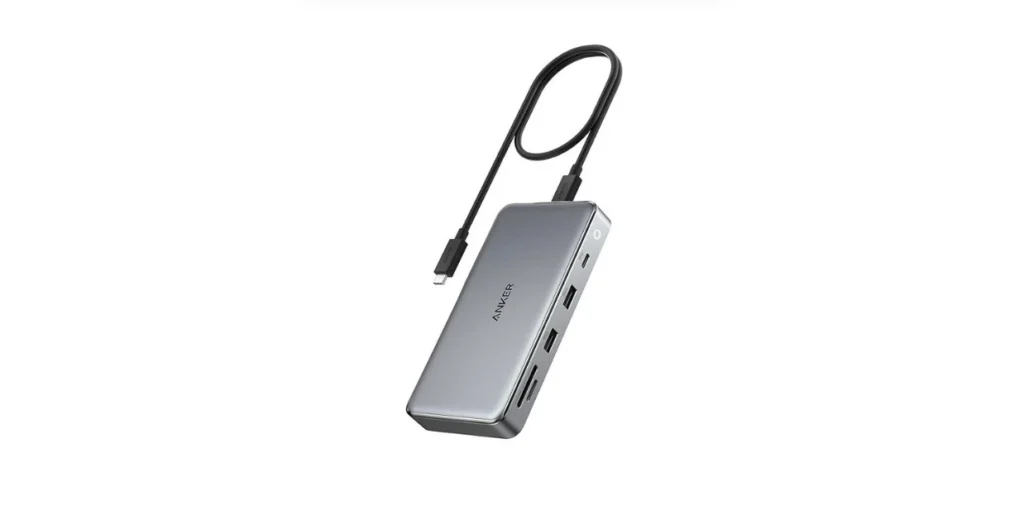
Anker 563 10-in-1Anker 563 USB-C 10-in-1Docking10 ports2ร—4K@30Hzโ€”โ€”0.6 lbs8.7Review โ†’
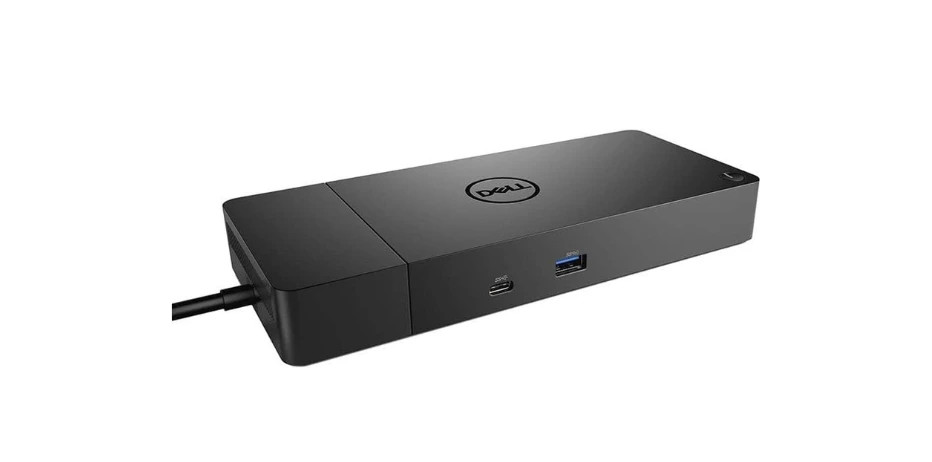
Dell WD19SDell WD19S 90WDocking10 ports2ร—QHD@60Hzโ€”โ€”1.0 lbs8.8Review โ†’
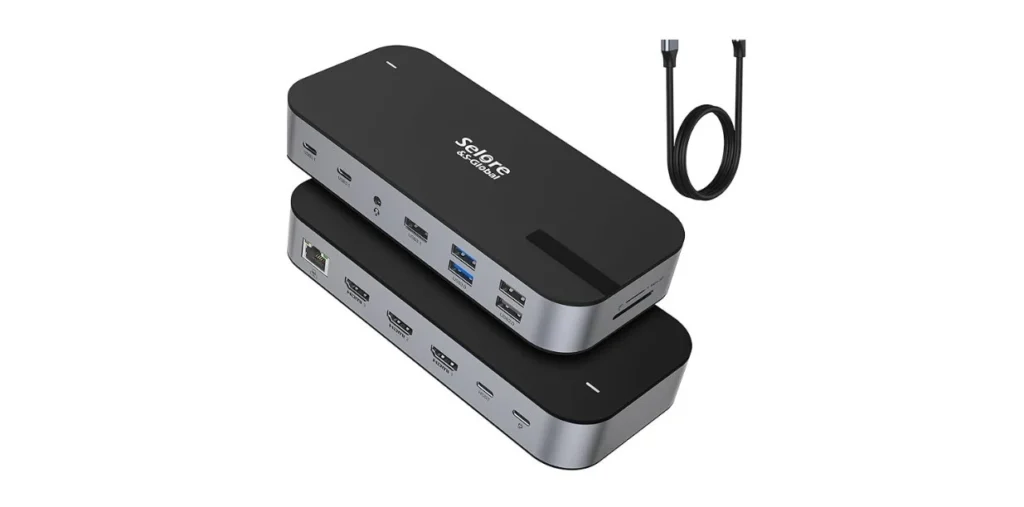
Selore 3xHDMISelore USB-C 3ร—HDMIDocking8 ports3ร—1080pโ€”โ€”0.5 lbs8.0Review โ†’
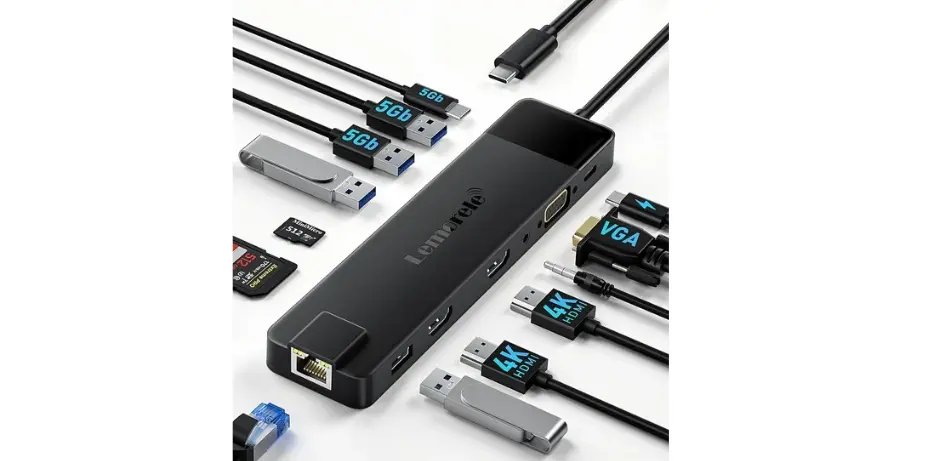
Lemorele 13-in-1Lemorele 13-in-1Docking13 ports3ร—4K@30Hzโ€”โ€”0.7 lbs8.6Review โ†’
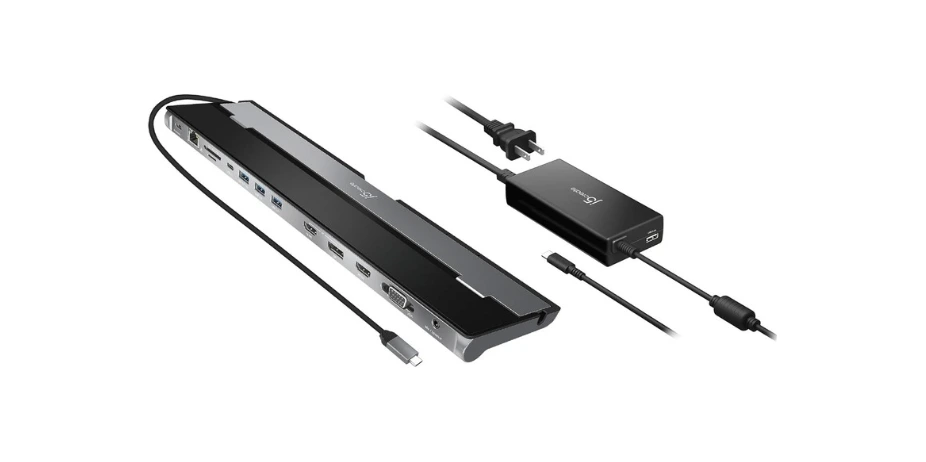
j5create USB-C Dockj5create USB-C 100WDocking10 ports2ร—4K@60Hzโ€”โ€”0.9 lbs8.9Review โ†’
Connection Standards

Port Standards Decoded

The most confusing part of buying a screen extender. Click each standard to see what it actually delivers. Learn more in our glossary.

USB-C 3.2

10 Gbps

Most common. Check for DP Alt Mode.

Thunderbolt 3

40 Gbps

Intel certified. Dual 4K capable.

Thunderbolt 4

40 Gbps

Guaranteed dual 4K. Most reliable.

HDMI 2.0

18 Gbps

Universal. Needs separate power cable.

10 Gbps
Maximum Bandwidth
Video output (with DP Alt Mode)
Power delivery up to 100W
Single cable for video + power
Not all USB-C ports support video โ€” verify DP Alt Mode
Cannot natively drive dual 4K@60Hz
40 Gbps
Maximum Bandwidth
Dual 4K@60Hz display output
Power delivery up to 100W
Daisy-chain capable
Not all TB3 ports guarantee dual 4K โ€” check specs
Requires Intel-certified controller
40 Gbps
Guaranteed Bandwidth
Guaranteed dual 4K@60Hz output
Power delivery up to 100W
Universal compatibility with USB4
PCIe tunneling for eGPU support
Premium price โ€” most TB4 docks cost $250+
18 Gbps
Maximum Bandwidth
Universal โ€” works with virtually every device
4K@60Hz single display
Most affordable adapters
Cannot deliver power โ€” needs separate cable
No data transfer or daisy-chaining
Panel Technology

IPS vs VA vs OLED vs TN

Panel type affects everything from color accuracy to viewing angles. Here's how they compare for portable monitors and desktop extenders.

IPS
In-Plane Switching
Color
88%
Contrast
60%
Angles
95%
Speed
72%
Price
$$
VA
Vertical Alignment
Color
75%
Contrast
92%
Angles
55%
Speed
58%
Price
$
OLED
Organic Light-Emitting Diode
Color
98%
Contrast
โˆž
Angles
98%
Speed
96%
Price
$$$$
TN
Twisted Nematic
Color
45%
Contrast
50%
Angles
30%
Speed
95%
Price
$
Value Analysis

Price vs Performance Matrix

Products above the value line deliver outsized performance for their price. Hover for details. All ratings from our hands-on testing.

Price Range โ†’ Our Rating โ†’ $50 $150 $250 $350 $500 7.0 8.0 9.0 10 Value Line
Laptop Extenders
Portable Monitors
Docking Stations
Desktop Extenders
Setup Comparisons

Real-World Setup Face-Offs

Actual workspace configurations compared side-by-side. Products, total cost, and honest trade-offs. Need help choosing? Use our buying guide.

Laptop Extender Setup
Portable Monitor Setup
VS
Travel Productivity: Clip-On vs Standalone
Weight: 1.5 lbs vs 1.7 lbsSetup: 10s vs 45s
Clip-On Extender
  • One unit travels with laptop
  • Instant setup, no cables
  • 13.3" screens (smaller)
Portable Monitor
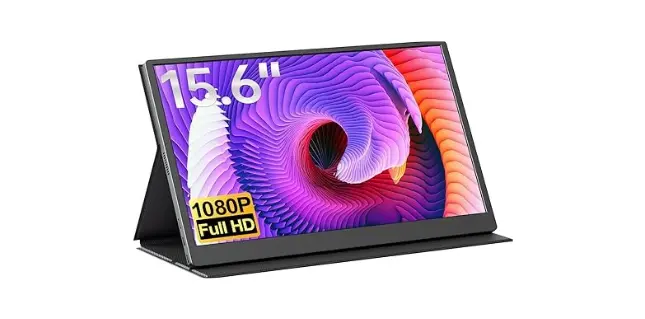
  • Larger 15.6" screen
  • 144Hz for smooth scrolling
  • Separate carry + cable needed
OLED Monitor
Standard IPS Monitor
VS
Designer Display: OLED vs Premium IPS
Color: 100% DCI-P3 vs 100% sRGBBrightness: 400 vs 1200 nits
VILVA OLED 13.3"
  • True blacks, infinite contrast
  • Factory calibrated
  • Burn-in risk over time
Newsoul 16" IPS
  • 1200 nits โ€” usable outdoors
  • No burn-in risk
  • Less color depth than OLED
Thunderbolt Dock
USB-C Dock
VS
Desk Connectivity: Premium TB4 vs Budget USB-C
Ports: 12 vs 8PD: 90W vs 65W
Anker 778 TB4
  • Dual 4K@60Hz native
  • 90W power delivery
  • Enterprise reliability
Selore USB-C
  • 3ร—HDMI outputs
  • 1/4 the price
  • DisplayLink required for multi-monitor
Triple Extender
Large Portable
VS
Developer Workspace: Triple Small vs Single Large
Total Screen: 28" vs 17.3"Windows: 3 vs 1
Triple 14" Extender
  • Code + terminal + browser
  • More windows visible
  • Smaller individual screens
Single 17.3" Portable
  • Full-size code view
  • Better for focused work
  • Simpler setup
Winner's Podium

Category Winners

Our top picks across every category. Each winner earned through our comprehensive evaluation. See our affiliate disclosure.

Best Laptop Extender
ADREAMER
ADREAMER 13.3" Triple
Laptop Extender
13.3"ร—21920ร—1200USB-C
Read Full Review
Best Docking Station
Anker 778
Anker 778 Thunderbolt 4
Docking Station
12 PortsTB490W PD
Read Full Review
Best for Color Accuracy
VILVA OLED 13.3
VILVA OLED 13.3"
Portable Monitor
4KOLED100% DCI-P3
Read Full Review
Best Budget
Selore
Selore USB-C 3ร—HDMI
Docking Station
8 Ports3ร—HDMI65W PD
Read Full Review
Best for Mac
Newsoul
Newsoul 16" 4K
Portable Monitor
16"4K1200 nits
Read Full Review
Deep Dives

Category Intelligence Briefs

Each product category has unique constraints, failure modes, and compatibility risks. These briefs arm you with the critical knowledge reviewers often skip.

Laptop Screen Extenders

Target user: Mobile professionals needing 2-3 screens without carrying separate monitors.

  • Hinge stress risk: A 1.5 lb extender on a 2.5 lb ultrabook creates lateral torque. Over 6-12 months, this can loosen hinges. Match extender weight to laptop chassis โ€” see our laptop extender reviews for weight ratings.
  • Power draw: Triple extenders pull 5-15W from your laptop battery, reducing runtime by 1-2 hours. The Teamgee P1 Plus supports USB-C power pass-through.
  • macOS display limit: Apple Silicon natively supports one external display via USB-C. Triple extenders need DisplayLink drivers on Mac.

See our buying guide for weight-matching tables. Affiliate disclosure.

Portable Monitors

Target user: Anyone who needs a second screen that travels โ€” from hotel rooms to coffee shops.

  • Cable dependency: The #1 failure is using the wrong cable. Not all USB-C cables carry video โ€” you need DisplayPort Alt Mode support. Always use the included cable first.
  • Brightness matters more than resolution: A 1080p panel at 400 nits outdoors beats a 4K panel at 250 nits. The Newsoul at 1200 nits is our outdoor pick.
  • OLED burn-in: Static UI elements (taskbar, dock) create permanent ghosting on OLED panels after extended use. Reserve OLED for varied-content sessions under 4 hours.

Full category at portable monitors hub. Affiliate disclosure.

Desktop Screen Extenders

Target user: Permanent desk setups needing large, high-quality secondary displays.

  • Ergonomics are non-negotiable: Screen top edge at or below eye level. A 23.8" monitor flat on a desk forces your neck down 15-20ยฐ, causing strain within hours. Use a VESA mount or riser.
  • Resolution scaling issues: Running a 4K external next to a 1080p laptop creates DPI mismatch โ€” cursor size jumps between screens. Set per-display scaling in OS settings.
  • Refresh rate overkill: 144Hz+ is wasted on spreadsheets. The InnoView 23.8" at 100Hz is the practical sweet spot for productivity.

Full category at desktop extenders hub. Affiliate disclosure.

Docking Stations

Target user: Desk workers who want single-cable laptop connection to multiple peripherals and displays.

  • Thunderbolt vs USB-C is critical: A Thunderbolt dock on a USB-C-only port falls back to basic USB speeds โ€” no dual 4K. The Anker 778 TB4 requires a Thunderbolt port for full functionality.
  • DisplayLink trade-offs: DisplayLink docks like the Selore 3ร—HDMI work on any USB-C port but use CPU-based video compression โ€” noticeable lag in video playback and gaming.
  • Power Delivery wattage: A dock claiming "100W PD" delivers less after powering itself. Verify your laptop's charging requirement. The j5create 100W handles most 65W laptops with headroom.

Full category at docking stations hub. Affiliate disclosure.

Myths Debunked

Comparison Myths vs Reality

Click any card to flip and see the truth. These misconceptions cost buyers money. Check our FAQ for more.

"4K is always better than 1080p"

MythClick to reveal truth

Reality

Under 15", 4K is barely noticeable. Text becomes tiny requiring scaling, negating resolution gains. 1080p is ideal for 13-14" screens.

"Thunderbolt is required for dual monitors"

MythClick to reveal truth

Reality

USB-C with DisplayLink drives dual monitors without Thunderbolt. Quality is good for productivity, though not ideal for video editing.

"More expensive = better quality"

MythClick to reveal truth

Reality

Our price-performance matrix shows products above and below the value line at every price point. A $90 Ingnok outscores several $300+ monitors.

"All USB-C ports support video"

MythClick to reveal truth

Reality

Only USB-C ports with DP Alt Mode output video. Many laptops have USB-C ports that only carry data and power โ€” always check your laptop's specs.

"Refresh rate matters for productivity"

MythClick to reveal truth

Reality

Beyond 60Hz, productivity gains are negligible. 144Hz makes scrolling smoother but won't make you type faster. Save the premium unless you're gaming.

"Portable monitors can replace a desktop monitor"

MythClick to reveal truth

Reality

For permanent desks, desktop monitors are cheaper, larger, and better quality. Portable monitors are for flexibility, not replacement.

Pre-Purchase

12-Point Pre-Purchase Checklist

Run through this before clicking "Buy." It catches 90% of compatibility failures and buyer's remorse. See our buying guide for expanded guidance.

Compatibility Checks

1
Identify your exact USB-C port type

Is it USB-C data only, DisplayPort Alt Mode, or Thunderbolt? This single variable determines which products work. See our glossary.

2
Verify OS compatibility

Check the product's OS support โ€” especially macOS. Apple Silicon limits USB-C to one external display natively. See our FAQ.

3
Check display output count vs your port

Dual 4K requires Thunderbolt or DisplayLink. USB-C 3.1 maxes at one 4K@30Hz display. Match expectations to reality.

Budget & Value

4
Calculate total cost of ownership

Include cables, adapters, stands, and potential dock upgrades. A $90 monitor may need a $30 cable and $50 stand โ€” real cost is $170.

5
Consider the ROI payback period

A $150 portable monitor that saves 30 minutes daily pays for itself in 18 working days. See our ROI calculator above.

6
Buy the system, not just the screen

Think about your complete setup: extender + dock + cables + ergonomic accessories.

Physical & Ergonomic

7
Weigh your total carry burden

Laptop + extender + cables + dock. If it exceeds 6 lbs, you may leave things behind. The VILVA OLED at 0.9 lbs minimizes this.

8
Plan your ergonomic layout

Screen height, distance, and angle matter more than resolution for all-day comfort. See our desktop setup guide.

9
Check brightness for your environment

200-300 nits for indoors. 500+ for near windows. 1000+ for outdoor use. Don't overpay or underbuy.

Risk & Return

10
Verify the return policy

Screen extenders have high compatibility variance. Keep packaging for 30 days. Amazon offers easy returns for most products.

11
Know the failure modes

Every product review on ScreenExtendersHub includes "who should NOT buy this." Read it. See our disclosure.

12
Test before permanent setup

Connect and verify display quality, resolution, and cable routing before managing cables and mounting. Spend a full workday testing before committing.

Compatibility Matrix

OS Compatibility Cross-Reference

Full compatibility status across operating systems. Green = full support. Yellow = partial (drivers needed). Red = not compatible. See our FAQ for details.

ProductWindows 10/11macOS (M-series)macOS (Intel)ChromeOSLinux
ADREAMER 13.3" Triple
UPERFECT OLED 16" 3K
VILVA OLED 13.3"
Anker 778 TB4
Dell WD19S
Selore USB-C 3ร—HDMI
Quick Ref

Quick Reference: Key Specs

Cheat sheets for the most critical specifications. See our glossary for detailed definitions.

Connection Standards

StandardBandwidthMax Display
USB-C 3.110 Gbps1× 4K@30Hz
USB-C 3.220 Gbps1× 4K@60Hz
Thunderbolt 340 Gbps2× 4K@60Hz
Thunderbolt 440 Gbps2× 4K@60Hz (guaranteed)
DisplayLink (USB)5 Gbps3× 1080p (compressed)

Docking station performance depends entirely on your port type. TB4 guarantees dual 4K — TB3 supported it but didn't require it.

Brightness Guide

NitsEnvironmentExample
200-250Indoor, dim roomsVILVA OLED
300-400Standard officeLenovo M15
500-700Bright rooms, windowsUPERFECT OLED
1000-1200Outdoors, sunlightNewsoul 4K

For outdoor use, 400 nits is the minimum. See our buying guide brightness section.

Panel Technology

TypeStrengthsWeaknesses
IPSWide angles, no burn-in, brightLower contrast, glow
OLEDInfinite contrast, vivid colorsBurn-in risk, lower brightness
VAHigh contrast, deep blacksSlow response, narrow angles
TNFast response, cheapestBad angles, poor color

All our portable monitor and laptop extender reviews use IPS or OLED.

Weight & Portability

WeightPortabilityExamples
Under 1 lbUltra-portableVILVA OLED
1-2 lbsDaily carryLenovo M15, cocopar
2-3 lbsOccasional transportNewsoul 4K
3+ lbsDesk-to-desk onlyInnoView 23.8"

Combine with laptop weight for total burden. See travel setup guide.

ROI Calculator

Is It Worth the Investment?

Enter your work details. We'll calculate how fast a screen extender pays for itself through productivity gains. Research shows multi-monitor setups improve efficiency by 20-30%. Not sure what to buy? Start with the buying guide.

3.6
Working Days to Pay for Itself
Based on 5 hours of multi-tasking at $40/hr with a 25% productivity improvement, a $180 screen extender generates $50.00 in daily productivity value โ€” paying for itself in under a week.
Workflows

Real-World Workflow Scenarios

What professionals in different roles actually use — with specific product picks, cost estimates, and trade-offs.

Software Developer

Code on primary, documentation on second, terminal/debugging on third. Triple-screen setups cut context-switching by 30%+.

Recommended: ADREAMER Triple for travel, or InnoView 23.8" + Anker 778 dock for desk. Est. cost: $180-$450

Graphic Designer

Color-accurate main display for design work, reference images on second screen, tool palettes on third.

Recommended: UPERFECT OLED (100% DCI-P3) as primary portable, Ingnok IPS as reference. Est. cost: $300-$500

Day Trader

Multiple chart windows, order book, news feed, positions โ€” all visible simultaneously without switching.

Recommended: 23.8" 2K 180Hz (smooth chart scrolling) + Dell WD22TB4 dock for multi-monitor. Est. cost: $400-$700

Traveling Consultant

Client presentations, spreadsheets, and email on the go. Must fit in a carry-on and set up in under 2 minutes.

Recommended: Lenovo M15 (1.76 lbs, single USB-C cable) or VILVA OLED (0.9 lbs). Est. cost: $130-$250

Remote Worker

Video calls on one screen, shared documents on another, chat/email on third. Home office permanence allows desk optimization.

Recommended: InnoView 23.8" × 2 + Anker 563 hub. Est. cost: $350-$550

Student

Lecture notes on one screen, research on another. Budget-friendly, lightweight, library-friendly setup.

Recommended: Ingnok at ~$90 โ€” best value in our testing. Or cocopar with built-in stand. Est. cost: $90-$160
Decide

Buyer Decision Engine

Answer 3 questions. Get a targeted recommendation in 30 seconds.

Step 1: Where will you primarily use it?

Travel / On-the-go

Hotels, coffee shops, client sites

Permanent Desk

Home office or work desk

Both

Desk + occasional travel

Step 2: How many extra screens do you need?

One Extra Screen

Simple dual-monitor setup

Two Extra Screens

Triple-monitor productivity

Three or More

Command center setup

Step 3: What matters most?

Best Value

Most capability per dollar

Best Quality

Premium display, build, features

Easiest Setup

Plug and play, minimal hassle

Comparison FAQ

Frequently Asked Questions

Comparison-specific answers. For general questions, see our full FAQ page.

Rarely. The jump from $100 to $200 brings major quality improvements (better panels, USB-C PD, build quality). But $200 to $400 typically adds refinements โ€” 4K, OLED, or color calibration โ€” that only matter for specific use cases like professional design work.

Yes. Windows and macOS both handle mixed-brand setups. Main concerns: color consistency (calibrate both screens), and resolution scaling differences if mixing 1080p with 4K. A docking station simplifies multi-brand connections.

For productivity, two screens almost always beat one larger screen โ€” the ability to have separate full-screen apps is transformative. Exception: color-critical creative work where display accuracy on a primary monitor matters more than screen count.

The 20-30% productivity gain is based on published research from the University of Utah and Jon Peddie Research. Actual results vary โ€” some users gain more, others less. The calculator is an estimate, not a guarantee. Our blog has more on productivity research.

Most products include 1-year manufacturer warranties. Brand-name options (Dell, Anker, ViewSonic) typically offer better warranty support than generic brands. Always check warranty terms before purchase โ€” we note warranty info in each product review.

Portable monitors have the lowest return rate โ€” they're simple plug-and-play. Laptop extenders have the highest due to compatibility issues and fit problems with specific laptop models.

No. Our editorial process is independent of affiliate relationships. We follow a strict disclosure policy and regularly recommend products that earn us zero commission when they're the better choice. Read our full editorial policy.

We review and update all comparison data quarterly, or whenever a new product enters our testing pipeline. Ratings reflect our latest testing. Last updated: January 2026. Contact us if you notice outdated information.

Standards

Our Editorial Standards

How we build these comparisons, and why you should trust them.

Independent Editorial

Recommendations are never influenced by commission rates. If the best answer is "don't buy anything yet," we say it. See our disclosure.

Real Constraints Disclosed

Every review includes "who should NOT buy this." We disclose hinge-stress risks, burn-in risks, driver requirements, and OS limitations. See our FAQ.

Data-Driven Comparisons

The spec table, comparator, and price-performance matrix use verified specifications cross-referenced against hands-on evaluation. See our buying guide.

Amazon Associates Disclosure

ScreenExtendersHub is a participant in the Amazon Services LLC Associates Program. As an Amazon Associate, we earn from qualifying purchases at no extra cost to you. Read our terms and privacy policy.

Transparent Process

Products across all categories are scored on the same rubric. Cross-category comparisons use normalized metrics explained in our glossary.

Reader Feedback

Found an error or disagree with a verdict? Contact us. We welcome corrections and product suggestions. Learn more about our team.

Ready to Choose?

Explore our detailed category pages with full reviews, specifications, and recommendations.

Scroll to Top