
Dell Dock- WD19S 90w Power Delivery Review
Discover the Dell Dock WD19S: a sleek, elegant docking station solving cable chaos with its abundant ports and reliable 90w power delivery. Your workspace hero!
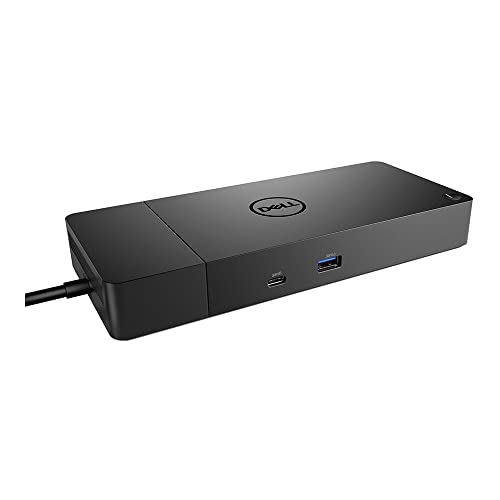
Dell Dock- WD19S 90w Power Delivery - 130w AC - 90 W
Have you ever found yourself juggling a tangled mess of cables, all because your laptop decided to act like a needy child demanding juice from every possible outlet? Well, I certainly have. It’s a classic scene – me desperately trying to untangle the spaghetti of cords while my cat watches in amusement. Enter the game-changer: The Dell Dock- WD19S 90w Power Delivery – 130w AC – 90 W. In an age where technology seems to get more convoluted by the second, this little piece of innovation comes as a breath of fresh air. Let’s chat about why I think it might be your new best friend.
My Two Cents on Dell’s Remarkable Docking Station

Design and Build: A Tale of Elegance and Simplicity
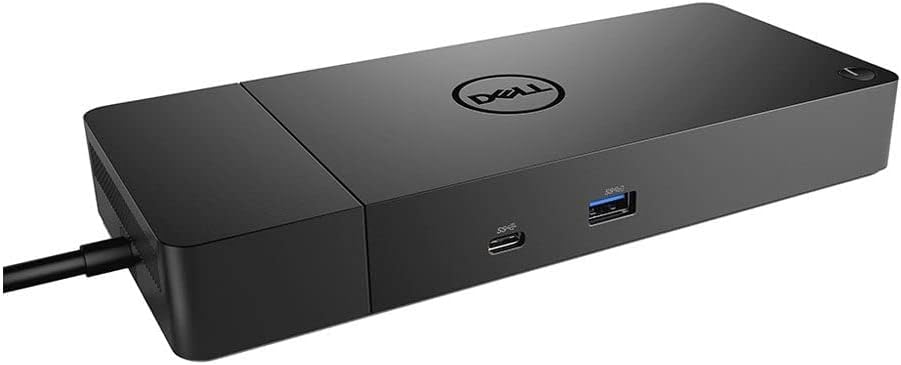
Yes, I know beauty is subjective, but come on – have you seen this dock? Its sleek and minimalistic design whispers sophistication. Measuring in at 8.1 x 3.5 x 1.1 inches, it feels reassuringly substantial without being cumbersome. It’s almost like Dell hired a designer from IKEA to ensure it had the perfect blend of functionality and style. It weighs a mere 20.63 oz, making it almost weightless in tech terms. This dock complements every desktop it adorns, fitting right into your workspace like a lost puzzle piece that finally found its home.
Peeking into the Port Paradise
Ports, glorious ports! Remember the days when you had to choose between charging your phone or plugging in that USB stick containing your award-winning sandwich recipe? Those are long gone. The WD19S boasts a veritable smorgasbord of ports designed to fulfill all your connectivity desires:
| Port Type | Number of Ports |
|---|---|
| USB-C 3.1 (Gen 2) | 1 |
| USB-A 3.1 (Gen 1 with PowerShare) | 1 |
| USB-A 3.1 (Gen 1) | 2 |
| Combo Audio/Headset | 1 |
| Audio Out | 1 |
| DisplayPort 1.4 | 2 |
| HDMI 2.0b | 1 |
| USB-C Multifunction DisplayPort | 1 |
| Gigabit Ethernet RJ45 | 1 |
This kind of connectivity buffet ensures that whether you’re hosting a party and need every gadget plugged in, or you’re just the king or queen of multitasking, you’re covered.
Performance: The MVP of Power Delivery
It’s the miracle worker of powering your devices. Who doesn’t dream of efficiently charging multiple gadgets all at once without the fanfare of drama? The WD19S has simplified living in a world that demands more and more from our devices. Its 90W Power Delivery is like having a personal electricity elf that charges your laptop and gives it that much-needed caffeine jolt to power through even the busiest of days. Additionally, with the 130W AC power, this dock provides enough oomph to ensure every connected device behaves itself and works efficiently.
Future-Proofing: Ready for What’s to Come
This dock was built with an eye toward the future. Let’s face it, technology advances so rapidly that today’s cutting-edge devices often become tomorrow’s paperweights. The WD19S promises to hold its ground far longer than most docks with its forward-thinking modular design. It feels a little like buying winter boots that you know will last five seasons without looking like you dug them out of your grandparent’s attic.

Compatibility: The Fine Print Made Friendly
Dell’s WD19S supports a range of devices, essentially making it the universal translation tool of the docking world. It plays nice with most Dell laptops as you’d expect but also extends its friendly USB-C hand to non-Dell devices with equal delight. Just be sure to peek at Dell’s compatibility list to avoid any rude surprises. Think of it as checking a restaurant menu on your phone before discovering there’s nothing but octopus.
User Experience: A Breath of Fresh Air
This dock is like meeting someone who really gets you. It’s intuitive, reliable, and seems to understand all my device needs, sometimes even before I realize them myself. Plug it in, and it works—no need for elaborate dance rituals or special chants. This simplicity feels like a long-overdue blessing in a tech world that can be easily overwhelming. Each connection is smooth, and each port performs its duty without demanding an extra thank you.
In Conclusion: Should You Make the Leap?
Picture this: a world where the clutters of wires untangle on their own, and you can connect multiple devices without needing an advanced degree in computer science. This is the magical realm the Dell Dock- WD19S 90w Power Delivery – 130w AC – 90 W invites you into. With its slick design, plethora of ports, and reliable power delivery, it promises a future with unengaged ports chilling like loyal companions waiting to be of service. Yes, the dock could give you back some of the sanity you lost trying to juggle chargers while maintaining a productive workspace. It could be your oasis in a desert of messy cables. So, if you’re looking for a docking station that meets nearly every need with poise and reliability, this might just be your gadget soulmate.
Disclosure: As an Amazon Associate, I earn from qualifying purchases.
Docking Station Intelligence
The standards are confusing by design. These three panels decode what manufacturers won’t explain clearly. Applicable to every docking station.
The USB-C Confusion Matrix
The USB-C connector is the single greatest source of buyer confusion in docking stations. The physical plug looks identical whether it carries USB 2.0 at 480 Mbps or Thunderbolt 5 at 120 Gbps — a 250x difference in capability hidden behind the same shape. Manufacturers exploit this by labeling everything "USB-C compatible" without specifying which protocol runs through it. Two docks can look identical on the outside and behave completely differently once you plug them in.
The hierarchy matters because it determines everything: how many monitors your dock can drive, how fast files transfer, whether your laptop charges while docked, and whether you need third-party drivers. Here is the real capability ladder, from slowest to fastest:
The practical takeaway: if your laptop has Thunderbolt 4, buy a Thunderbolt dock. If it only has generic USB-C, verify whether it supports DisplayPort Alt Mode before buying anything with multi-monitor claims. Our buying guide walks through verification steps for every major laptop brand.
Power Delivery: What the Watts Mean
Power Delivery (PD) determines whether your docking station can charge your laptop while you work, or whether you need a separate charger cluttering your desk. The math is simple but rarely explained: your laptop draws a specific wattage under load, and the dock must match or exceed it. If the dock delivers less than your laptop needs, the battery slowly drains even while plugged in — defeating the purpose of a docking station entirely.
Most ultrabooks need 45–65W. Standard business laptops need 65–100W. Gaming and workstation laptops can demand 100–140W or more. The dock’s advertised PD wattage is the maximum it can deliver to your laptop — but this drops if you charge other devices (phones, tablets) through the dock simultaneously. Always leave a 15–20W margin above your laptop’s requirement.
Check your laptop’s original charger wattage — that’s your baseline. Our FAQ covers how to find this for every major brand.
Native Display vs DisplayLink: The Hidden Factor
This is the decision most buyers don’t know they’re making. When a docking station outputs video to your monitors, it uses one of two fundamentally different methods: native (the dock passes your laptop’s GPU signal directly to the monitor) or DisplayLink (the dock compresses video over USB and a software driver renders it). The difference is invisible in marketing materials but profoundly affects your daily experience.
Native output through DisplayPort Alt Mode or Thunderbolt uses your laptop’s actual graphics hardware. There is zero added latency, full DRM support for streaming services, no CPU overhead, and no driver to install. DisplayLink, by contrast, adds 5–15ms of latency (noticeable in video calls and cursor movement), blocks DRM content on connected monitors (Netflix, Disney+ show black screens), consumes 3–8% of your CPU constantly, and requires a driver that Apple’s macOS security updates occasionally break.
DisplayLink exists for one reason: Apple Silicon base chips (M1, M2, M3) can only drive one external display natively. If you need two or more monitors on a base MacBook Air or 13” MacBook Pro, DisplayLink is your only option. For everyone else — Windows users, Mac Pro/Max chip users, Intel/AMD laptops — native is always the better choice.
Native (Alt Mode / Thunderbolt)
DisplayLink (USB compression)
The bottom line: if your laptop supports native multi-display output, always choose a native dock. DisplayLink is a workaround, not an upgrade. See our glossary for detailed definitions.
COMMAND CENTERCOMMAND CENTER
Six tools that decode the confusion manufacturers create. Port protocols, power budgets, display configurations, compatibility, desk planning, and future-proofing. Full buying guide →
Port Protocol DecoderWhat does your connection type actually support? Glossary
Power Delivery CalculatorCan this dock keep your laptop charged?
Display Configuration PlannerCan your dock push enough pixels?
Laptop-to-Dock CompatibilityWill this dock work with YOUR laptop?
Desk Setup ArchitectWhat ports do you actually need?
Select everything you need to connect: