
Dock + Monitor Extenders For UltraWide Laptop Users
Unlock your ultrawide monitor's potential! Discover the magic of docks and extenders for a seamless, efficient workspace that boosts productivity and visual delight.
Struggling to get your laptop to output full resolution on an ultrawide monitor? While 34-inch and 49-inch ultrawide displays provide massive desktop real estate, connecting them to a laptop often results in blurry text, stretched aspect ratios, or refresh rates capped at 30Hz. The secret to a seamless setup comes down to port bandwidth and display protocols. Whether you are using a MacBook or a Windows laptop, pairing the right USB-C to DisplayPort 1.4 cable, Thunderbolt dock, or HDMI 2.1 adapter unlocks full native resolution (3440×1440 or 5120×1440) at high refresh rates without display lag.
Understanding the Role of Docks and Monitor Extenders
Before we get into the nuts and bolts of the perfect setup, let’s take a moment to unravel the components that come into play. Docks and monitor extenders might sound like tech speak, but they’re much simpler than they sound. These nifty devices are your allies in bridging the gap between your laptop and ultrawide monitor.
What is a Dock?
Think of a dock as the central nervous system of your computer setup. It acts as a bridge that connects your laptop with all sorts of peripherals—monitors, keyboards, mice, and even external hard drives. With the right dock, you can turn your laptop into a powerhouse setup with multiple screens and more connectivity options than you probably knew existed.
Monitor Extenders: What Are They Good For?
Monitor extenders, on the other hand, enhance the capabilities of your monitor setup. They allow you to extend your desktop view beyond the limits of a single screen, which is especially handy if you’re handling large spreadsheets or detailed design projects. The goal is a coherent workspace across multiple displays without sacrificing performance or clarity.
Choosing the Right Dock for Your Setup
In our quest to find the perfect dock, we need to navigate the diverse ocean of available options. Docks vary in size, shape, and capability, but there are a few critical factors we should always keep in mind.
Compatibility Considerations
First, we must consider our laptop’s compatibility. Not all docks play nicely with every laptop, and it’s crucial to check manufacturer specifications. Are we dealing with a MacBook, Windows, or perhaps a Linux machine? Each comes with specific requirements and compatibility issues that we need to address.
Ports and Connections
The port variety in docks is another crucial factor. Here’s a table breaking down common connections and their uses:
| Port Type | Description |
|---|---|
| HDMI | Standard for connecting most monitors and TVs |
| DisplayPort | Useful for high-resolution displays |
| Thunderbolt 3 | Offers fast data transfer and supports 4K displays |
| USB-C | Versatile, supports power, data transfer, and display |
| USB 3.0/3.1 | For connecting peripherals like keyboards and mice |
| Ethernet | Provides stable wired internet connection |
We have to check which ports are available on our laptop and ensure the dock can cater to those needs.
Power Delivery
Another key consideration is power delivery. Ideally, our dock should charge the laptop while also connecting to other devices. This feature ensures our setup is less cluttered with cables and helps in maintaining an organized workspace.
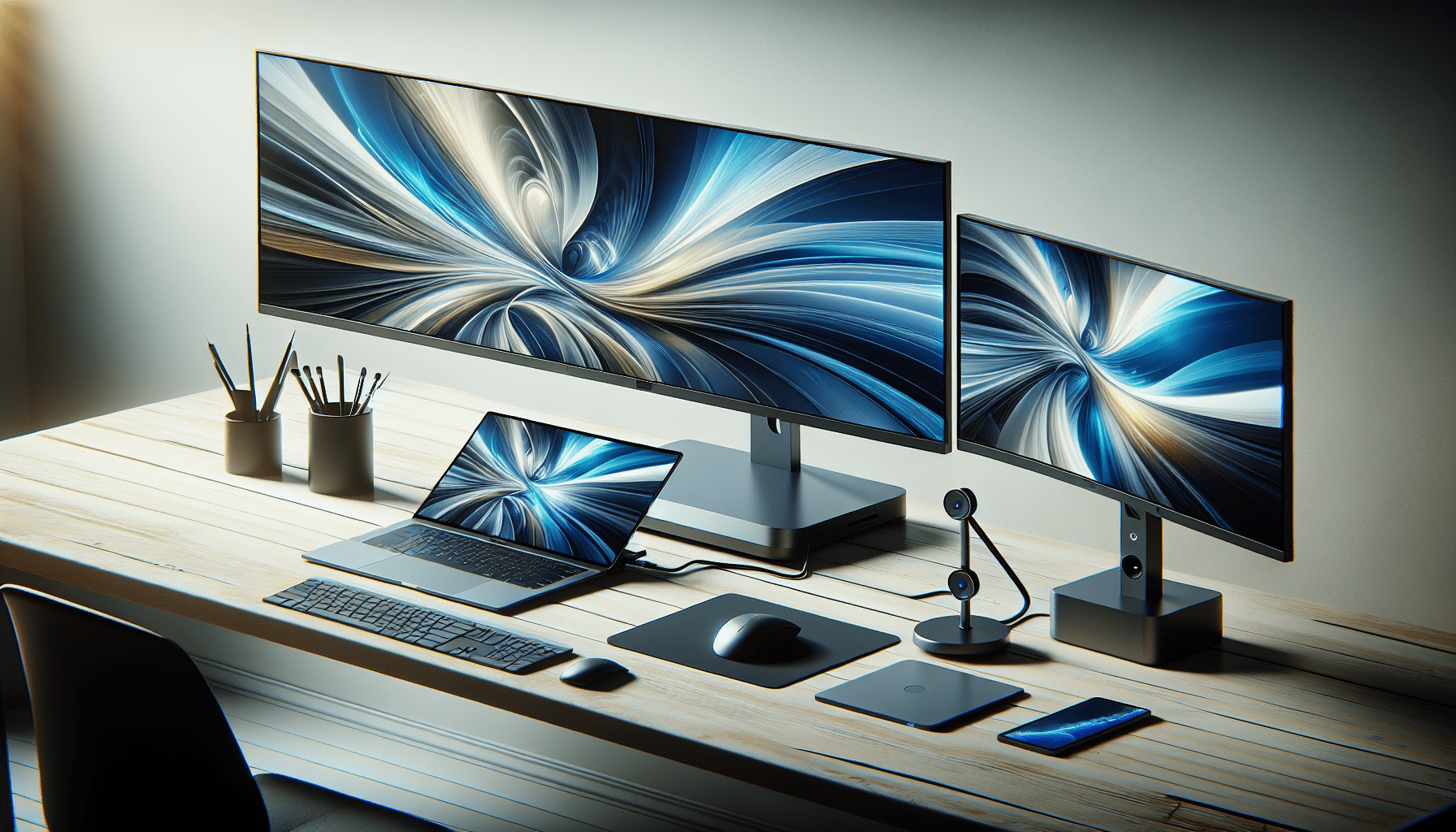
Selecting the Best Monitor Extender
Now that we have a dock in our sights, it’s time to ponder the monitor extender possibilities. Much like choosing a dock, selecting the right extender requires a touch of contemplation and foresight.
Understanding Resolutions and Refresh Rates
Ultrawide monitors come with their own set of demands, primarily in terms of resolution and refresh rates. Whether we’re going for crisp visuals in graphic design or fluid motion in video editing, understanding what our display can handle and what our extender can offer is key. Monitor extenders should support high resolutions along with adequate refresh rates to ensure vibrant and stutter-free visuals.
Adapter Needs
Sometimes, our setup might require additional adapters. An HDMI to USB-C adapter, for example, may become necessary if the dock doesn’t support certain connections. It’s prudent to have these adapters sorted out in advance to avoid any compatibility hiccups down the line.
Budgetary Concerns
Of course, no conversation about tech is complete without a polite nod towards the budget—a monster we all must tame. While it’s tempting to splurge, finding the balance between quality and affordability should be our guiding principle. Thankfully, there are various extenders to meet different financial allocations without compromising too much on quality or performance.
Installation: Making the Connections
Once we’ve gathered our gadgetry, it’s time to piece it all together. Installation might sound like a daunting dragon to slay, but let’s walk through it calmly, like a gentle stroll through a digital meadow.
Connecting the Dock
Begin by attaching the dock to your laptop and ensuring all cables are snug as a bug in a rug. Our goal is to keep connections secure without applying excessive force—think gentle firmness. Once the dock is attached, connect the necessary peripherals (keyboard, mouse, storage devices) to the dock.
Setting Up the Monitor Extender
Next on our checklist is connecting the monitor extender. Attach the extender to the dock, ensuring it’s securely fastened. Then, connect the ultrawide monitor to the extender using the appropriate cable—HDMI or DisplayPort, depending on our previous compatibility check.
Configuring Display Settings
Once our physical setup is complete, we need to configure the display settings to enjoy the full scope of our ultrawide monitor. In the display settings on our laptop, we can arrange the display layout, resolution, and orientation to our liking. We are aiming for symmetry and fluidity in our digital workspace.
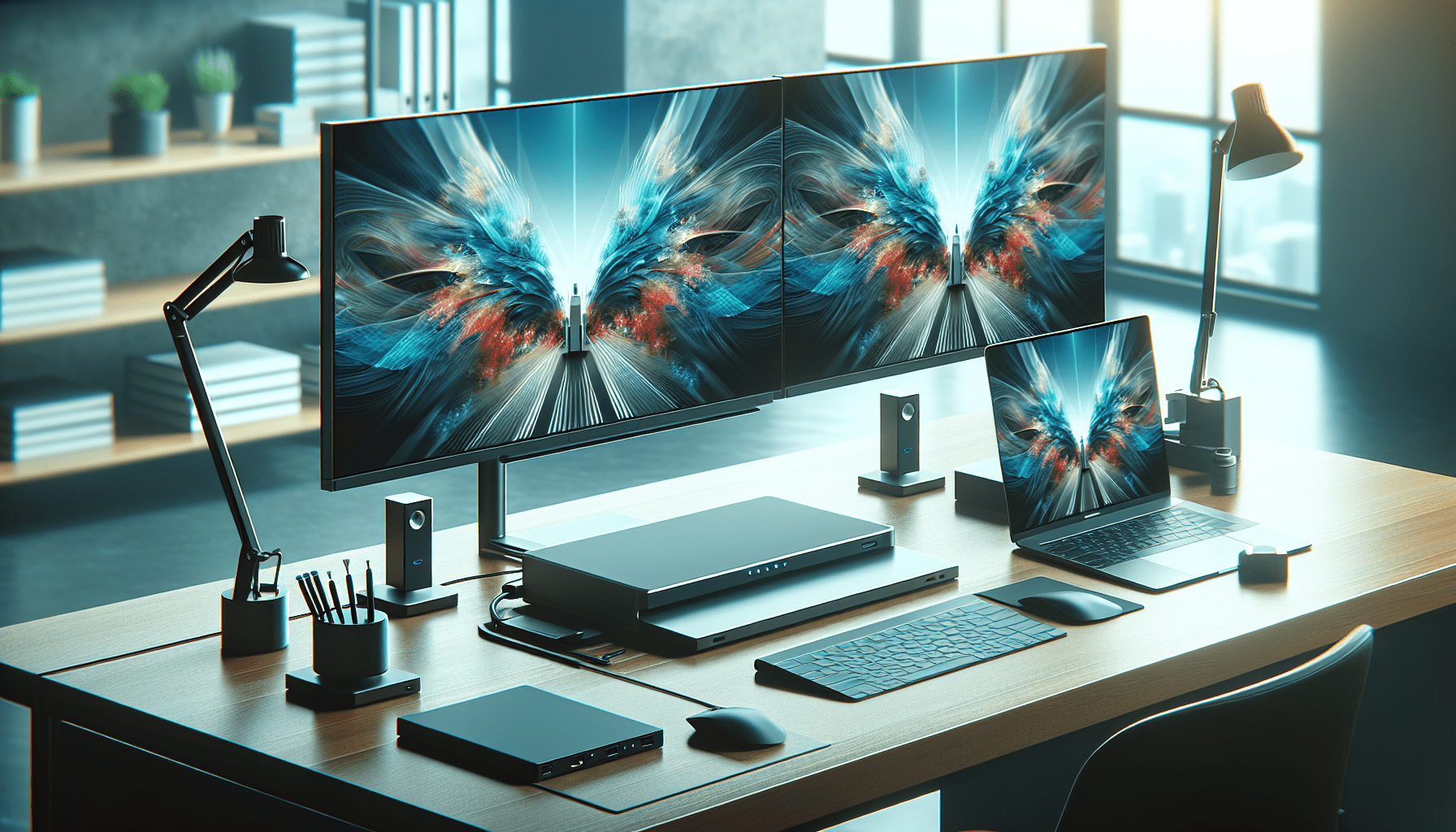
Benefits of an Optimal Setup
With our masterpiece in place, it’s time to bask in the fruits of our labor. There are numerous benefits to having a well-configured ultrawide monitor and laptop setup.
Increased Productivity
By extending our workspace with an ultrawide monitor, we grant ourselves the gift of multitasking. More screen real estate means we can have multiple applications or documents open side by side, reducing the need to constantly switch between tabs and windows. This seamless workflow can drastically enhance our productivity levels.
Enhanced Visual Experience
The visual upgrade we gain is nothing short of spectacular. Ultrawide monitors provide an immersive viewing experience, and when the setup is optimized with the right dock and extender, the colors are more vivid and the visuals are breathtakingly clear.
Ergonomic Advantages
Let’s not forget the ergonomic benefits we get to enjoy. A higher monitor setup reduces neck and back strain, helping us maintain good posture while we work. This subtle improvement goes a long way in preventing those pesky workplace aches and strains.
Common Challenges and Troubleshooting
Of course, life wouldn’t be complete without a few good challenges. But fret not, for we have solutions at hand for the common hiccups faced while establishing our dream workspace.
Connection Issues
Loose connections can lead to flickers or a complete lack of display. Ensuring all cables are firmly and correctly attached can save us from unnecessary frustration. Additionally, we should double-check that the dock and extenders are receiving adequate power.
Compatibility Glitches
Despite our best efforts, sometimes our gadgets don’t want to cooperate. In such situations, updating firmware and drivers is usually a good starting point. Most hardware comes with periodic updates that solve compatibility issues and improve performance.
Lag or Performance Drops
Experiencing lag can be frustrating. Often, this might be due to outdated drivers or insufficient bandwidth. Ensuring our device drivers are up to date and closing unnecessary background tasks can help boost performance.
Future-Proofing Our Setup
Technology evolves faster than we can pronounce “gobbledygook.” Future-proofing our setup is essential to maintain its relevance as tech advancements come marching in.
Opt for Modular Solutions
Choosing docks and extenders with modular capabilities means we can upgrade parts without overhauling everything. By anticipating future needs, like more ports or increased resolution support, we’re one step ahead of the curve.
Staying Informed
Keeping ourselves informed about new technologies and updates is the key to staying ahead of the game. Following tech news and subscribing to relevant forums ensures we’re always in the loop about the latest and greatest gadgets and updates.
Regular Maintenance
Just like any good relationship, our tech setup requires a bit of maintenance and tender loving care. Dusting off our devices, periodically checking connections, and reviewing setup settings every few months can help maintain optimal performance.
Conclusion: Our Thoughts on the Dock + Monitor Extender Symphony
Setting up a dock and monitor extender for ultrawide laptop users is akin to conducting a symphony. Each piece has a role to play, contributing to the grand performance. With careful planning and consideration, we can create a harmonious workspace that satisfies our need for productivity, efficiency, and visual delight. So, let’s embrace this journey, quirks and all, knowing that an optimized tech setup is not just a dream, but a delightful reality well within our reach.

I evaluate docking stations the way they actually get used — against real bandwidth budgets, power-delivery ceilings, and the OS handshakes that quietly cap what a port can do — not spec-sheet promises. Every constraint that can break a multi-display setup is disclosed before any affiliate link.
Docking Station Intelligence
The standards are confusing by design. These three panels decode what manufacturers won’t explain clearly. Applicable to every docking station.
The USB-C Confusion Matrix
The USB-C connector is the single greatest source of buyer confusion in docking stations. The physical plug looks identical whether it carries USB 2.0 at 480 Mbps or Thunderbolt 5 at 120 Gbps — a 250x difference in capability hidden behind the same shape. Manufacturers exploit this by labeling everything "USB-C compatible" without specifying which protocol runs through it. Two docks can look identical on the outside and behave completely differently once you plug them in.
The hierarchy matters because it determines everything: how many monitors your dock can drive, how fast files transfer, whether your laptop charges while docked, and whether you need third-party drivers. Here is the real capability ladder, from slowest to fastest:
The practical takeaway: if your laptop has Thunderbolt 4, buy a Thunderbolt dock. If it only has generic USB-C, verify whether it supports DisplayPort Alt Mode before buying anything with multi-monitor claims. Our buying guide walks through verification steps for every major laptop brand.
Power Delivery: What the Watts Mean
Power Delivery (PD) determines whether your docking station can charge your laptop while you work, or whether you need a separate charger cluttering your desk. The math is simple but rarely explained: your laptop draws a specific wattage under load, and the dock must match or exceed it. If the dock delivers less than your laptop needs, the battery slowly drains even while plugged in — defeating the purpose of a docking station entirely.
Check the laptop manufacturer’s recommended power supply and the dock’s rated host power. Shared charging budgets vary by dock: powering peripherals does not reduce host charging on every model. USB-C charging also depends on the laptop, cable and negotiated power profile. A lower-power supply may charge slowly or allow battery drain under load; a fixed 15–20W margin is not a universal requirement.
Check your laptop’s original charger wattage — that’s your baseline. Our FAQ covers how to find this for every major brand.
Native Display vs DisplayLink: The Hidden Factor
This is the decision most buyers don’t know they’re making. When a docking station outputs video to your monitors, it uses one of two fundamentally different methods: native (the dock passes your laptop’s GPU signal directly to the monitor) or DisplayLink (the dock compresses video over USB and a software driver renders it). The difference is invisible in marketing materials but profoundly affects your daily experience.
Native output through DisplayPort Alt Mode or Thunderbolt uses the host graphics system. DisplayLink transports encoded display data over USB using compatible software. Its responsiveness and CPU/GPU load vary with the computer, software, resolution and workload; fixed latency, CPU and battery percentages are not universal specifications. Protected-video playback also depends on the display path, operating system and service. Check DisplayLink system requirements for your configuration.
DisplayLink can add displays through compatible USB connections, including USB-A, and can serve systems with limited native display outputs. Native limits depend on the exact computer and operating mode. For example, M3 MacBook Air and MacBook Pro support two external displays with the lid closed under Apple’s stated conditions. Choose the display method against your computer, software permissions and workload.
Native (Alt Mode / Thunderbolt)
DisplayLink (USB compression)
Choose a native or DisplayLink dock by checking the exact host, dock, operating system and monitor combination. Native output is often preferable for latency-sensitive workloads; DisplayLink can be useful for additional productivity displays and compatible USB-A hosts. Neither connector shape nor a generic bandwidth number proves compatibility.
COMMAND CENTERCOMMAND CENTER
Six tools that decode the confusion manufacturers create. Port protocols, power budgets, display configurations, compatibility, desk planning, and future-proofing. Full buying guide →
Port Protocol DecoderWhat does your connection type actually support? Glossary
Power Delivery CalculatorCan this dock keep your laptop charged?
Display Configuration PlannerCan your dock push enough pixels?
Laptop-to-Dock CompatibilityWill this dock work with YOUR laptop?
Desk Setup ArchitectWhat ports do you actually need?
Select everything you need to connect: