
How To Use 2 Monitors With 1 HDMI Port?
Learn how to connect two monitors to one HDMI port with simple tools like splitters, adapters, and more. Boost your productivity and enhance your screen workspace effortlessly.
How we evaluate desktop screen setups
Have you ever wondered how to use two monitors with just one HDMI port? It’s a common dilemma, especially if you’re itching to expand your screen real estate but are tethered to what feels like an overly restrictive setup. I’ve been there, and trust me, it’s easier than it seems. Let’s walk through your options together, and soon you’ll be juggling spreadsheets and cat videos like a pro.
Understanding Your HDMI Port
First things first, you need to understand what you’re dealing with. HDMI stands for High-Definition Multimedia Interface. Sounds fancy, but it’s just a way to transmit high-definition video and audio from one device to another.
Here’s the catch: a single HDMI port is like a one-way street. It’s designed to output to one device only. However, with the right tools, you can turn that one-lane street into a multi-lane highway. Let’s break down your solutions.
Splitters vs. Switchers
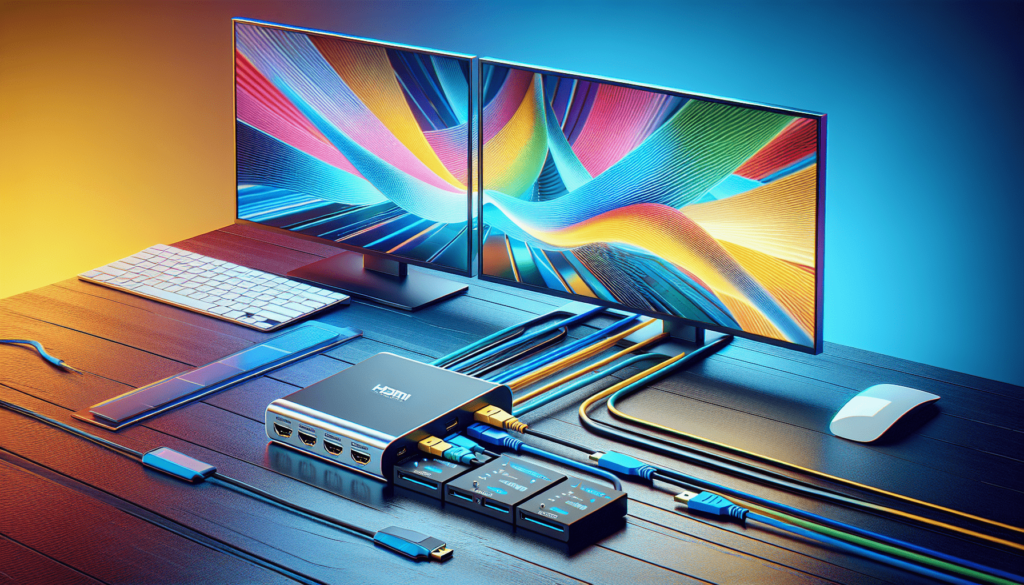
Your two main options for connecting two monitors to one HDMI port are using either an HDMI splitter or an HDMI switcher. They sound similar but serve different purposes.
HDMI Splitters
An HDMI splitter takes a single HDMI input and duplicates it to send the same signal to multiple outputs. Think of it like a power strip for HDMI ports. Here’s how it works:
| Feature | Description |
|---|---|
| Function | Duplicates the same signal to multiple screens |
| Connectivity | Simple plug-and-play |
| Resolution | Can reduce resolution in some cases |
| Use Case | Ideal for duplicating the same screen on two monitors |
The key point is that the content displayed on both monitors will be the same. This is great if you’re, for example, giving a presentation or just want to mirror your display.
HDMI Switchers
An HDMI switcher, on the other hand, takes multiple HDMI inputs and allows you to switch between them. For dual monitors, a switcher isn’t typically what you’re looking for unless you have multiple devices you want to display on one monitor.
| Feature | Description |
|---|---|
| Function | Allows switching between multiple HDMI inputs |
| Connectivity | Usually requires remote control or manual switching |
| Resolution | Maintains high resolution |
| Use Case | Ideal for connecting multiple sources (e.g., consoles) to one screen |
For our purpose, an HDMI splitter is the way to go, but let’s keep exploring because variety is the spice of life.
Using Adapters and Converters
Adapters and converters come in handy if your monitors support different input types. Let’s say you have an HDMI port, but your monitors only have VGA or DVI inputs.
HDMI to VGA/DVI Adapter
An adapter converts the HDMI signal to VGA or DVI. It’s simple to use but might require additional audio connections since VGA and DVI don’t carry audio signals.
| Feature | Description |
|---|---|
| Function | Converts HDMI signal to VGA or DVI |
| Connectivity | May need separate audio connections |
| Resolution | Preserves video quality up to a certain point |
| Use Case | Ideal for older monitors without HDMI ports |
Now, HDMI to VGA/DVI adapters won’t help in connecting two monitors directly but can be part of a broader setup. For that, you might need some extra gear.
USB to HDMI Adapters
If your computer has a USB 3.0 port (or USB-C), you can use a USB to HDMI adapter to add another HDMI port to your setup. It’s almost like magic—the adapter effectively adds another graphic adapter.
USB 3.0/USB-C to HDMI Adapter
This adapter allows you to connect an additional monitor via a USB port. It’s almost a lifesaver for those with only one HDMI port.
| Feature | Description |
|---|---|
| Function | Adds an additional HDMI port via USB |
| Connectivity | Simple plug-and-play |
| Resolution | Supports high resolutions |
| Use Case | Expands monitor setup without needing an extra HDMI port |
Daisy-Chaining Monitors
Some modern monitors support daisy-chaining, a fancy way of saying that you can connect one monitor to another using DisplayPort technology. This method requires both your monitors to support DisplayPort 1.2 MST (Multi-Stream Transport).
Using DisplayPort in Daisy-Chaining
In this setup, you connect your first monitor to your computer using an HDMI to DisplayPort adapter, and then connect the second monitor to the first using a DisplayPort cable.
- Connect your computer’s HDMI port to the first monitor’s DisplayPort input using an HDMI to DisplayPort adapter.
- Then, connect the DisplayPort output of the first monitor to the DisplayPort input of the second monitor.
| Feature | Description |
|---|---|
| Function | Connect multiple monitors in a sequence |
| Connectivity | Requires DisplayPort-supported monitors |
| Resolution | Maintains high resolutions across multiple screens |
| Use Case | Ideal for modern monitors with DisplayPort support |
Graphics Card Upgrade
If you’re willing to dive under the hood of your desktop, adding or upgrading your graphics card might be the most robust solution. More modern cards come with multiple HDMI, DisplayPort, and sometimes DVI outputs.
Upgrading or Adding a New Graphics Card
A new graphics card can support multiple monitors natively. Here’s how to determine if your system is ready for an upgrade:
- Check your current graphics card capabilities: Identify your current GPU and see how many monitors it supports.
- Determine compatibility: Verify motherboard compatibility and available power supply.
- Installation: Install the new card and update drivers as needed.
| Feature | Description |
|---|---|
| Function | Provides multiple video outputs |
| Connectivity | HDMI, DisplayPort, DVI, and VGA options |
| Resolution | Supports high resolutions and performance |
| Use Case | Ideal for high-performance setups needing multi-monitor support |
Multi-Display Settings
Once you’ve got your monitors connected, configuring them is the next step. Here’s how you can set up your displays in Windows and macOS.
Windows Multi-Display Setup
- Right-click on the desktop and select “Display settings”.
- Under “Multiple displays”, select “Extend these displays” or “Duplicate these displays”.
- Drag and drop the display icons to match the physical layout of your monitors.
- Apply and adjust resolutions as needed.
macOS Multi-Display Setup
- Open “System Preferences” and select “Displays”.
- Click on “Arrangement” and drag the display icons to match the physical arrangement of your monitors.
- Enable “Mirror Displays” if you want to duplicate your screen.
Real-life Scenario
Let’s talk about a hypothetical situation to put things into perspective. Suppose you’re a freelance designer working from home. You’ve got a laptop with one HDMI port, and you want to add two monitors for better multitasking. Here’s a feasible setup:
- Laptop with one HDMI port:
- Use an HDMI splitter to connect the HDMI port to both monitors. However, both monitors will display the same content.
- Laptop with one HDMI port and a USB 3.0 port:
- Connect the first monitor using the HDMI port.
- Use a USB 3.0 to HDMI adapter to connect the second monitor. This way, you can extend your display rather than duplicate it.
- Laptop with one HDMI port and compatible DisplayPort monitors:
- Use an HDMI to DisplayPort adapter to connect the first monitor.
- Daisy-chain the second monitor to the first one using DisplayPort.
Troubleshooting Common Issues
Even with the perfect setup, sometimes things don’t go as planned. Here are some common issues and troubleshooting tips:
No Signal on Second Monitor
- Check cable connections: Ensure all cables are securely connected.
- Restart your computer: Sometimes a simple reboot can solve the issue.
- Update drivers: Ensure your graphics drivers are up to date.
- Check display settings: Ensure the second monitor is detected in your display settings.
Resolution Issues
- Adjust resolution settings: Go to display settings and manually set the resolution for each monitor.
- Check monitor compatibility: Ensure your monitors support the desired resolution.
Audio Issues
- Set default audio device: Go to sound settings and ensure the correct output device is selected.
- Use separate audio connections: If using HDMI to VGA/DVI adapters, you may need separate audio connections.
Wrapping It Up
Connecting two monitors to a single HDMI port might seem like a tech headache, but it’s quite manageable once you know your options. Whether you choose an HDMI splitter, USB adapters, or take the plunge into upgrading your graphics card, there’s a solution to fit your needs and budget. By understanding the tools and configurations available, you can create a multi-monitor setup that’s perfect for your work style.
So, are you ready to boost your productivity with double the screen space? It’s time to set up your new multi-monitor workspace and enjoy the benefits.
Boniface approaches a desktop multi-screen setup the way a technician approaches a bench — mapping GPU display-pipeline ceilings, connection-standard limits, and the ergonomic trade-offs of a layout before any hardware earns a place in a guide. When the honest answer is a different configuration, the review says so.
Desktop Screen Extender Intelligence
Category-level tools and technical context. Connection methods, ergonomics, and GPU constraints decoded.
Connection Methods Compared
Whether you’re connecting a single external monitor or building a triple-screen workstation, the method you choose determines everything — cost, quality, complexity, and long-term reliability. Most people default to whatever cable came in the box without understanding the trade-offs.
A docking station is the simplest path if your laptop has Thunderbolt or USB-C with DisplayPort Alt Mode, but also the most expensive ($80–$300). You plug in one cable and the dock handles everything: video output to multiple monitors, USB peripherals, Ethernet, and power delivery back to your laptop. The trade-off is cost and desk space — docks are permanent fixtures.
USB display adapters cost far less ($25–$60 each) but introduce DisplayLink driver dependency. This means added CPU overhead (3–8%), potential DRM issues on connected monitors (Netflix and Disney+ may show black screens), and occasional macOS compatibility breakdowns after system updates. If you’re on Windows and don’t need DRM content on external screens, this is the budget path.
The HDMI splitter ($10–$20) can only duplicate your screen, not extend it. If you need independent content on each monitor — the entire point of a productivity setup — a splitter is useless. Only good for presentations or mirroring.
An external GPU ($200–$600+) is the maximum-performance option with its own dedicated graphics processing. Trade-off: significant cost, Thunderbolt 3/4 required, extra desk space for the enclosure, and driver complexity. Best for gaming or creative workloads. Our buying guide breaks down specific products for each method.
| Method | Cost | Extends? | Drivers? | Best For |
|---|---|---|---|---|
| Dock | $80–$300 | Yes | Usually no | Permanent desk |
| USB Adapter | $25–$60 | Yes | Often | Budget |
| Splitter | $10–$20 | No | No | Presentations |
| eGPU | $200–$600+ | Yes | Yes | Gaming/creative |
GPU Output Capability Checker01+
Multi-Monitor Connection Planner02+
Ergonomic Multi-Monitor Positioning
Adding monitors without considering ergonomics is how people end up with neck pain, back strain, and eye fatigue within weeks. Research consistently shows dual-monitor use can increase productivity by up to 43%, but subsequent occupational health research from OSHA and Herman Miller confirmed these gains only hold when monitors are positioned correctly. Bad positioning negates the productivity benefit and adds physical cost.
The fundamental rule: the top of your primary monitor should sit at or slightly below your natural eye level when sitting upright with your back supported. If you wear bifocals or progressive lenses, position monitors slightly lower so you look through the correct zone. The screen should be arm’s length away — 18 to 28 inches — close enough to read comfortably without leaning forward, far enough that your eyes don’t strain to focus.
For two monitors where one is primary (used 80%+ of the time): center the primary directly in front of you and place the secondary to the side of your dominant eye, angled inward 15–30°. For two monitors used equally: center the seam between them directly in front of your nose, both angled inward to form a gentle arc.
For triple monitors — the cockpit arrangement — the center monitor sits directly in front at arm’s length. Side monitors angle inward at 15–30° each. Your desk needs at least 55 inches wide for 24″ monitors, or 70+ inches for 27″. If your desk is narrower, monitor arms become mandatory — they push screens back and reclaim desk depth.
The most common mistakes: monitors too close and too high. If you tilt your head back, they’re too high. If you lean forward to read, they’re too far or your text size needs adjusting. Take five minutes to get positioning right before spending hours in a bad posture. Our FAQ covers specific guidance for every desk size and monitor configuration.
Monitor Arrangement Ergonomics Advisor03+
Resolution & Refresh Rate Check04+
GPU Bandwidth & Display Limits
Here is the uncomfortable truth that most multi-monitor guides skip: some laptops physically cannot drive three independent monitors, regardless of how many adapters or docks you buy. The limitation is in the GPU hardware, not the cables.
Every display output consumes GPU bandwidth. A single 4K monitor at 60Hz requires approximately 12 Gbps of bandwidth. A 1080p monitor at 60Hz needs about 3 Gbps. Your laptop’s GPU has a finite number of display pipelines — hardware paths that output independent video signals. Intel’s integrated UHD 620/630 graphics typically support 3 simultaneous displays. Intel Iris Xe supports up to 4. AMD’s integrated Radeon varies by generation but usually supports 3. NVIDIA discrete GPUs can handle 4+, but the laptop manufacturer may not wire all outputs to external ports.
The critical case is Apple Silicon. Base M1, M2, and M3 chips natively support only one external display. Not two, not three — one. The Pro variants support two. The Max supports three or four depending on configuration. This is a hardware limitation no software update will fix. If you own a base MacBook Air and want multiple external monitors, DisplayLink is your only path — and it comes with added latency, DRM restrictions, and CPU overhead.
Always verify your GPU’s actual display output limit before purchasing any hardware. The GPU Output Capability Checker tool above does exactly this. For detailed DisplayLink coverage, see our glossary.
Cable & Adapter Shopping List05+
Display Troubleshooter06+
Docking stations
Simplest multi-monitor method. Dozens reviewed across Thunderbolt and USB-C.
Browse docking stationsPortable monitors
Lightweight USB-C displays. No adapter chains, travel-ready.
Browse portable monitors