
Kensington SD5000T5 Thunderbolt 5 Docking Station Review
Discover seamless connectivity with the Kensington SD5000T5. Dual display support for Mac, triple for Windows, and 140W power delivery keep your tech brilliantly in sync.
Ever wondered about the magic of connecting multiple displays effortlessly, all while ensuring your laptop stays charged and ready for anything? As someone who has juggled between multiple devices and countless cables, I can tell you that the Kensington SD5000T5 Thunderbolt 5 Docking Station is like finding a master switch in the vast forest of technology. It’s not just a docking station; it’s your ticket to a workspace that feels just right.
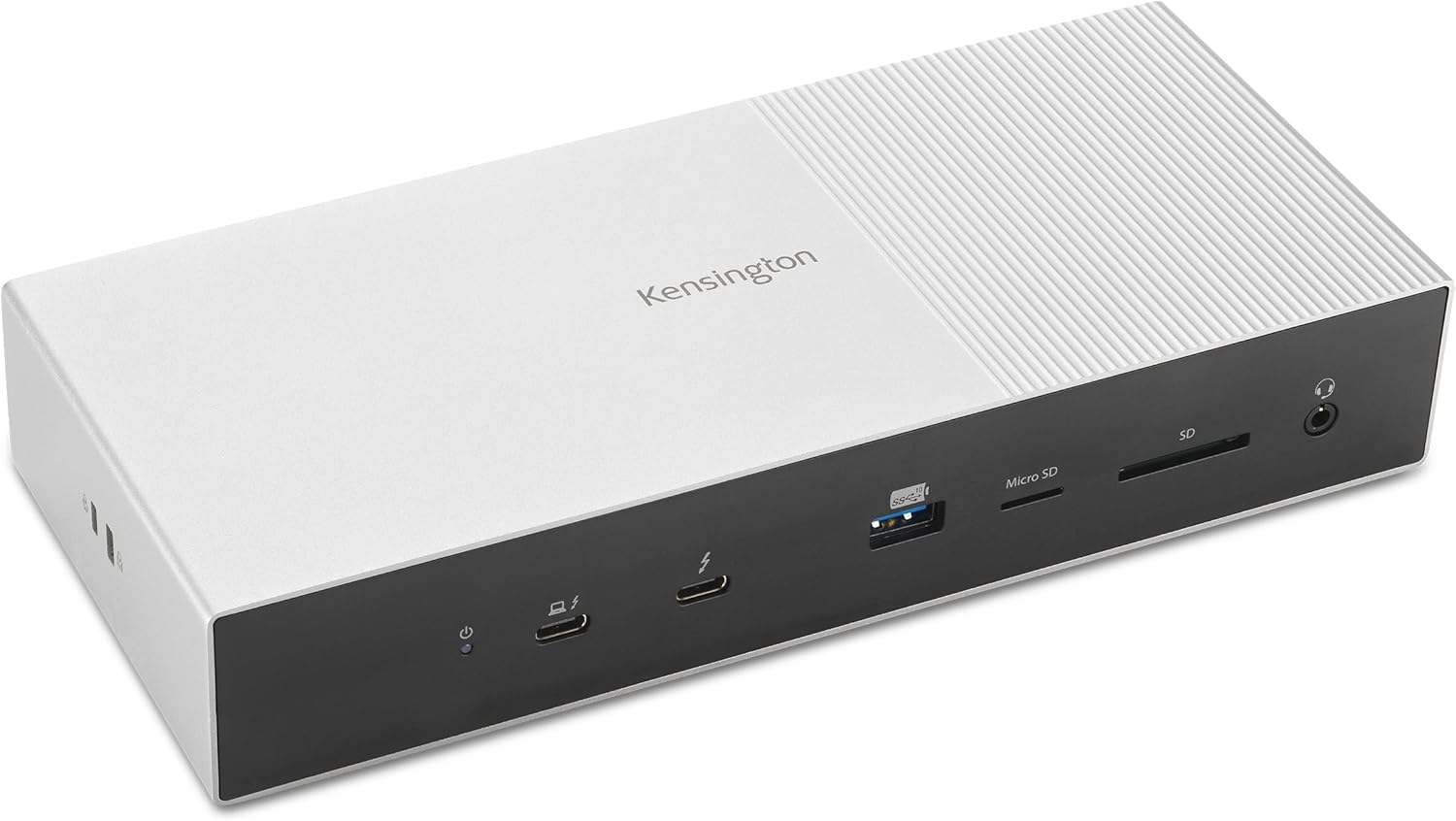

Unleashing the Power of Connectivity
The Kensington SD5000T5 is designed with the tech enthusiast in mind, someone who thrives on high performance and seamless connections. It’s like having a symphony conducted by one powerful baton. This dock offers lightning-fast data transfers, achieving speeds up to 80Gbps, and goes further with a Bandwidth Boost reaching up to 120Gbps. Imagine streaming a high-definition film across multiple screens without a hitch, or transferring large files in seconds. It’s like a superpower you didn’t know you needed.
Dual and Triple Display Options
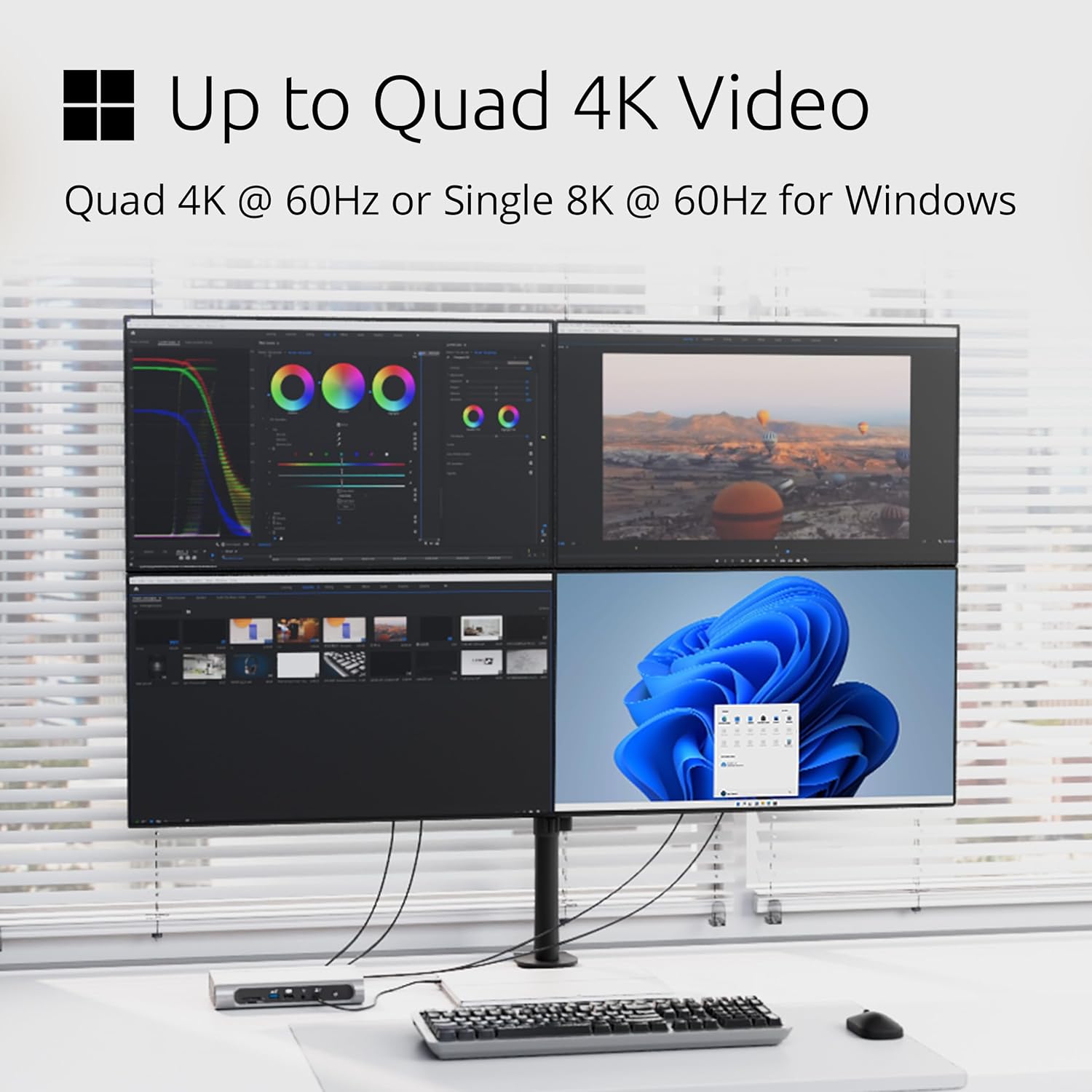
Have you ever tried connecting multiple monitors to your MacBook or Windows laptop, only to give up in frustration when faced with a rat’s nest of cords? The Kensington SD5000T5 untangles this mess, offering different display setups for Mac and Windows users. For MacBooks with M1 to M4 chipsets, it supports two 6K displays at 60Hz, while for Windows laptops, it can handle up to three 4K displays at 144Hz, or two 8K displays at 60Hz if you’re rocking Thunderbolt 5. Talk about having your cake and eating it too.
Simplified Table for Display Options
| Device Type | Display Support | Chipset |
|---|---|---|
| MacBooks (M1 to M4) | Dual 6K @ 60Hz | M1/M2/M3/M4 Pro and Max |
| MacBooks (M4 Base) | Single 8K @ 60Hz | M4 Base |
| Windows (TB5) | Triple 4K @ 144Hz or Dual 8K @ 60Hz | Thunderbolt 5 |
| Windows (TB4) | Dual 4K @ 60Hz | Thunderbolt 4 |
Here’s a little secret: the ease with which these setups come together has changed how I work. There’s something quite satisfying about seeing everything click together as though choreographed by the universe itself.

Kensington SD5000T5 Thunderbolt 5 Docking Station, Dual 6K at 60Hz, 140W PD, Compatible with MacBook M1/M2/M3/M4/M5 and Windows Thunderbolt 5 Laptops (K35201NA) Black
Power Delivery and Ports: All Systems Go
Imagine trying to cook a delicious dinner with just one pan. Frustrating, right? The Kensington SD5000T5 is like a well-stocked kitchen, ensuring all your devices are powered and ready to perform. It provides up to 140W of power delivery, making sure your laptop stays charged while handling other tasks. Remember the time your laptop moaned loudly as it drained itself of life during an important presentation? With this dock, that’s ancient history.
Comprehensive Port Offering
What I love most about this docking station is how it integrates everything seamlessly. With three Thunderbolt 5 downstream ports, one Thunderbolt 5 host port, three USB-A 3.2 Gen2 10Gbps ports, a combo audio jack, dual SD/Micro Card readers, and 2.5Gbps ethernet, you’re equipped for just about anything. It’s like carrying a Swiss Army knife for your tech needs.
Simplified Table for Port Options
| Port Type | Quantity | Key Uses |
|---|---|---|
| Thunderbolt 5 Downstream | 3 | Connect multiple Thunderbolt devices |
| Thunderbolt 5 Host | 1 | Primary connection to laptop |
| USB-A 3.2 Gen2 10Gbps | 3 | Connect USB devices like mice and drives |
| Combo Audio Jack | 1 | Audio input/output |
| Dual SD/Micro Card Readers | 2 | Read/write SD and Micro SD cards |
| Ethernet (2.5Gbps) | 1 | Wired internet connection |
Having these options feels akin to entering a technology bazaar where every stall offers a new possibility.
Ease of Use: Plug and Play
Have you reserved a special place in your mind for docking station setups that require a PhD to understand? This keyboard-crashing nightmare is where the Kensington SD5000T5 flexes its muscles, proving that simplicity doesn’t have to mean sacrificing capability. It’s compatible with Thunderbolt 5, Thunderbolt 4, USB4, and USB-C devices running Windows 11 (23H2 or later) or macOS (14.5 or later). It just works, like opening a window to catch a summer breeze.
Space-Saving and Security Features
We’ve all groaned under the strain of bulky tech taking over our workspaces. The Kensington SD5000T5 plans to change that. Imagine a docking station that fits snugly into your setup, allowing your desktop to stay minimalistic yet functional. With a zero-footprint mounting option, you can tuck it neatly out of the way, prioritizing your Zen.
Security Considerations
On security, it’s like having a watchful protector for your investment. With slots for a Kensington cable lock (sold separately), you can lock your setup securely, easing any lingering worries about the safety of your new gadget.

Eco-Friendly Design
In a world where being green isn’t just preferred but necessary, the Kensington SD5000T5 shines with its eco-friendly design. Composed of 100% post-consumer recycled (PCR) aluminum, it feels like the device is giving the environment a warm hug. It’s wrapped in Forest Stewardship Council (FSC) certified packaging, making sure our planet stays happy and healthy. It’s comforting to know your tech is as kind to the world as it is to you.
A Sustainable Future
The idea of buying something that’s both functional and sustainable perhaps sounds like a fantasy, but here it’s a reality that speaks directly to those of us who believe in a better future. It’s the kind of purchase that feels good twice—once when you open the box and again every time you remember that it’s helping the planet.
Warranty and Support
Ever bought something and then faced the abyss of technical complications with no lifeline in sight? Kensington provides a 3-year manufacturer’s warranty and lifetime technical support for this docking station. It’s akin to having a trusty guardian angel watching over your tech adventures, ensuring you’re never left with unanswered questions.
Dealing With Distance
We’re in a world where technology risks becoming an overwhelming force. Yet, it doesn’t have to be this way. With warranties like these, we bridge the distance between frustration and function, knowing a helpful hand is just a call or click away.
My Personal Experience
Before I stumbled upon the Kensington SD5000T5, wrestling with docks and tech connections was my least favorite sport. Now, it’s as if I’ve finally found a rhythm—a melody that doesn’t miss a beat, ensuring all my devices sing in harmony. From seamless connectivity to environmentally sound design, this docking station transforms tech challenges into triumphs.
Every feature, every thoughtful design choice feels like the creators reached out and tapped into those of us who are just trying to make sense of the mess of wires and wants. It’s like Kensington peered into my tech-enthusiast soul and said, “You deserve something better—and here it is.”
In this product, beauty meets functionality, a fusion that suggests even the most complex symphonies of connectivity can be played with grace. Whether you’re riding solo on your tech journey or you’re an orchestra of devices playing together, I’d say it’s worth a try—Kensington’s SD5000T5 Thunderbolt 5 Docking Station might just become your trusted conductor.
Disclosure: As an Amazon Associate, I earn from qualifying purchases.
Docking Station Intelligence
The standards are confusing by design. These three panels decode what manufacturers won’t explain clearly. Applicable to every docking station.
The USB-C Confusion Matrix
The USB-C connector is the single greatest source of buyer confusion in docking stations. The physical plug looks identical whether it carries USB 2.0 at 480 Mbps or Thunderbolt 5 at 120 Gbps — a 250x difference in capability hidden behind the same shape. Manufacturers exploit this by labeling everything "USB-C compatible" without specifying which protocol runs through it. Two docks can look identical on the outside and behave completely differently once you plug them in.
The hierarchy matters because it determines everything: how many monitors your dock can drive, how fast files transfer, whether your laptop charges while docked, and whether you need third-party drivers. Here is the real capability ladder, from slowest to fastest:
The practical takeaway: if your laptop has Thunderbolt 4, buy a Thunderbolt dock. If it only has generic USB-C, verify whether it supports DisplayPort Alt Mode before buying anything with multi-monitor claims. Our buying guide walks through verification steps for every major laptop brand.
Power Delivery: What the Watts Mean
Power Delivery (PD) determines whether your docking station can charge your laptop while you work, or whether you need a separate charger cluttering your desk. The math is simple but rarely explained: your laptop draws a specific wattage under load, and the dock must match or exceed it. If the dock delivers less than your laptop needs, the battery slowly drains even while plugged in — defeating the purpose of a docking station entirely.
Most ultrabooks need 45–65W. Standard business laptops need 65–100W. Gaming and workstation laptops can demand 100–140W or more. The dock’s advertised PD wattage is the maximum it can deliver to your laptop — but this drops if you charge other devices (phones, tablets) through the dock simultaneously. Always leave a 15–20W margin above your laptop’s requirement.
Check your laptop’s original charger wattage — that’s your baseline. Our FAQ covers how to find this for every major brand.
Native Display vs DisplayLink: The Hidden Factor
This is the decision most buyers don’t know they’re making. When a docking station outputs video to your monitors, it uses one of two fundamentally different methods: native (the dock passes your laptop’s GPU signal directly to the monitor) or DisplayLink (the dock compresses video over USB and a software driver renders it). The difference is invisible in marketing materials but profoundly affects your daily experience.
Native output through DisplayPort Alt Mode or Thunderbolt uses your laptop’s actual graphics hardware. There is zero added latency, full DRM support for streaming services, no CPU overhead, and no driver to install. DisplayLink, by contrast, adds 5–15ms of latency (noticeable in video calls and cursor movement), blocks DRM content on connected monitors (Netflix, Disney+ show black screens), consumes 3–8% of your CPU constantly, and requires a driver that Apple’s macOS security updates occasionally break.
DisplayLink exists for one reason: Apple Silicon base chips (M1, M2, M3) can only drive one external display natively. If you need two or more monitors on a base MacBook Air or 13” MacBook Pro, DisplayLink is your only option. For everyone else — Windows users, Mac Pro/Max chip users, Intel/AMD laptops — native is always the better choice.
Native (Alt Mode / Thunderbolt)
DisplayLink (USB compression)
The bottom line: if your laptop supports native multi-display output, always choose a native dock. DisplayLink is a workaround, not an upgrade. See our glossary for detailed definitions.
COMMAND CENTERCOMMAND CENTER
Six tools that decode the confusion manufacturers create. Port protocols, power budgets, display configurations, compatibility, desk planning, and future-proofing. Full buying guide →
Port Protocol DecoderWhat does your connection type actually support? Glossary
Power Delivery CalculatorCan this dock keep your laptop charged?
Display Configuration PlannerCan your dock push enough pixels?
Laptop-to-Dock CompatibilityWill this dock work with YOUR laptop?
Desk Setup ArchitectWhat ports do you actually need?
Select everything you need to connect: