
Selore USB C Dock 3 HDMI Review
Selore USB C Dock 3 HDMI transforms your laptop into a tech symphony. With 16 ports and triple HDMI, it's a Swiss Army knife for digital nomads seeking order.
Have you ever found yourself just a few ports short while trying to set up multiple monitors, speakers, and other accessories all at once? I know I have. Enter the Selore USB C Dock 3 HDMI—a veritable Swiss Army knife for tech aficionados like us. Let’s break down what makes this device a must-have for anyone who’s serious about transforming their laptop into a powerhouse.
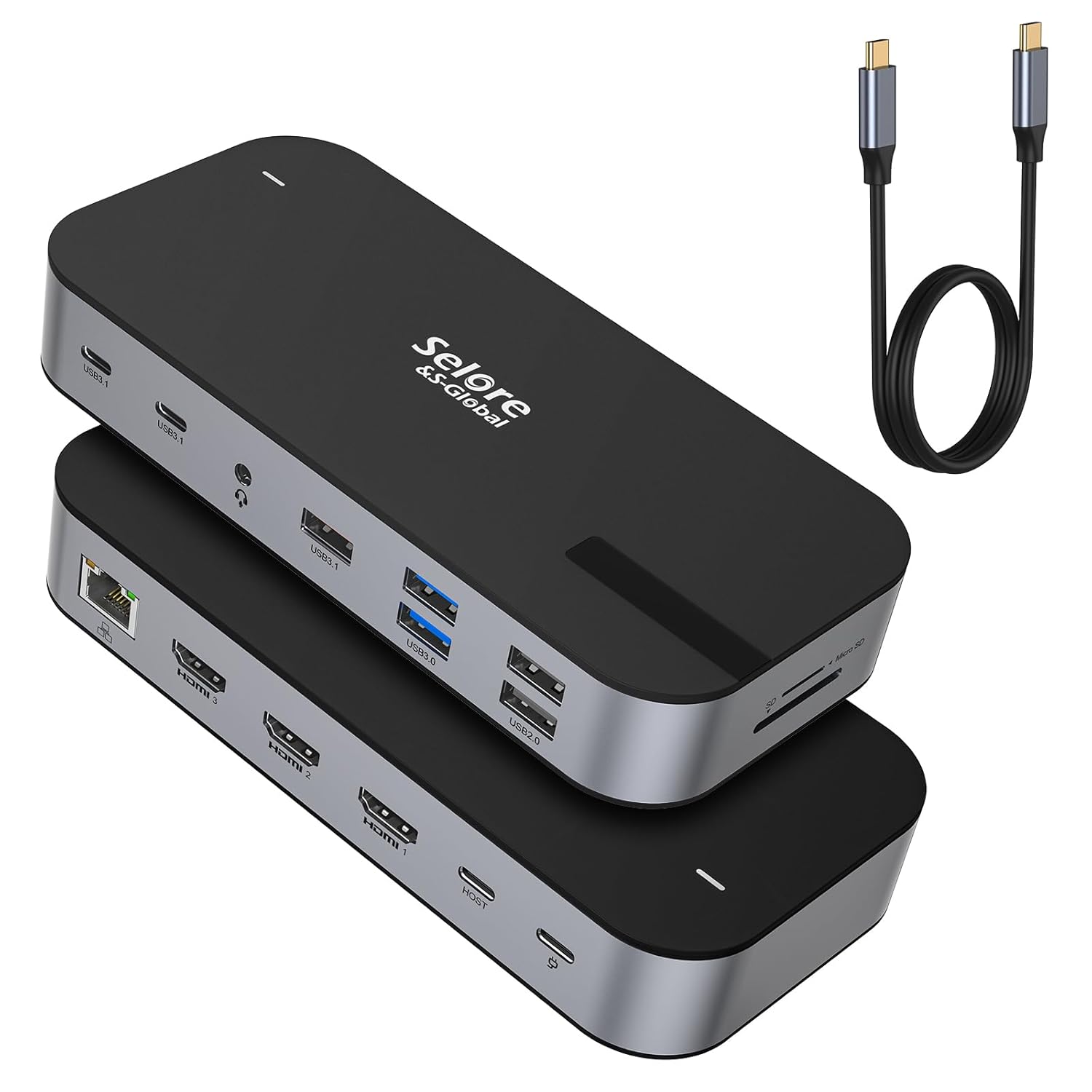

The Multi-Tasking Marvel: 16-in-1
Imagine a workspace where your laptop connects seamlessly to everything. The Selore USB C Dock boasts a whopping 16 ports. With it, I feel like a conductor in a tech orchestra, seamlessly connecting multiple components to create a masterpiece of efficiency and productivity.
Ports Overview
Here’s a closer look at what you get:
| Feature | Details |
|---|---|
| HDMI Ports | 3 x 4K @ 60Hz |
| USB A 3.1 | 1 port |
| USB C 3.1 | 2 ports |
| USB A 3.0 | 2 ports |
| USB A 2.0 | 2 ports |
| PD Charging | 100W |
| SD/Micro SD Slots | 1 each |
| Ethernet | 1 Gbps |
| Audio & Mic Jack | 1 x 3.5mm |
| Host Port | 1 x USB C |
With this many ports, connecting your mouse, keyboard, external hard drives, and multiple monitors is a breeze. It’s almost like having your cake and eating it too—except this cake also comes with perfect 4K frosting.

Selore USB C Dock 3 HDMI, Triple Monitor Docking Station, 16-in-1 Laptop Docking Station 3 Monitors with Triple HDMI, 10Gbps USB A/C 3.1, 100W PD, Ethernet, USB C Hub, USB C Dongle for Windows Mac
Triple HDMI Docking Station
Let’s address what everyone really wants to know. Yes, the Selore Dock allows you to connect up to three HDMI monitors. No more feeling like a captain lost at sea when trying to manage everything on a small laptop screen.
Bringing in the Triple Threat
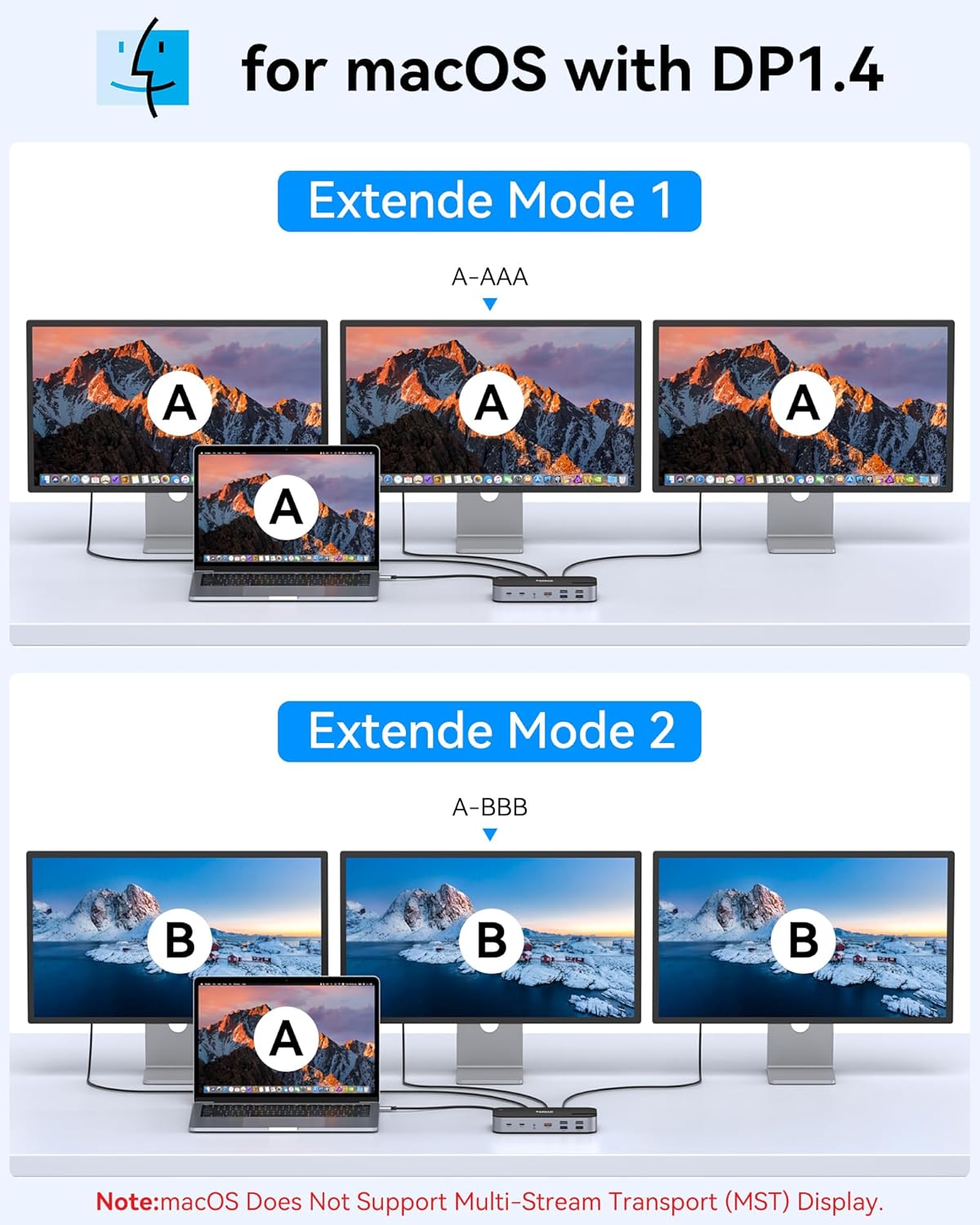
With triple 4K HDMI support, you’re not just extending your workspace—you’re revolutionizing it. On Windows, you can run three independent monitors, each displaying different content. Unfortunately, Mac users will have to stick with Mirror Mode due to the limitations of Mac OS. But if you’re a setup wizard on Windows, the real question will be, how much is too much?
USB-C Dock with Built-In Cable
One less cable to worry about losing. The Selore Dock comes with its own USB-C to USB-C cable, and let me tell you, it’s as reliable as a golden retriever—minus the shedding.
Convenience of Charging and Data Transfer
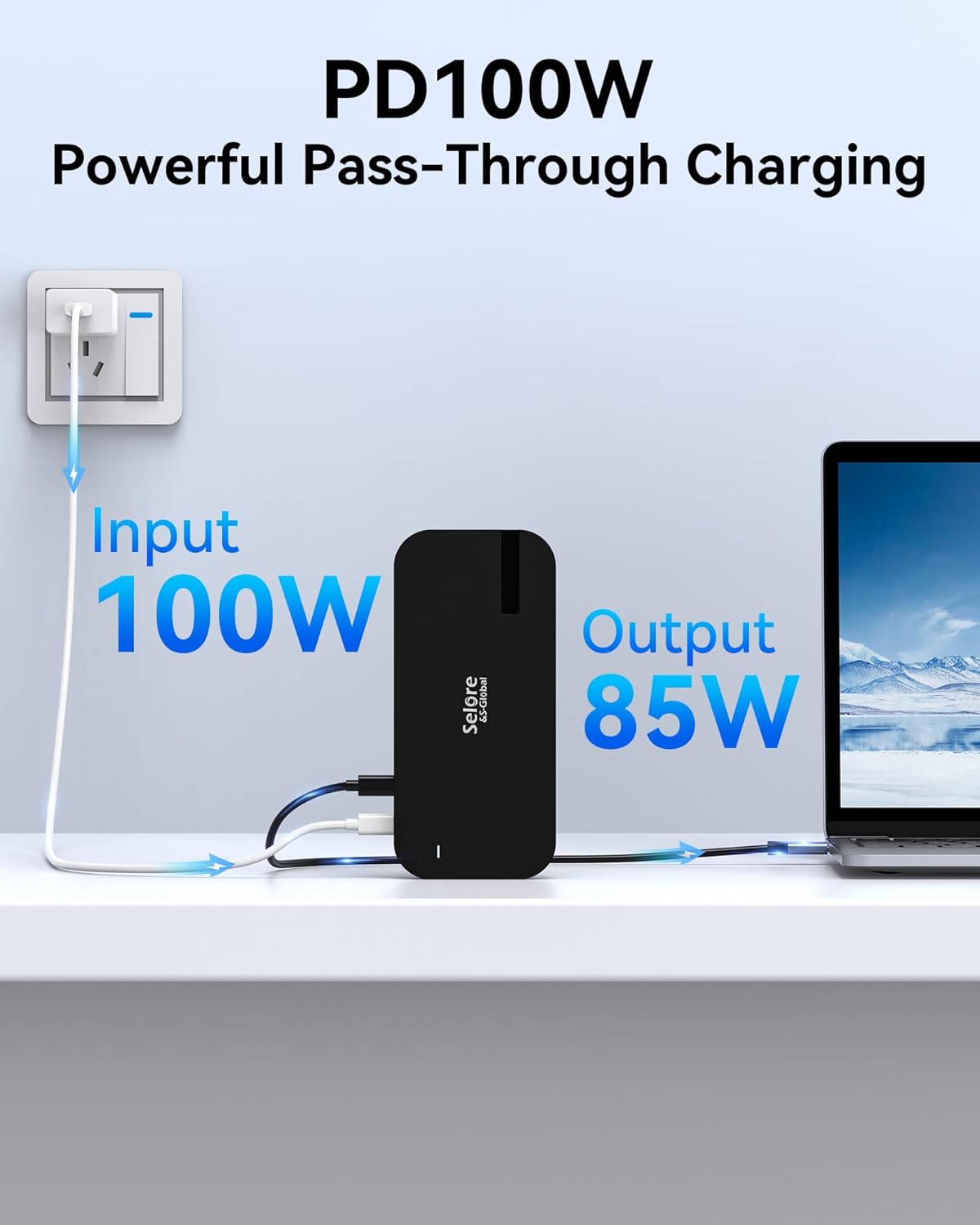
There’s something extraordinarily satisfying about plugging in a single cable and having it all just work. Data transfers zip by at up to 10Gbps for those of us who find ourselves running late most of the time (read: me). You also get 100W Power Delivery. It’s like having a mini flash mob of usefulness spring into action.
High-Speed Data Transfer
For those of us who grimace at progress bars and spinning wheels, fast data transfer is a blessing. The Selore Dock accelerates transfers to warp speed.
The Need for Speed
Whether you’re moving large video files or a whole lot of spreadsheets, the Dock’s USB A 3.1 and USB C ports provide up to 10Gbps speeds while the USB 3.0 ports offer up to 5Gbps. You could throw a nose ring on it and call it The Flash.
Versatile Compatibility
As someone who often feels sullen trying to connect incompatible gadgets, the universal compatibility of this dock is a dream. From MacBooks to Lenovo Yoga and Surface Books, if it has a Thunderbolt 3 or USB-C port, you’re good to go.
Broad Device Support
It’s always a gamble with gadgets—will they get along? The docking station supports an array of devices as varied as a Benneton ad. To be certain, just confirm your device’s USB-C port supports DisplayPort Alternate Mode for the HDMI capabilities.
Final Thoughts
Living with the Selore USB C Dock is akin to having an overachieving PA who neatly organizes my digital life on my behalf. It’s well-suited for digital nomads, freelancers, or anyone who doesn’t want to navigate a tangled web of cables just to be productive.
After-Sales Service
The considerate touch of Selore extends beyond the confines of purchase with a generous two-year warranty. Two years! In gadget years, that’s basically forever. It’s nice to know there’s support beyond just the initial sprint out of the box.
The Selore USB C Dock 3 HDMI is a compelling product that brings a sense of order to your digital chaos. It turns a laptop into a productivity hub, harnessing the power and simplicity needed for both everyday and high-demand tasks. Gone are the days of juggling cables and connections like a caffeinated circus performer—unless, of course, you enjoy that sort of thing.
Disclosure: As an Amazon Associate, I earn from qualifying purchases.
Docking Station Intelligence
The standards are confusing by design. These three panels decode what manufacturers won’t explain clearly. Applicable to every docking station.
The USB-C Confusion Matrix
The USB-C connector is the single greatest source of buyer confusion in docking stations. The physical plug looks identical whether it carries USB 2.0 at 480 Mbps or Thunderbolt 5 at 120 Gbps — a 250x difference in capability hidden behind the same shape. Manufacturers exploit this by labeling everything "USB-C compatible" without specifying which protocol runs through it. Two docks can look identical on the outside and behave completely differently once you plug them in.
The hierarchy matters because it determines everything: how many monitors your dock can drive, how fast files transfer, whether your laptop charges while docked, and whether you need third-party drivers. Here is the real capability ladder, from slowest to fastest:
The practical takeaway: if your laptop has Thunderbolt 4, buy a Thunderbolt dock. If it only has generic USB-C, verify whether it supports DisplayPort Alt Mode before buying anything with multi-monitor claims. Our buying guide walks through verification steps for every major laptop brand.
Power Delivery: What the Watts Mean
Power Delivery (PD) determines whether your docking station can charge your laptop while you work, or whether you need a separate charger cluttering your desk. The math is simple but rarely explained: your laptop draws a specific wattage under load, and the dock must match or exceed it. If the dock delivers less than your laptop needs, the battery slowly drains even while plugged in — defeating the purpose of a docking station entirely.
Most ultrabooks need 45–65W. Standard business laptops need 65–100W. Gaming and workstation laptops can demand 100–140W or more. The dock’s advertised PD wattage is the maximum it can deliver to your laptop — but this drops if you charge other devices (phones, tablets) through the dock simultaneously. Always leave a 15–20W margin above your laptop’s requirement.
Check your laptop’s original charger wattage — that’s your baseline. Our FAQ covers how to find this for every major brand.
Native Display vs DisplayLink: The Hidden Factor
This is the decision most buyers don’t know they’re making. When a docking station outputs video to your monitors, it uses one of two fundamentally different methods: native (the dock passes your laptop’s GPU signal directly to the monitor) or DisplayLink (the dock compresses video over USB and a software driver renders it). The difference is invisible in marketing materials but profoundly affects your daily experience.
Native output through DisplayPort Alt Mode or Thunderbolt uses your laptop’s actual graphics hardware. There is zero added latency, full DRM support for streaming services, no CPU overhead, and no driver to install. DisplayLink, by contrast, adds 5–15ms of latency (noticeable in video calls and cursor movement), blocks DRM content on connected monitors (Netflix, Disney+ show black screens), consumes 3–8% of your CPU constantly, and requires a driver that Apple’s macOS security updates occasionally break.
DisplayLink exists for one reason: Apple Silicon base chips (M1, M2, M3) can only drive one external display natively. If you need two or more monitors on a base MacBook Air or 13” MacBook Pro, DisplayLink is your only option. For everyone else — Windows users, Mac Pro/Max chip users, Intel/AMD laptops — native is always the better choice.
Native (Alt Mode / Thunderbolt)
DisplayLink (USB compression)
The bottom line: if your laptop supports native multi-display output, always choose a native dock. DisplayLink is a workaround, not an upgrade. See our glossary for detailed definitions.
COMMAND CENTERCOMMAND CENTER
Six tools that decode the confusion manufacturers create. Port protocols, power budgets, display configurations, compatibility, desk planning, and future-proofing. Full buying guide →
Port Protocol DecoderWhat does your connection type actually support? Glossary
Power Delivery CalculatorCan this dock keep your laptop charged?
Display Configuration PlannerCan your dock push enough pixels?
Laptop-to-Dock CompatibilityWill this dock work with YOUR laptop?
Desk Setup ArchitectWhat ports do you actually need?
Select everything you need to connect: