
One-Cable Solution: Docking Stations With Power + Video Out
Declutter your workspace effortlessly with docking stations offering power and video out. Say goodbye to cable chaos and hello to efficient connectivity.
Tired of a desk covered in tangled cables and power bricks? As modern laptops trade traditional ports for slim designs, managing external monitors, chargers, and peripherals can quickly turn your workstation into a mess. That’s where USB-C docking stations with power delivery and video output come in. By combining high-speed display pass-through with single-cable charging, a quality docking station cleans up desk clutter, drives dual 4K displays, and powers your laptop through one single connection
 Docks vs Hubs - Whats the Difference?
The Need for a One-Cable Solution
Gone are the days of connecting multiple devices with a mess of cables, transforming our desks into snake pits of wires. With the proliferation of gadgets and the rise of remote work, our connection needs have evolved. We need methods that not only simplify connectivity but also enhance the quality of our digital experience. A one-cable solution seems not merely convenient but necessary.
The Hers and His of Cable Chaos
At some point, we all have fallen into the trap of buying every dongle and adapter ever invented. We start with a laptop, then we need to connect monitors, perhaps a mouse, maybe even a keyboard, and before we know it, our workspace looks like an unsolvable puzzle of unwindable cables. With a docking station, however, we can streamline these connections into the simplicity of one cable, granting us the luxury of a decluttered space.
What Exactly Is a Docking Station?
Let’s not get lost in the technical jargon. In essence, a docking station acts as a central hub that connects multiple peripherals to our laptops via a single cable. This sleek gadget provides ports for power, video, data transfer, and more, consolidating all our device connections into one neat package. It’s the LBD (Little Black Dress) of tech accessories—versatile, efficient, and oh-so essential.
Why Power + Video Out is a Game Changer
The integration of power with video out in docking stations means that not only can we connect our laptop to a larger display, but we can also keep our laptop charged at the same time. This two-in-one convenience enhances productivity. It’s akin to having our cake and eating it too. Imagine the sense of liberation—no longer chained to multiple sockets or stuck staring at a low battery warning every few hours.
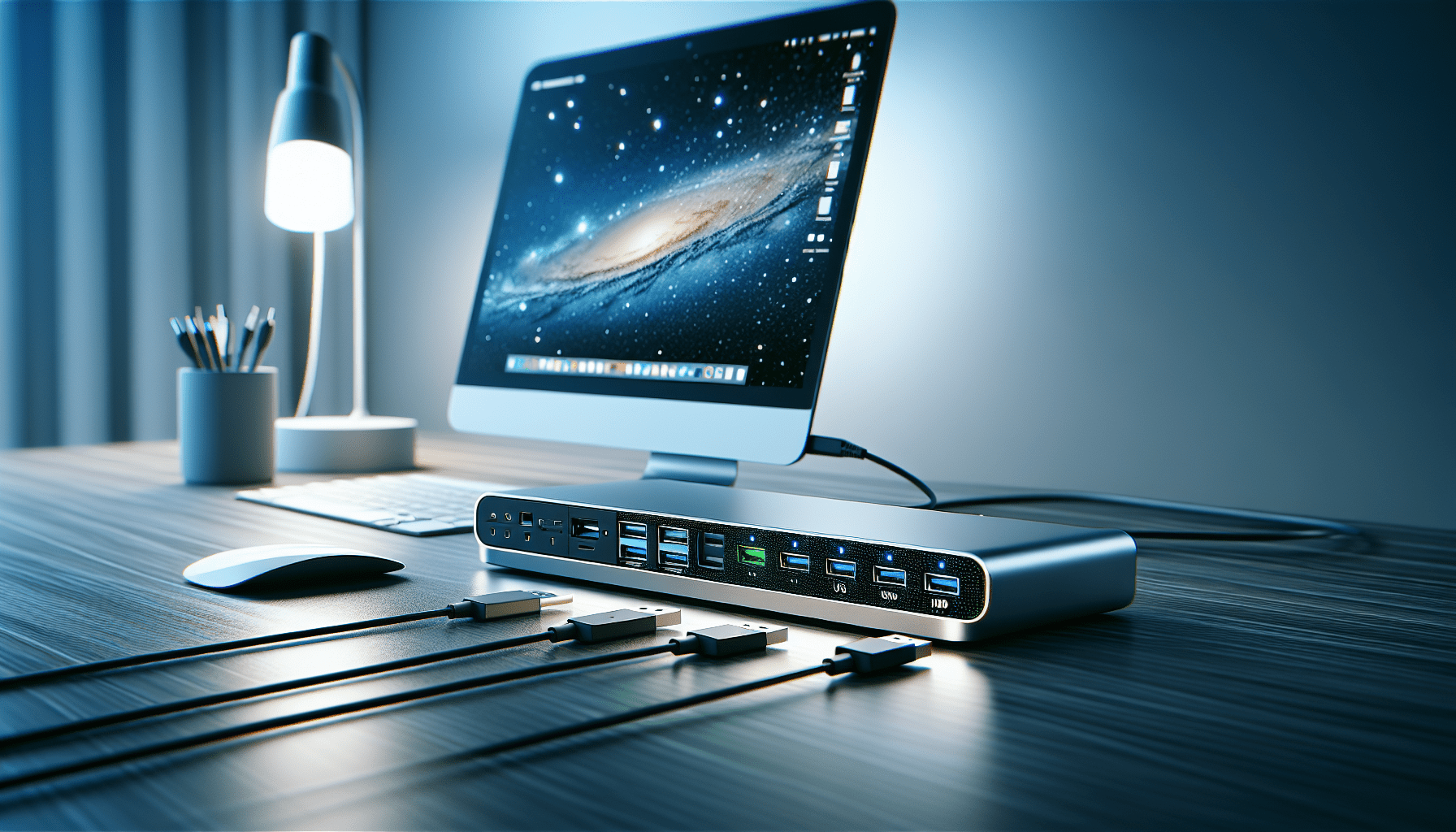
Key Benefits of a Docking Station
The benefits of a docking station with power and video out aren’t merely theoretical. They translate into real perks that impact our daily lives, improving both convenience and productivity. Let’s take a closer look:
Port Variety
Docking stations offer a veritable smorgasbord of ports. USB, HDMI, DisplayPort, Audio Jack—a station for every gadget we wish to connect. Gone are the days of port envy when one device would monopolize a precious slot.
Space Optimization
Our digital workspaces mirror our mindsets. A tidy, cable-free desk isn’t just aesthetically pleasing; it cultivates a more focused and efficient work environment. By using a docking station, we free our desks from cable-induced chaos.
Enhanced Performance
With fewer direct connections, the risk of performance issues decreases. It’s like streamlining communication in a workplace—less confusion, more clarity, and a noticeable boost in performance. Our devices can operate at their optimal potential without the interference of tangled wires.
Convenient Charging
The ability to power our laptops through the same cable that connects our peripherals is nothing short of revolutionary. It eliminates the need for multiple chargers or power adapters, further simplifying our setup.
Seamless Transitions
Docking stations allow us to transition from a mobile setup to a full desktop experience with minimal effort. Just a simple connection or disconnection, and we’re ready to go. It’s the tech world equivalent of a costume change—quick and painless.
Choosing the Right Docking Station
As much as we are enamored with the idea of a one-cable solution, picking the right docking station requires some consideration. So, what should we look for to ensure we are making a wise investment?
Consider Compatibility
Different laptops require different docking solutions. We need to ensure compatibility between our device and the docking station we choose. Pay attention to the port types, power requirements, and operating system compatibility.
Think About Connectivity
Evaluate the number and type of devices we’d like to connect. More ports may suit a power user with multiple peripherals, while a minimal setup might require fewer ports. Furthermore, consider the types of display outputs—whether we need HDMI, DisplayPort, or legacy support like VGA.
Don’t Overlook Power Deliverables
Power delivery can vary significantly between docking stations. It’s vital to check the wattage to ensure our laptop will charge efficiently. A docking station with insufficient power delivery could leave us tethered to a separate charger, defeating one of the primary conveniences of this solution.
Prioritize Quality
The market is awash with docking stations of varying quality. Opt for a reputable brand to ensure durability and reliability. Remember, this is an investment in our workspace efficiency—quality should never be compromised.
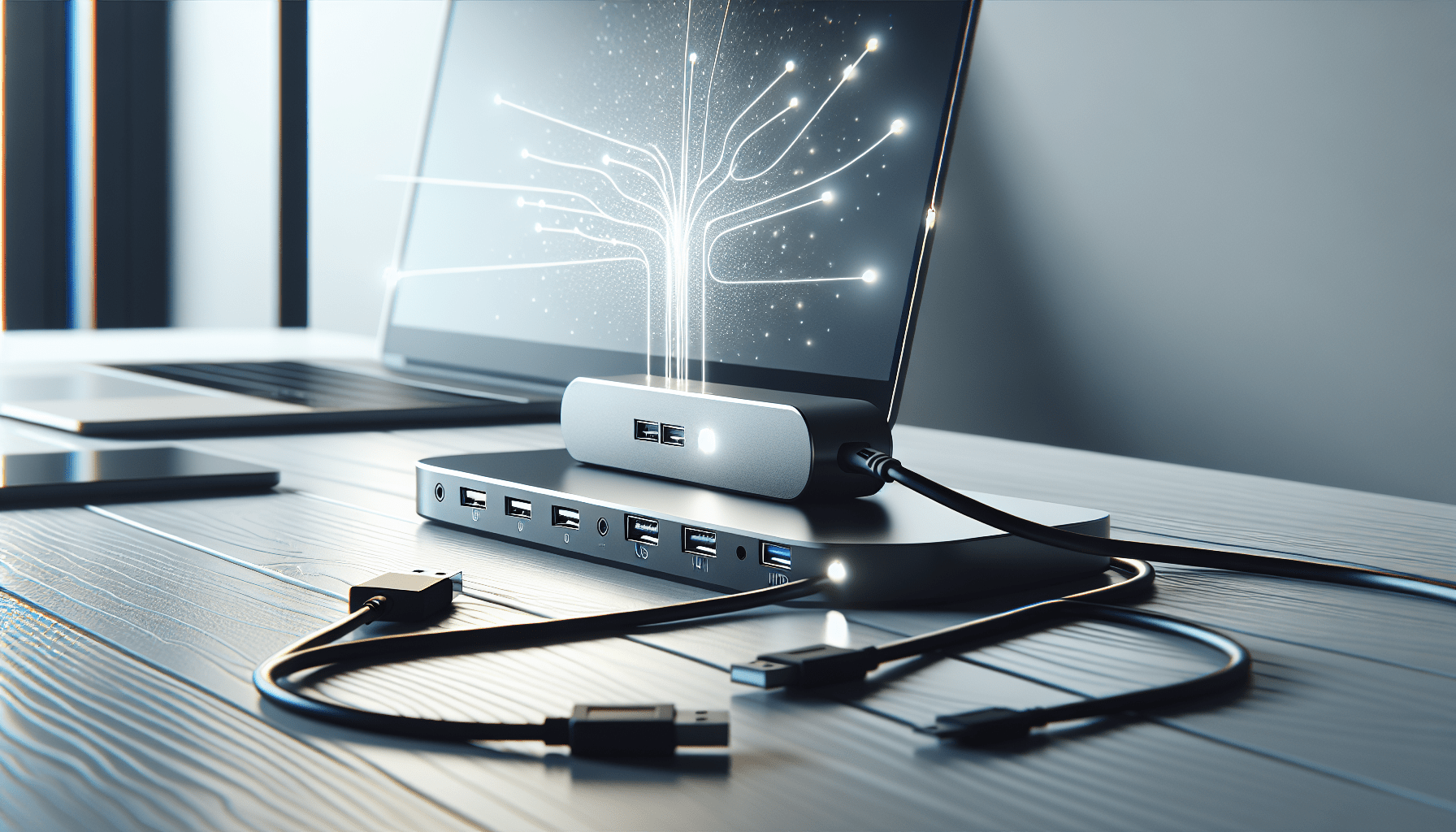
Comparing Top Docking Stations
Consider the choices below as the crème de la crème of docking stations, each designed to meet different needs. Here, we’ll compare a few top options to help guide your decision-making process.
| Model | Ports Included | Power Delivery | Price Range |
|---|---|---|---|
| Dell WD19S | 2 x USB-C, 3 x USB-A 3.1, 1 x HDMI, 2 x DisplayPort, 1 x Combo Audio | 90W | $$ |
| Anker PowerExpand | 1 x USB-C, 4 x USB-A, 1 x HDMI, Ethernet, SD Card Slot | 60W | $ |
| HP Thunderbolt Dock | 2 x USB-C, 3 x USB-A, 2 x DisplayPort, Audio Jack, Ethernet | 120W | $$$ |
Each comes packed with benefits tailored to different workloads and environments. Be it the modest Anker PowerExpand or the robust capabilities of the HP Thunderbolt Dock, there’s a docking station harboring the right blend of features and cost for everyone.
Setting Up Our Docking Station
Setting up a docking station is like hosting a tea party without a guest list—simple and welcoming to any device. Here’s how we can get started on transforming our setup:
Connect the Docking Station to Power: Ensure the workstation hub is supplied with a stable electricity source.
Connect to Our Laptop: Plugging in the docking station to our device with the docking cable immediately creates bridges between peripherals.
Connect Peripherals: Attach any displays, mice, keyboards, or other tools designed to elevate our work experience.
Configure Display Settings: If necessary, jump into our laptop’s display settings to arrange external displays to our liking.
Test Run: Verify everything functions smoothly, and congratulate ourselves on achieving cable sanity.
Troubleshooting Common Issues
Every so often, even the best-laid plans encounter bumps. We may face challenges when setting up the docking station, but fret not—solutions are often straightforward.
Display not detected: Check the cable connections and ensure the monitor is powered on. Restarting might also help detect new display hardware.
Power issues: Verify the power adapter connection and check if our docking station and laptop are compatible in terms of power delivery.
Peripheral connectivity issues: Reconnect any peripherals that aren’t responding, ensuring they are correctly seated in their respective ports.
The Future of Connectivity
As technology advances, so too will the solutions at our disposal. The movement toward greater efficiency in connectivity isn’t ending with docking stations. Rather, it sets the stage for more innovative solutions that reduce clutter and enhance functionality.
The Rise of Wireless Solutions
In the not-too-distant future, wireless docking and charging stations could present increasingly viable alternatives. The aim would be a truly uncluttered space, free of wires without sacrificing the connectivity we depend on.
A Sustainable Solution
Docking stations not only make sense for our personal organization but also from an ecological standpoint—they reduce the need for numerous adapters and cables, cutting down on electronic waste. In aligning with sustainable tech solutions, we contribute to a greener digital ecosystem.
Conclusion
We have unraveled the mystery behind the one-cable solution, discovering the potential it holds to redefine our digital landscapes. By simplifying our connection processes, we can free up energy to focus on the core of our work. Docking stations may be a modest tool, yet their impact is profound, offering us a clearer desk, a clearer mind, and a more connected world.

I evaluate docking stations the way they actually get used — against real bandwidth budgets, power-delivery ceilings, and the OS handshakes that quietly cap what a port can do — not spec-sheet promises. Every constraint that can break a multi-display setup is disclosed before any affiliate link.
Docking Station Intelligence
The standards are confusing by design. These three panels decode what manufacturers won’t explain clearly. Applicable to every docking station.
The USB-C Confusion Matrix
The USB-C connector is the single greatest source of buyer confusion in docking stations. The physical plug looks identical whether it carries USB 2.0 at 480 Mbps or Thunderbolt 5 at 120 Gbps — a 250x difference in capability hidden behind the same shape. Manufacturers exploit this by labeling everything "USB-C compatible" without specifying which protocol runs through it. Two docks can look identical on the outside and behave completely differently once you plug them in.
The hierarchy matters because it determines everything: how many monitors your dock can drive, how fast files transfer, whether your laptop charges while docked, and whether you need third-party drivers. Here is the real capability ladder, from slowest to fastest:
The practical takeaway: if your laptop has Thunderbolt 4, buy a Thunderbolt dock. If it only has generic USB-C, verify whether it supports DisplayPort Alt Mode before buying anything with multi-monitor claims. Our buying guide walks through verification steps for every major laptop brand.
Power Delivery: What the Watts Mean
Power Delivery (PD) determines whether your docking station can charge your laptop while you work, or whether you need a separate charger cluttering your desk. The math is simple but rarely explained: your laptop draws a specific wattage under load, and the dock must match or exceed it. If the dock delivers less than your laptop needs, the battery slowly drains even while plugged in — defeating the purpose of a docking station entirely.
Check the laptop manufacturer’s recommended power supply and the dock’s rated host power. Shared charging budgets vary by dock: powering peripherals does not reduce host charging on every model. USB-C charging also depends on the laptop, cable and negotiated power profile. A lower-power supply may charge slowly or allow battery drain under load; a fixed 15–20W margin is not a universal requirement.
Check your laptop’s original charger wattage — that’s your baseline. Our FAQ covers how to find this for every major brand.
Native Display vs DisplayLink: The Hidden Factor
This is the decision most buyers don’t know they’re making. When a docking station outputs video to your monitors, it uses one of two fundamentally different methods: native (the dock passes your laptop’s GPU signal directly to the monitor) or DisplayLink (the dock compresses video over USB and a software driver renders it). The difference is invisible in marketing materials but profoundly affects your daily experience.
Native output through DisplayPort Alt Mode or Thunderbolt uses the host graphics system. DisplayLink transports encoded display data over USB using compatible software. Its responsiveness and CPU/GPU load vary with the computer, software, resolution and workload; fixed latency, CPU and battery percentages are not universal specifications. Protected-video playback also depends on the display path, operating system and service. Check DisplayLink system requirements for your configuration.
DisplayLink can add displays through compatible USB connections, including USB-A, and can serve systems with limited native display outputs. Native limits depend on the exact computer and operating mode. For example, M3 MacBook Air and MacBook Pro support two external displays with the lid closed under Apple’s stated conditions. Choose the display method against your computer, software permissions and workload.
Native (Alt Mode / Thunderbolt)
DisplayLink (USB compression)
Choose a native or DisplayLink dock by checking the exact host, dock, operating system and monitor combination. Native output is often preferable for latency-sensitive workloads; DisplayLink can be useful for additional productivity displays and compatible USB-A hosts. Neither connector shape nor a generic bandwidth number proves compatibility.
COMMAND CENTERCOMMAND CENTER
Six tools that decode the confusion manufacturers create. Port protocols, power budgets, display configurations, compatibility, desk planning, and future-proofing. Full buying guide →
Port Protocol DecoderWhat does your connection type actually support? Glossary
Power Delivery CalculatorCan this dock keep your laptop charged?
Display Configuration PlannerCan your dock push enough pixels?
Laptop-to-Dock CompatibilityWill this dock work with YOUR laptop?
Desk Setup ArchitectWhat ports do you actually need?
Select everything you need to connect: