
WAVLINK DisplayLink Laptop Docking Station Review
Discover the WAVLINK DisplayLink Docking Station, transforming tangled chaos into multi-screen harmony with 5K support, speedy data transfer, and universal compatibility.
Have you ever found yourself tangled up in a mess of cables, desperately trying to connect your laptop to multiple monitors, only to feel like you’re failing a futuristic Jenga game? Let’s face it—working on a single screen in today’s fast-paced world can feel like trying to run a marathon wearing roller skates. We need more screens to keep up with the digital assembly line that is our daily lives. Enter the WAVLINK DisplayLink Laptop Docking Station—a miraculous creation promising to elevate your multitasking game to an art form. Could this be the end of our struggles with spaghetti-like wire chaos?

WAVLINK DisplayLink Laptop Docking Station Quad Monitor 4K@60Hz for MacBook
The Marvel of Quadruple Monitor Support

An Expansive Visual Journey
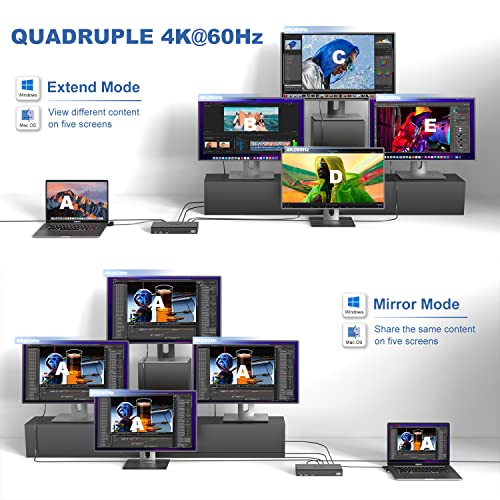
Imagine having the ability to connect up to four monitors at once. Yes, four! I’m not talking about a jumbled mess of cables threatening your sanity, but rather a symphony of screens working in harmony, thanks to the WAVLINK DisplayLink Docking Station. With support for resolutions up to 5K or Cinema 4K, you’re signing up for a visual feast. The maximum resolution reaches up to 5120x1440p60, ideal for indulging in ultra-wide cinematic experiences or keeping an eagle’s eye on all those projects demanding your attention. Gone are the days of squinting at tiny spreadsheets or flipping between tabs like you’re spinning records at a noisy club.

The Specifications Breakdown
| Feature | Details |
|---|---|
| Quadruple Monitor Support | 5K (5120x1440p60) and 4K (4096x2160p60) |
| Ports | 4 HDMI, 4 DP |
| Resolution Options | 3840×2160@60Hz / 4096×2160@60Hz |
The allure of having all those windows open—neatly ordered instead of crammed on top of each other—transforms chaos into order. It’s like watching your workspace go through a dramatic decluttering montage, complete with uplifting music and victorious fist-pumping.
Lightning-Speed Data Transfer and Charging
Fast Like a Coffee-Powered Cheetah
Let’s talk speed. Imagine transferring your hefty files like it’s flipping through the slim pages of a magazine. With a 2.5Gbps Ethernet connection, you can wave goodbye to those frustrating spinning icons. Instead, say hello to quick downloads and seamless uploads. Throw in a 100W host charging capability, and you’re looking at a device that doesn’t just power your passion—it fuels it. This setup ensures you won’t be left to helplessly watch as your battery icon turns red during the protagonist’s climax scene (how anticlimactic!).
Comprehensive Compatibility is Here
The Universal Language of Connectivity
Are you an Apple aficionado, a devotee of Windows, or perhaps a curious explorer using Ubuntu? With WAVLINK, fret not. This docking station supports Thunderbolt 3 and 4 as well as USB-C for Windows and Mac devices. It is like someone at WAVLINK waved a compatibility wand, making this docking station a universal mate for your gadget lineup, breaking down the barriers that separate us from our devices.
What’s in the Box?
The Contents You Need
Unboxing can be a moment of excitement—like opening a box of assorted chocolates, minus the risk of a mysterious flavor catastrophe. Here’s what WAVLINK has packed for you:
- 1 x USB-C Quad 4K Dock
- 1 x 2-in-1 USB-C to USB A/C cable
- 1 x DC20V/9A 180W power adapter
- 1 x AC power cable
- 1 x Cable holder
- 1 x CD-shaped driver download link
- 1 x Quick start guide
- 18 months warranty, paired with life-long friendly customer service

Customers Are Loving It
Tales from the Multiscreen Utopia
From what I’ve gathered from other users, this WAVLINK docking station is more than a piece of technology; it’s an experience enhancer. One user gleefully recounts setting up their office with a smile as big as the panoramic view from their newly attached screens. With testimonies of professional multitaskers and casual binge-watchers singing its praises, it’s clear WAVLINK has struck a chord. No more juggling your technology like a circus act gone wrong.
Is It Worth the Dime?
Your Value Proposition
All said and done, no one wants to shell out their hard-earned money without knowing they’re investing in something rewarding. As I weigh the benefits—a power-packed hub for seamless connectivity and charging that guarantees I won’t end sessions in a flickering mess—I reason it is worth the price. Not only is the convenience unbeatable, the idea of a centralized hub adding order, speed, and functionality seems more a necessity than a luxury at this point.
So here I am, a proud user, savoring the streamlined bliss and wondering how I ever coped before WAVLINK glided into my life. I find myself immersed in this welcoming, multiscreen realm, all anchors untangled, navigating the ocean of productivity like a seasoned captain on a digital ship. How could anyone not opt for such a serene yet powerful way of working? Feels almost criminally good.
Disclosure: As an Amazon Associate, I earn from qualifying purchases.

I evaluate docking stations the way they actually get used — against real bandwidth budgets, power-delivery ceilings, and the OS handshakes that quietly cap what a port can do — not spec-sheet promises. Every constraint that can break a multi-display setup is disclosed before any affiliate link.
Docking Station Intelligence
The standards are confusing by design. These three panels decode what manufacturers won’t explain clearly. Applicable to every docking station.
The USB-C Confusion Matrix
The USB-C connector is the single greatest source of buyer confusion in docking stations. The physical plug looks identical whether it carries USB 2.0 at 480 Mbps or Thunderbolt 5 at 120 Gbps — a 250x difference in capability hidden behind the same shape. Manufacturers exploit this by labeling everything "USB-C compatible" without specifying which protocol runs through it. Two docks can look identical on the outside and behave completely differently once you plug them in.
The hierarchy matters because it determines everything: how many monitors your dock can drive, how fast files transfer, whether your laptop charges while docked, and whether you need third-party drivers. Here is the real capability ladder, from slowest to fastest:
The practical takeaway: if your laptop has Thunderbolt 4, buy a Thunderbolt dock. If it only has generic USB-C, verify whether it supports DisplayPort Alt Mode before buying anything with multi-monitor claims. Our buying guide walks through verification steps for every major laptop brand.
Power Delivery: What the Watts Mean
Power Delivery (PD) determines whether your docking station can charge your laptop while you work, or whether you need a separate charger cluttering your desk. The math is simple but rarely explained: your laptop draws a specific wattage under load, and the dock must match or exceed it. If the dock delivers less than your laptop needs, the battery slowly drains even while plugged in — defeating the purpose of a docking station entirely.
Most ultrabooks need 45–65W. Standard business laptops need 65–100W. Gaming and workstation laptops can demand 100–140W or more. The dock’s advertised PD wattage is the maximum it can deliver to your laptop — but this drops if you charge other devices (phones, tablets) through the dock simultaneously. Always leave a 15–20W margin above your laptop’s requirement.
Check your laptop’s original charger wattage — that’s your baseline. Our FAQ covers how to find this for every major brand.
Native Display vs DisplayLink: The Hidden Factor
This is the decision most buyers don’t know they’re making. When a docking station outputs video to your monitors, it uses one of two fundamentally different methods: native (the dock passes your laptop’s GPU signal directly to the monitor) or DisplayLink (the dock compresses video over USB and a software driver renders it). The difference is invisible in marketing materials but profoundly affects your daily experience.
Native output through DisplayPort Alt Mode or Thunderbolt uses your laptop’s actual graphics hardware. There is zero added latency, full DRM support for streaming services, no CPU overhead, and no driver to install. DisplayLink, by contrast, adds 5–15ms of latency (noticeable in video calls and cursor movement), blocks DRM content on connected monitors (Netflix, Disney+ show black screens), consumes 3–8% of your CPU constantly, and requires a driver that Apple’s macOS security updates occasionally break.
DisplayLink exists for one reason: Apple Silicon base chips (M1, M2, M3) can only drive one external display natively. If you need two or more monitors on a base MacBook Air or 13” MacBook Pro, DisplayLink is your only option. For everyone else — Windows users, Mac Pro/Max chip users, Intel/AMD laptops — native is always the better choice.
Native (Alt Mode / Thunderbolt)
DisplayLink (USB compression)
The bottom line: if your laptop supports native multi-display output, always choose a native dock. DisplayLink is a workaround, not an upgrade. See our glossary for detailed definitions.
COMMAND CENTERCOMMAND CENTER
Six tools that decode the confusion manufacturers create. Port protocols, power budgets, display configurations, compatibility, desk planning, and future-proofing. Full buying guide →
Port Protocol DecoderWhat does your connection type actually support? Glossary
Power Delivery CalculatorCan this dock keep your laptop charged?
Display Configuration PlannerCan your dock push enough pixels?
Laptop-to-Dock CompatibilityWill this dock work with YOUR laptop?
Desk Setup ArchitectWhat ports do you actually need?
Select everything you need to connect: