
Anker 6-in-1 USB C Hub Review
Explore our whimsical Anker 6-in-1 USB-C Hub review. Discover its connectivity magic and reliability, tailored for tech-savvy multitaskers. Make life plug-and-play!
Have you ever found yourself struggling for more connectivity options when working with your favorite electronic devices? In this age of rapidly evolving technology, it’s a common dilemma to run out of ports on your sleek, minimalist gadgets. Enter the Anker 6-in-1 USB C Hub with 65W Power Delivery — a device that might just be a solution for your expansion needs.
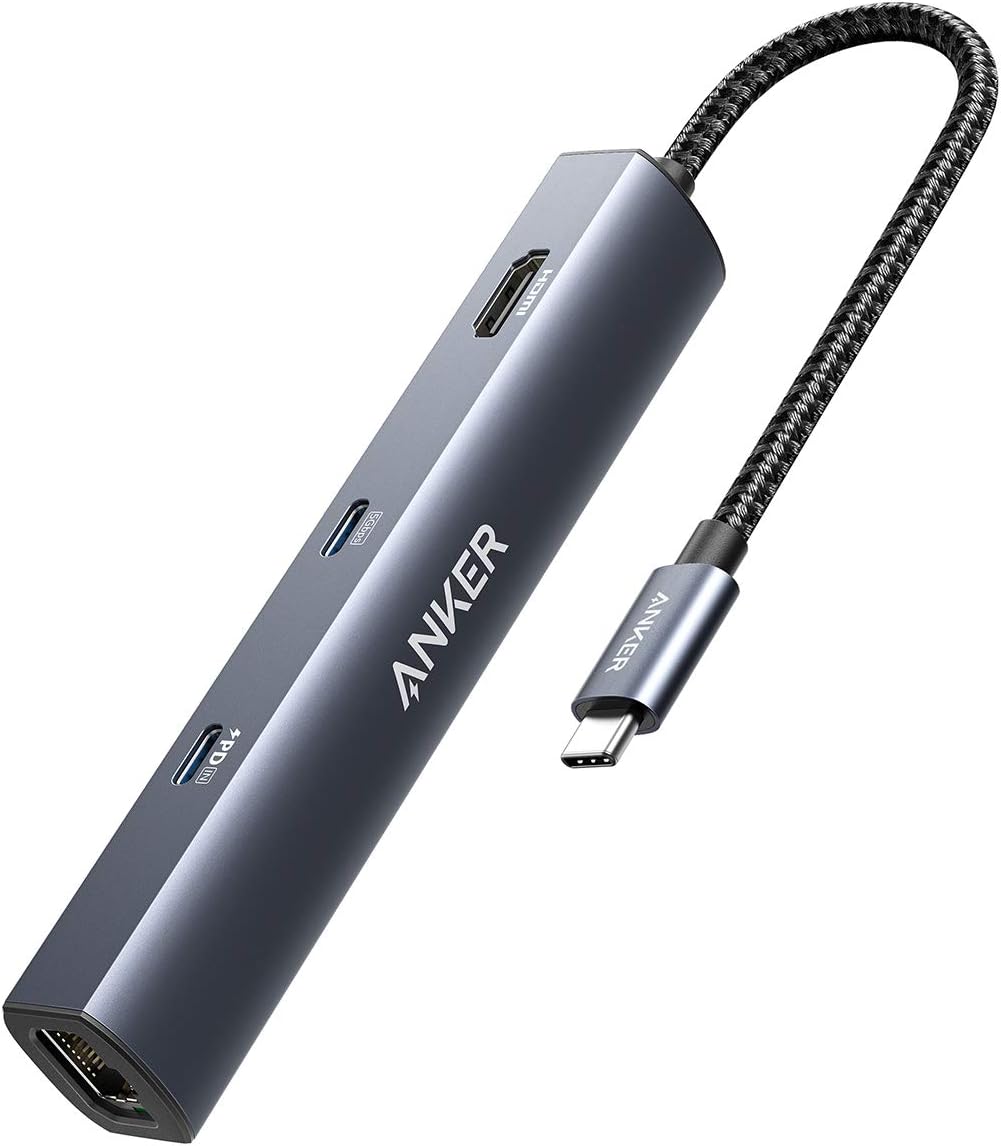

The Anker Advantage
Let’s be honest. We’re living in a world where either our devices outpace us, or we them. Anker has made sure you won’t get left behind in this tech race. With more than 65 million users benefiting from Anker’s cutting-edge innovation, this 6-in-1 hub promises not just functionality but reliability. It’s akin to having a Swiss Army knife that’s specifically designed for your MacBook Air, iPad Pro, XPS, and other devices.

Anker 6-in-1 USB C Hub with Ethernet, USB C to 4K HDMI Multiport Adapter, 1Gbps Ethernet, 65W Power Delivery, USB Ports for MacBook Air, iPad Pro, XPS, and More
A Closer Look at Features
In the land of electronic paraphernalia, it’s all about what you bring to the table, or in this case, the port.
Massive Expansion
The key allure of this gadget is its massive expansion capability. You get a Power Delivery input port, an HDMI port to connect to an external display, an Ethernet port for wired internet access, a USB-C data port, and two USB data ports. That’s a whole lot of connectivity crammed into a device you can hold in the palm of your hand.
| Port Type | Quantity | Function |
|---|---|---|
| Power Delivery Input | 1 | Connect your charger for high-speed charging |
| HDMI Port | 1 | Connect to external displays, supporting up to 4K@30Hz |
| Ethernet Port | 1 | Wired internet connection for more stable connectivity |
| USB-C Data Port | 1 | Transfer data and connect USB-C devices |
| USB Data Ports | 2 | Connect additional devices like keyboards or thumb drives |
Powerful Pass-Through Charging
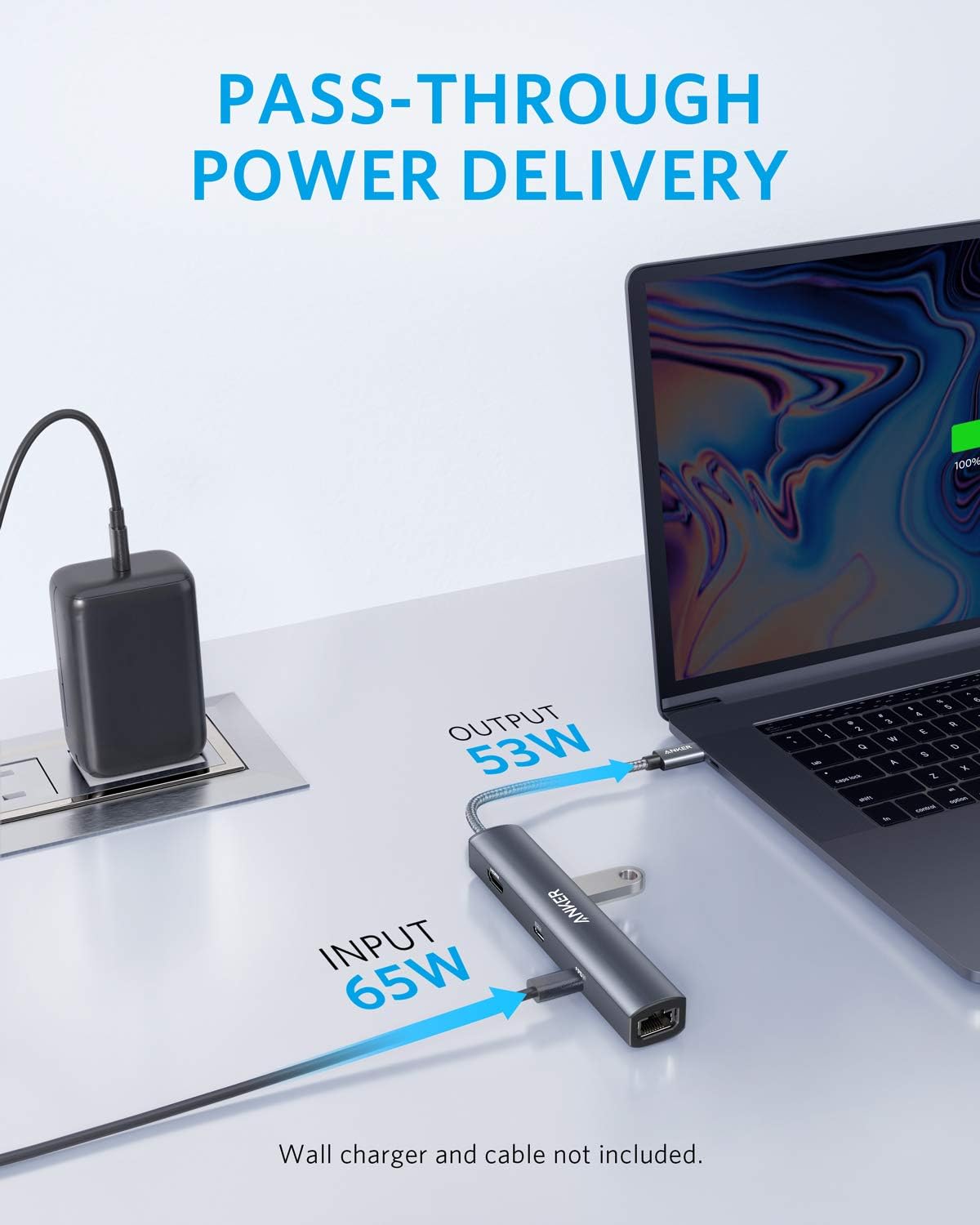
This feature deserves a medal or at least a pat on the back. With a 65W wall charger, you can power through tasks without worrying about dwindling battery life. The hub can handle high-speed pass-through charging to your laptop, making it not just a pretty face with multiple ports but also a hard worker keeping everything topped off.
Media Display in Ultra Clarity
Are you tired of squinting at your screen during presentations or movie nights? The HDMI port here is your friend. You can hook up to an external display with resolutions up to 4K@30Hz. Crisp visuals are suddenly not just an option but an expectation.

User Experience
The hands-on experience with this hub can be somewhat magical. Imagine opening the package to find the PowerExpand 6-in-1 USB-C PD Ethernet Hub, a handy welcome guide, and the reassuring presence of an 18-month warranty. It’s like Christmas every day, minus the flammable tinsel.
Setup Simplicity
In a world that often feels overly complicated, setting up this hub is refreshingly simple. Just plug it into the USB-C port of your device, and you’re good to go. No software downloads, no compatibility headaches, just instant functionality.
Reliability and Warranty
We all live under the cloud of Murphy’s Law, where anything that can go wrong will go wrong. Thankfully, Anker’s 18-month warranty offers a safety net. The company provides customer service that feels as supportive as a grandma at your little league game.
Pros and Cons
Like anything worth its salt (or pixels, in this case), there are pros and cons.
Benefits Galore
- Versatility: With multiple ports, the hub caters to a broad spectrum of connectivity needs.
- High-Speed Charging: Keeps your devices juiced up without a hitch.
- Durability: Crafted with quality that feels solid to the touch.
A Few Considerations
- Price: While not exorbitant, it may cost more than a simple USB-C adapter.
- Weight and Size: Slightly bulkier than more minimalist hub designs.
- 4K at 30Hz: Video professionals might miss smoother 60Hz display options.
Ideal Scenarios for Use
Here are a few scenarios where this hub shines like a lighthouse in a storm:
Remote Working
Say you’re working remotely from a cozy cabin in the woods, but you need fast internet. The Ethernet port lets you plug in directly to the router, so buffering and WiFi dropouts don’t become your arch-nemeses.
Presentation Ready
Suppose you’re about to give the presentation that could clinch that dream contract. Use the HDMI port to project your screen onto more substantial displays without fuss.
Multi-Device Wizardry
Juggling between your laptop, iPad, smartphone, and that other gadget you can’t quite live without? Plug them into the USB ports to swap files like the digital magician you are.
Conclusion
Wrapping up, the Anker 6-in-1 USB C Hub with 65W Power Delivery sits comfortably in that sweet spot where design meets utility. It doesn’t just address today’s requirements but gives you a lift into tomorrow’s tech landscape. Sure, there are smaller, cheaper alternatives, but few offer the same robust combination of features and reliability that Anker provides.
Investing in this hub is akin to making sure your wardrobe includes a classic little black dress or a pair of stiff jeans that have seen you through life’s ups and downs. Functional, dependable, and ever-stylish, it promises to be a steadfast companion in your tech endeavors. Best of all, it reminds us that good things, indeed, come in small, well-engineered packages.
Disclosure: As an Amazon Associate, I earn from qualifying purchases.
Docking Station Intelligence
The standards are confusing by design. These three panels decode what manufacturers won’t explain clearly. Applicable to every docking station.
The USB-C Confusion Matrix
The USB-C connector is the single greatest source of buyer confusion in docking stations. The physical plug looks identical whether it carries USB 2.0 at 480 Mbps or Thunderbolt 5 at 120 Gbps — a 250x difference in capability hidden behind the same shape. Manufacturers exploit this by labeling everything "USB-C compatible" without specifying which protocol runs through it. Two docks can look identical on the outside and behave completely differently once you plug them in.
The hierarchy matters because it determines everything: how many monitors your dock can drive, how fast files transfer, whether your laptop charges while docked, and whether you need third-party drivers. Here is the real capability ladder, from slowest to fastest:
The practical takeaway: if your laptop has Thunderbolt 4, buy a Thunderbolt dock. If it only has generic USB-C, verify whether it supports DisplayPort Alt Mode before buying anything with multi-monitor claims. Our buying guide walks through verification steps for every major laptop brand.
Power Delivery: What the Watts Mean
Power Delivery (PD) determines whether your docking station can charge your laptop while you work, or whether you need a separate charger cluttering your desk. The math is simple but rarely explained: your laptop draws a specific wattage under load, and the dock must match or exceed it. If the dock delivers less than your laptop needs, the battery slowly drains even while plugged in — defeating the purpose of a docking station entirely.
Most ultrabooks need 45–65W. Standard business laptops need 65–100W. Gaming and workstation laptops can demand 100–140W or more. The dock’s advertised PD wattage is the maximum it can deliver to your laptop — but this drops if you charge other devices (phones, tablets) through the dock simultaneously. Always leave a 15–20W margin above your laptop’s requirement.
Check your laptop’s original charger wattage — that’s your baseline. Our FAQ covers how to find this for every major brand.
Native Display vs DisplayLink: The Hidden Factor
This is the decision most buyers don’t know they’re making. When a docking station outputs video to your monitors, it uses one of two fundamentally different methods: native (the dock passes your laptop’s GPU signal directly to the monitor) or DisplayLink (the dock compresses video over USB and a software driver renders it). The difference is invisible in marketing materials but profoundly affects your daily experience.
Native output through DisplayPort Alt Mode or Thunderbolt uses your laptop’s actual graphics hardware. There is zero added latency, full DRM support for streaming services, no CPU overhead, and no driver to install. DisplayLink, by contrast, adds 5–15ms of latency (noticeable in video calls and cursor movement), blocks DRM content on connected monitors (Netflix, Disney+ show black screens), consumes 3–8% of your CPU constantly, and requires a driver that Apple’s macOS security updates occasionally break.
DisplayLink exists for one reason: Apple Silicon base chips (M1, M2, M3) can only drive one external display natively. If you need two or more monitors on a base MacBook Air or 13” MacBook Pro, DisplayLink is your only option. For everyone else — Windows users, Mac Pro/Max chip users, Intel/AMD laptops — native is always the better choice.
Native (Alt Mode / Thunderbolt)
DisplayLink (USB compression)
The bottom line: if your laptop supports native multi-display output, always choose a native dock. DisplayLink is a workaround, not an upgrade. See our glossary for detailed definitions.
COMMAND CENTERCOMMAND CENTER
Six tools that decode the confusion manufacturers create. Port protocols, power budgets, display configurations, compatibility, desk planning, and future-proofing. Full buying guide →
Port Protocol DecoderWhat does your connection type actually support? Glossary
Power Delivery CalculatorCan this dock keep your laptop charged?
Display Configuration PlannerCan your dock push enough pixels?
Laptop-to-Dock CompatibilityWill this dock work with YOUR laptop?
Desk Setup ArchitectWhat ports do you actually need?
Select everything you need to connect: