
Lemorele USB C Docking Station Review
Discover the stylish Lemorele USB C Docking Station; an 11-in-1 hub transforming chaotic cords into a streamlined tech haven with ease and elegance.
Have you ever found yourself drowning in a sea of tangled cables, longing for a solution to manage all your gadgets with ease and elegance? That’s where the Lemorele Aluminium USB C Laptop Docking Station Dual Monitor 11 in 1 Hub Adapter comes into play. This sleek little device promises a streamlined experience for anyone looking to optimize their workspace or elevate their digital lifestyle. And, by using it, I’ve discovered a tech gem that’s as sophisticated as it is functional.
Update, September 2026: Amazon no longer sells this 11-in-1 model. Its successor is the Lemorele 13-in-1 (model TC200), which keeps the dual 4K HDMI, 100 W charging and card readers, adds VGA and a headphone jack, and drops the Ethernet port. The card below shows the 13-in-1, and I have reviewed it separately: Lemorele 13-in-1 USB-C Docking Station review.

Lemorele 13 in 1 USB C Docking Station Triple Monitor w/Dual HDMI 4K, VGA, 5 USB 3.0/2.0, USB-C 3.0, 100W PD, SD/TF, 3.5mm Audio, Multiport Hub Adapter for Lenovo, Surface, Dell, HP Laptops
A Compact Powerhouse
The first thing that caught my attention was the sleek, portable design. I mean, who wouldn’t appreciate carrying something so functional in a pocket? It’s the kind of device that seems to whisper, “Take me with you,” and honestly, I do, sometimes by accident—tucked in my laptop bag like a stowaway searching for a new home.

Plug and Play Simplicity
I’m not exactly a tech wizard, so the promise of a plug-and-play mechanism felt like a godsend. No drivers, no software, no intricate settings to comb through—just plug it in and watch the magic unfold. It’s like having an intelligent little personal assistant; all I’m missing is a British accent and cups of tea to serve during our sessions.
Built-in Safety Mechanisms
The Lemorele hub doesn’t just connect devices; it shields them. With its internal microchip and protection systems, my gadgets are safeguarded against overcurrent, over-voltage, and those occasional high temperatures that tiptoe in unannounced, threatening to ruin the day. It’s like a bodyguard for my gadgets, giving me peace of mind.
Unpacking the 11-in-1 Marvel
The product’s versatility is one of its standout qualities. It’s amazing what this thing can connect to. The Lemorele Hub offers a bounty of ports—11, to be exact—and it’s akin to harboring a tiny, bustling port city right on your desk.

Dual HDMI Ports for 4K Resolution
The HDMI ports were a revelation. Now, I can connect not one but two monitors, ensuring that I run out of excuses when it comes to productivity—or binge-watching my favorite series in glorious Ultra HD. MacOS and Windows users will have varying experiences, but both systems support Mirror Mode and Extend Mode. While MacOS only supports SST, Windows users can take advantage of the MST mode as well.

Here’s a quick look at the resolution capabilities:
| Feature | Resolution | Mode |
|---|---|---|
| Single HDMI | Up to 3840×2160@30Hz | Mirroring/Extended |
| Dual HDMI | Up to 1920×1080@60Hz | Mirroring/Extended |
Super Speed Data Transfer
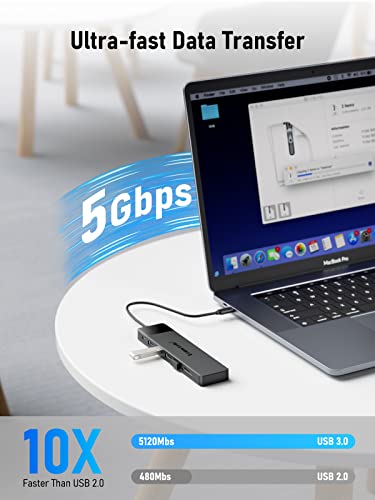
Unloading data from my phone, transferring pictures from my camera to my laptop, or even slightly embarrassing video collections—it’s all done with speed. Offering USB-C 3.0 and two USB 3.0 ports with transmission rates up to 5120Mbps, my files transfer faster than a squirrel on an open peanut jar. And who doesn’t like speed when it comes to getting work done?
Charging and Connectivity
For someone like me who ends up forgetting cables more often than I’d like to admit, having a single device that charges and connects is a lifesaver. The 100W PD 3.0 charging capability ensures I never run out of power—even during spontaneous gaming sessions. (Yes, I sometimes indulge in a cheeky game or two while my laptop’s meant for ‘serious work’.)
Reliable Gigabit Ethernet
You can’t always count on wireless networks to have your back, especially when the stars of connectivity aren’t aligned. The Gigabit Ethernet port is my safety net, eliminating those ominous “You are not connected” messages. It’s like having a stable ship amid an ocean of weak Wi-Fi signals, ready to haul me back to the shores of productivity.
A Friend to Many Devices
If it seems like this hub adapts like a chameleon to different tech environments, you’d be right. Extensive compatibility with an array of devices, including MacBook Pro, Dell XPS, and even the Samsung Galaxy S9, means it’s a unifier in my technology ecosystem. Note though, before you get all enthusiastic, make sure your laptop’s USB-C ports support video output or DP Alt Mode. It’s not for every device under the sun—certain HP and Lenovo models included. Alas, nothing is perfect.
Final Thoughts: A Docking Station That Gets It Right
Now, I wouldn’t say I’m married to my gadgets, but the Lemorele Aluminium USB C Laptop Docking Station certainly feels like an ideal partner in my digital world. I’ve gone from a cluttered mess to someone who can sit back and watch two screens light up in unison, all without tripping over cords every few moments.
Would I recommend it? Absolutely. Whether it’s for its stylish design, host of features, or the seamless flow it promises, this docking station has earned its place in my personal tech hall of fame. It’s the kind of product that understands you need more than just simplicity—you need reliability, power, and a dash of panache. The Lemorele Docking Station doesn’t just meet expectations, it exceeds them, every single time.
Disclosure: As an Amazon Associate, I earn from qualifying purchases.

I evaluate docking stations the way they actually get used — against real bandwidth budgets, power-delivery ceilings, and the OS handshakes that quietly cap what a port can do — not spec-sheet promises. Every constraint that can break a multi-display setup is disclosed before any affiliate link.
Docking Station Intelligence
The standards are confusing by design. These three panels decode what manufacturers won’t explain clearly. Applicable to every docking station.
The USB-C Confusion Matrix
The USB-C connector is the single greatest source of buyer confusion in docking stations. The physical plug looks identical whether it carries USB 2.0 at 480 Mbps or Thunderbolt 5 at 120 Gbps — a 250x difference in capability hidden behind the same shape. Manufacturers exploit this by labeling everything "USB-C compatible" without specifying which protocol runs through it. Two docks can look identical on the outside and behave completely differently once you plug them in.
The hierarchy matters because it determines everything: how many monitors your dock can drive, how fast files transfer, whether your laptop charges while docked, and whether you need third-party drivers. Here is the real capability ladder, from slowest to fastest:
The practical takeaway: if your laptop has Thunderbolt 4, buy a Thunderbolt dock. If it only has generic USB-C, verify whether it supports DisplayPort Alt Mode before buying anything with multi-monitor claims. Our buying guide walks through verification steps for every major laptop brand.
Power Delivery: What the Watts Mean
Power Delivery (PD) determines whether your docking station can charge your laptop while you work, or whether you need a separate charger cluttering your desk. The math is simple but rarely explained: your laptop draws a specific wattage under load, and the dock must match or exceed it. If the dock delivers less than your laptop needs, the battery slowly drains even while plugged in — defeating the purpose of a docking station entirely.
Check the laptop manufacturer’s recommended power supply and the dock’s rated host power. Shared charging budgets vary by dock: powering peripherals does not reduce host charging on every model. USB-C charging also depends on the laptop, cable and negotiated power profile. A lower-power supply may charge slowly or allow battery drain under load; a fixed 15–20W margin is not a universal requirement.
Check your laptop’s original charger wattage — that’s your baseline. Our FAQ covers how to find this for every major brand.
Native Display vs DisplayLink: The Hidden Factor
This is the decision most buyers don’t know they’re making. When a docking station outputs video to your monitors, it uses one of two fundamentally different methods: native (the dock passes your laptop’s GPU signal directly to the monitor) or DisplayLink (the dock compresses video over USB and a software driver renders it). The difference is invisible in marketing materials but profoundly affects your daily experience.
Native output through DisplayPort Alt Mode or Thunderbolt uses the host graphics system. DisplayLink transports encoded display data over USB using compatible software. Its responsiveness and CPU/GPU load vary with the computer, software, resolution and workload; fixed latency, CPU and battery percentages are not universal specifications. Protected-video playback also depends on the display path, operating system and service. Check DisplayLink system requirements for your configuration.
DisplayLink can add displays through compatible USB connections, including USB-A, and can serve systems with limited native display outputs. Native limits depend on the exact computer and operating mode. For example, M3 MacBook Air and MacBook Pro support two external displays with the lid closed under Apple’s stated conditions. Choose the display method against your computer, software permissions and workload.
Native (Alt Mode / Thunderbolt)
DisplayLink (USB compression)
Choose a native or DisplayLink dock by checking the exact host, dock, operating system and monitor combination. Native output is often preferable for latency-sensitive workloads; DisplayLink can be useful for additional productivity displays and compatible USB-A hosts. Neither connector shape nor a generic bandwidth number proves compatibility.
COMMAND CENTERCOMMAND CENTER
Six tools that decode the confusion manufacturers create. Port protocols, power budgets, display configurations, compatibility, desk planning, and future-proofing. Full buying guide →
Port Protocol DecoderWhat does your connection type actually support? Glossary
Power Delivery CalculatorCan this dock keep your laptop charged?
Display Configuration PlannerCan your dock push enough pixels?
Laptop-to-Dock CompatibilityWill this dock work with YOUR laptop?
Desk Setup ArchitectWhat ports do you actually need?
Select everything you need to connect: