
TobenONE DisplayLink Docking Station Review
Discover how the TobenONE DisplayLink Docking Station transforms productivity with its 18-in-1 functionality, stylish design, and seamless setup. It's a multitasker's dream!
Is it possible to boost productivity without feeling overwhelmed by the clutter of cables and adapters? Enter the TobenONE DisplayLink Docking Station 4 Monitor. This 18-in-1 powerhouse promises to simplify your workspace and unlock new levels of multitasking efficiency. Here’s my journey of setting it up and integrating it into my daily routine.

Design and Build Quality
Aesthetic Appeal
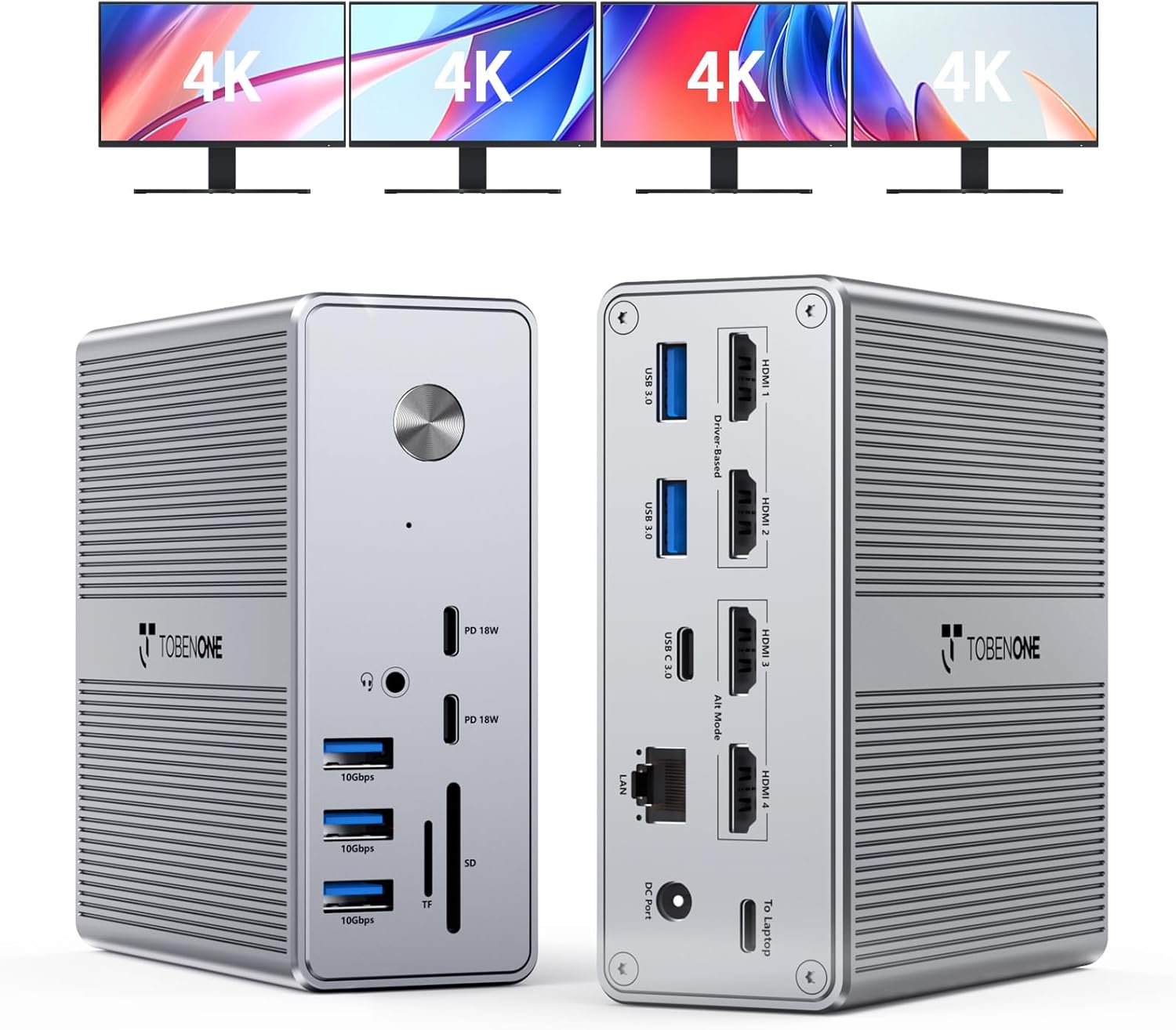
First off, let’s talk about the appearance. This docking station doesn’t just work well; it looks the part, too. Its sleek design means it fits beautifully on my desk, adding a modern touch without overtaking the space. Its compact footprint is a blessing, giving me ample room to juggle papers, gadgets, and the occasional cup of coffee.
Robust Construction
The TobenONE station feels solid. It’s not one of those flimsy gadgets that look like they’d crumble if you so much as sneeze near them. The materials speak of durability, and in an age where everything feels so dispensable, it’s refreshing to own something that seems built to last.
TobenONE DisplayLink Docking Station 4 Monitor with 4 HDMI, 18-in-1 Quad/Triple 4K@60Hz Display Dock with 120W Power Supply for Thunderbolt 5/4/3, USB4, USB-C Windows, MacBook(8 USB, Ethernet, etc)
Connectivity Galore
Enhanced Port Combinations
Let’s be real: the more ports, the merrier. The docking station features a plethora of connectivity options: four HDMI ports for external displays, multiple USB variations (3.2, 3.0, and USB-C 3.0), an Ethernet port, and even slots for SD and microSD cards. It’s like the Swiss Army knife of docking stations, essential for a power user like me.
| Port Type | Quantity | Notable Feature |
|---|---|---|
| HDMI | 4 | Supports up to 4 displays |
| USB 3.2 | 3 | Lightning-fast data transfer |
| USB 3.0 | 2 | High-speed connectivity |
| USB-C 3.0 | 3 | Quick access with modern devices |
| Ethernet | 1 | Reliable internet connection |
| SD/microSD | 1 each | Easy data transfers from memory cards |
Multi-Display Capability
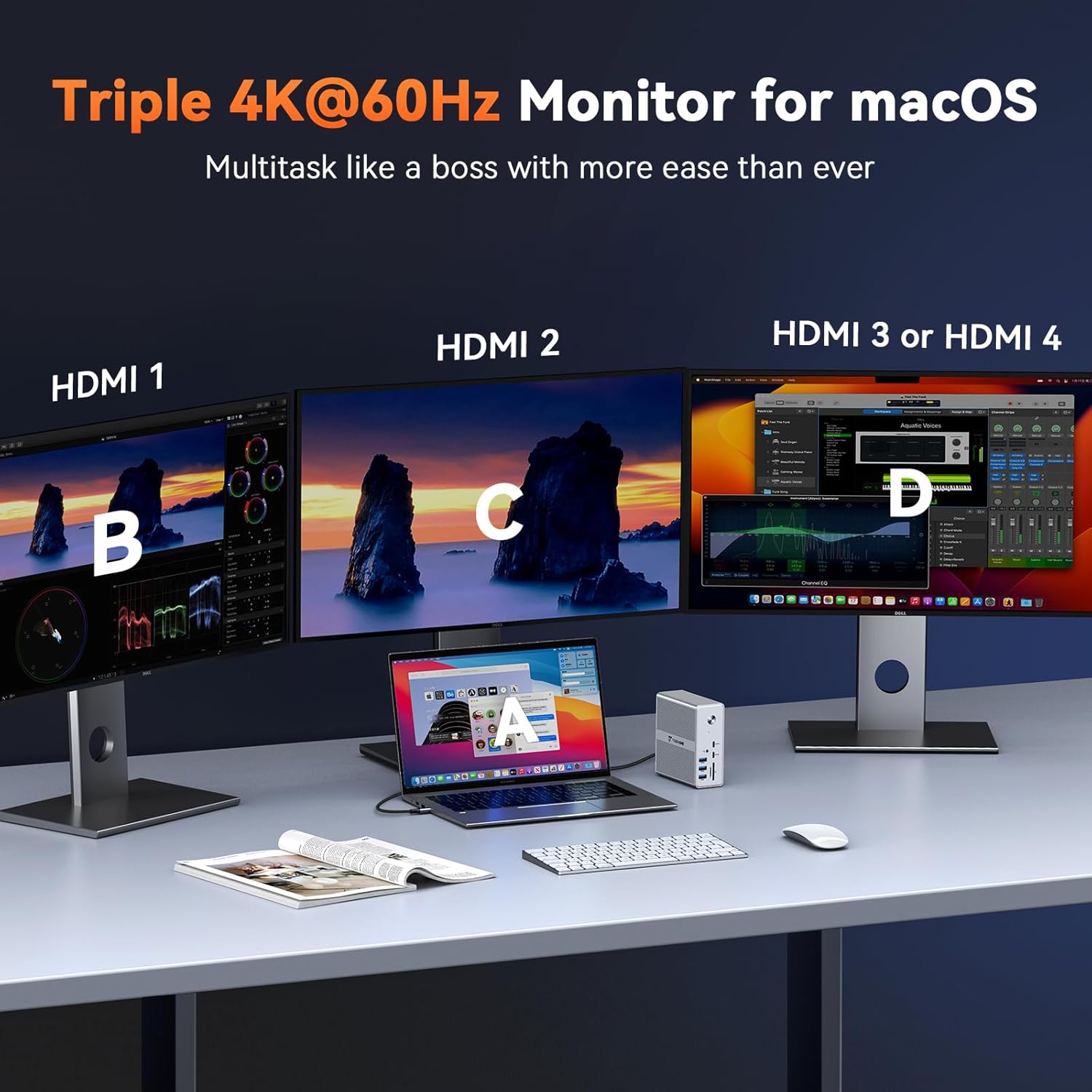
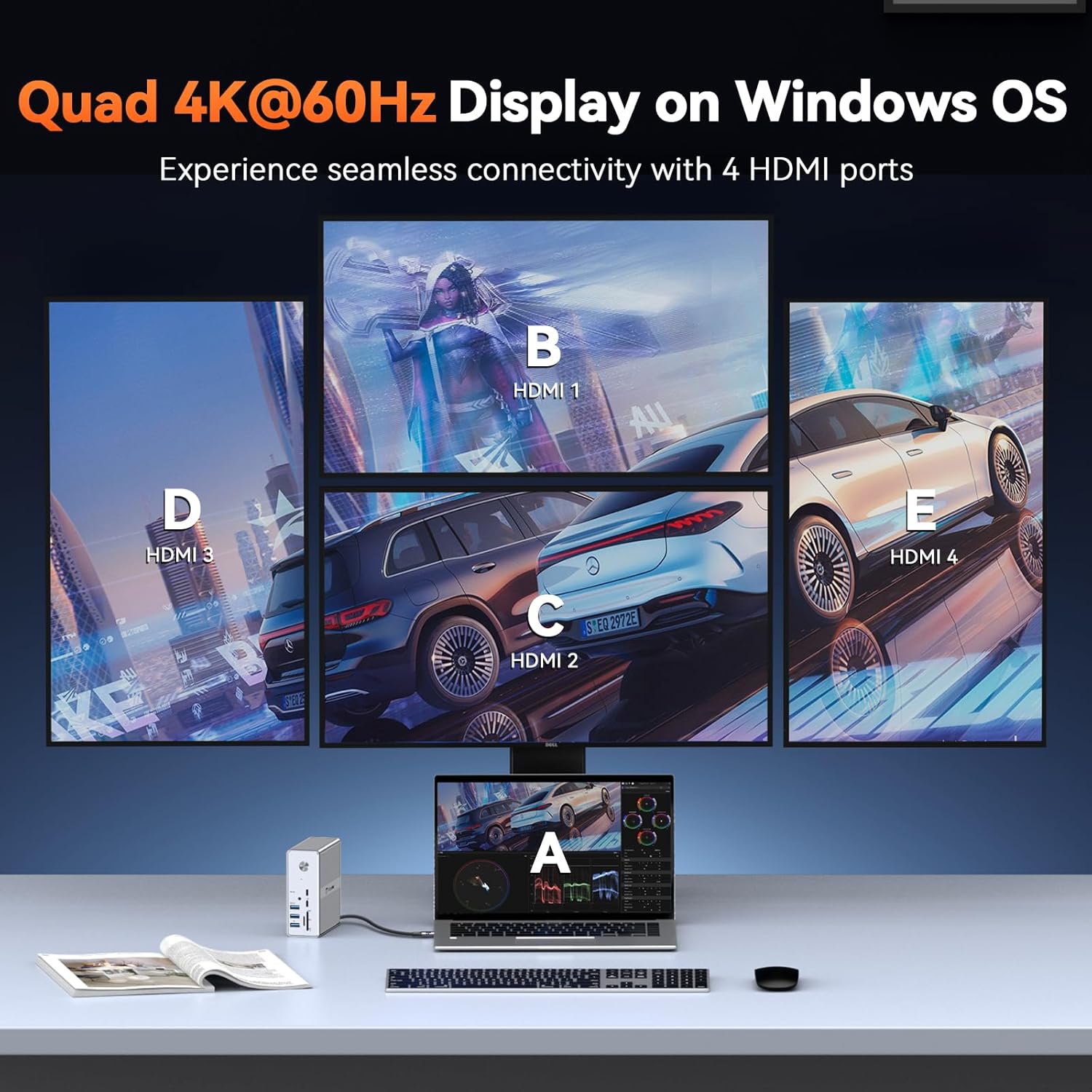
In the words of every multitasker ever: “There’s never enough screen real estate.” With support for up to four displays for Windows and three for macOS (note that HDMI 3 and 4 can’t be used simultaneously on macOS), the TobenONE docking station lets me swim in screens. Everything’s crisp and clear at 4K@60Hz resolution, making it a joy to spread out and tackle tasks head-on.
Charging and Power
Fast and Secure Charging
Charging chaos is a thing of the past with a sturdy 120W power adapter that caters up to 100W for laptops and 18W via the USB-C for phones. Most importantly, I can leave my power adapter at home without the anxiety of running dry mid-day. The newfound freedom this offers is a game-changer for the mess at my usual work setup.
Convenient Setup
Previously, my desk looked like a battlefield of chargers and adapters. Now, this singular hub streamlines everything. The TobenONE station not only cleans up the clutter but ensures my devices remain juiced up and ready. In essence, I’ve traded technicolor chaos for minimalist efficiency.
Compatibility and Functionality
Broad Compatibility Spectrum
TobenONE has embraced versatility. It’s compatible with USB4, Thunderbolt variants, and several operating systems, including Windows 10 or later, Chrome OS 100+, Android, macOS 11+, and Ubuntu. Alas, Linux and Unix users are out of luck, but for the majority, this docking station has their back.
DisplayLink Drivers
A word to the wise: before basking in this device’s full glory, ensure you’ve installed the DisplayLink drivers. An ounce of preparation prevents incompatibility frustration later. Once up and running, the transition to a seamless, multi-monitor workflow is nothing short of a revelation.
User Experience
Ease of Use
Setting it all up was intuitive, requiring minimal brainpower, which is excellent for those of us who prefer saving our mental energies for existential musings or the daily Wordle. It made connecting multiple devices straightforward, with everything working together like a well-rehearsed orchestra.
Technical Support
TobenONE stands behind its product, with customer service that would make anyone feel taken care of. Knowing there’s a team ready to assist lends peace of mind. On the off chance you encounter a hiccup, their support team is just a call away, eager to untangle any tech knots.
Conclusion
Choosing the TobenONE DisplayLink Docking Station 4 Monitor is akin to discovering a secret weapon in the battle against productivity blockers. It’s a testament to smart design and superior functionality. Each port, each connection is like a little victory, all converging to make daily tasks a breeze.
Would I recommend it? Absolutely, especially to anyone seeking to elevate their workspace and simplify their tech life. This station is like gaining a loyal sidekick, ever ready to tackle the challenges of modern work-life with aplomb.
In summary, the TobenONE DisplayLink Docking Station offers a blend of style, substance, and service that few products manage to achieve. It’s not just about connecting devices; it’s about unleashing the full potential of your workspace.
Disclosure: As an Amazon Associate, I earn from qualifying purchases.
Docking Station Intelligence
The standards are confusing by design. These three panels decode what manufacturers won’t explain clearly. Applicable to every docking station.
The USB-C Confusion Matrix
The USB-C connector is the single greatest source of buyer confusion in docking stations. The physical plug looks identical whether it carries USB 2.0 at 480 Mbps or Thunderbolt 5 at 120 Gbps — a 250x difference in capability hidden behind the same shape. Manufacturers exploit this by labeling everything "USB-C compatible" without specifying which protocol runs through it. Two docks can look identical on the outside and behave completely differently once you plug them in.
The hierarchy matters because it determines everything: how many monitors your dock can drive, how fast files transfer, whether your laptop charges while docked, and whether you need third-party drivers. Here is the real capability ladder, from slowest to fastest:
The practical takeaway: if your laptop has Thunderbolt 4, buy a Thunderbolt dock. If it only has generic USB-C, verify whether it supports DisplayPort Alt Mode before buying anything with multi-monitor claims. Our buying guide walks through verification steps for every major laptop brand.
Power Delivery: What the Watts Mean
Power Delivery (PD) determines whether your docking station can charge your laptop while you work, or whether you need a separate charger cluttering your desk. The math is simple but rarely explained: your laptop draws a specific wattage under load, and the dock must match or exceed it. If the dock delivers less than your laptop needs, the battery slowly drains even while plugged in — defeating the purpose of a docking station entirely.
Most ultrabooks need 45–65W. Standard business laptops need 65–100W. Gaming and workstation laptops can demand 100–140W or more. The dock’s advertised PD wattage is the maximum it can deliver to your laptop — but this drops if you charge other devices (phones, tablets) through the dock simultaneously. Always leave a 15–20W margin above your laptop’s requirement.
Check your laptop’s original charger wattage — that’s your baseline. Our FAQ covers how to find this for every major brand.
Native Display vs DisplayLink: The Hidden Factor
This is the decision most buyers don’t know they’re making. When a docking station outputs video to your monitors, it uses one of two fundamentally different methods: native (the dock passes your laptop’s GPU signal directly to the monitor) or DisplayLink (the dock compresses video over USB and a software driver renders it). The difference is invisible in marketing materials but profoundly affects your daily experience.
Native output through DisplayPort Alt Mode or Thunderbolt uses your laptop’s actual graphics hardware. There is zero added latency, full DRM support for streaming services, no CPU overhead, and no driver to install. DisplayLink, by contrast, adds 5–15ms of latency (noticeable in video calls and cursor movement), blocks DRM content on connected monitors (Netflix, Disney+ show black screens), consumes 3–8% of your CPU constantly, and requires a driver that Apple’s macOS security updates occasionally break.
DisplayLink exists for one reason: Apple Silicon base chips (M1, M2, M3) can only drive one external display natively. If you need two or more monitors on a base MacBook Air or 13” MacBook Pro, DisplayLink is your only option. For everyone else — Windows users, Mac Pro/Max chip users, Intel/AMD laptops — native is always the better choice.
Native (Alt Mode / Thunderbolt)
DisplayLink (USB compression)
The bottom line: if your laptop supports native multi-display output, always choose a native dock. DisplayLink is a workaround, not an upgrade. See our glossary for detailed definitions.
COMMAND CENTERCOMMAND CENTER
Six tools that decode the confusion manufacturers create. Port protocols, power budgets, display configurations, compatibility, desk planning, and future-proofing. Full buying guide →
Port Protocol DecoderWhat does your connection type actually support? Glossary
Power Delivery CalculatorCan this dock keep your laptop charged?
Display Configuration PlannerCan your dock push enough pixels?
Laptop-to-Dock CompatibilityWill this dock work with YOUR laptop?
Desk Setup ArchitectWhat ports do you actually need?
Select everything you need to connect: