
Lemorele 13 in 1 USB C Docking Station for Triple Monitors Review
Lemorele 13-in-1 USB-C Dock Review: Evaluate dual 4K HDMI video bandwidth, 100W PD charging, 5Gbps USB data speeds, and Mac vs. PC driver fit.
The Lemorele 13-in-1 gives you triple monitors (two HDMI plus one VGA), 100W PD charging, Gigabit Ethernet, four USB ports, SD and microSD readers, a 3.5mm audio jack, and a USB-C data port through a single USB-C connection to your laptop. Thirteen ports at 105 grams. That is 3.7 ounces. Lighter than most smartphones. It sits on a desk without taking up space and slides into a bag without adding weight. For anyone whose laptop has one USB-C port and needs to connect monitors, peripherals, network, storage, and charging, this dock handles all of it.
The details that matter before you buy: on Mac, the two HDMI ports mirror only (SST mode). You cannot extend two different screens on macOS through this dock. On Windows, dual HDMI runs at 1080p@60Hz with independent extended displays. A single HDMI runs at 4K@30Hz on Mac. The VGA port maxes at 1080p@60Hz. The 100W PD port accepts your charger (not included) and outputs 87W to the laptop. Lifetime technical support and lifetime return/exchange policy from Lemorele. 1-year manufacturer warranty.
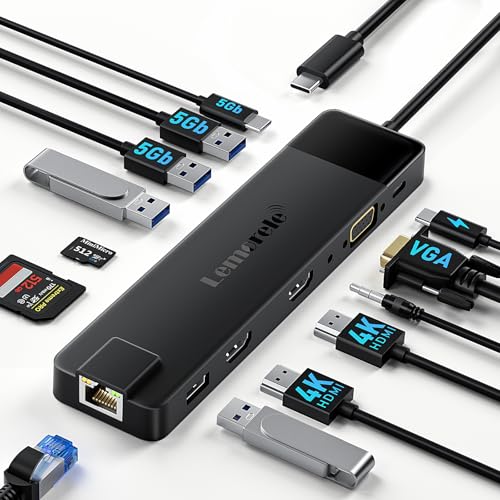
Lemorele 13 in 1 USB C Docking Station for Triple Monitors, Dual 4K HDMI, 1000M RJ45, VGA, 4 USB 3.0/2.0, SD/TF, 3.5MM Audio, USB C 3.0, 100W PD, Compatible with Type C Laptops
Key Specifications
| Specification | Detail |
|---|---|
| Total Ports | 13 |
| HDMI | 2 (4K@30Hz single on Mac, 1080p@60Hz dual on Windows) |
| VGA | 1 (max 1080p@60Hz) |
| USB 3.0 | 2 (5 Gbps) |
| USB 2.0 | 2 (480 Mbps) |
| USB-C Data | 1 (5 Gbps, matching USB 3.0) |
| USB-C PD | 1 (100W input, 87W output to laptop) |
| Gigabit Ethernet | 1 (auto-adapts 10/100/1000M) |
| SD Card Reader | 1 (up to 104 MB/s) |
| TF/MicroSD Card Reader | 1 (up to 104 MB/s) |
| 3.5mm Audio Jack | 1 |
| Mac Display Mode | SST only (mirror, not extend) |
| Windows Display Mode | Extended (independent screens) |
| Power Adapter | Not included (minimum 65W recommended) |
| DP Alt Mode Required | Yes (for HDMI/VGA video output) |
| Compatible OS | macOS 10.12+, Windows 10+ |
| Weight | 105.1 grams / 3.7 oz |
| Dimensions | 6.69″ L x 1.69″ W x 0.59″ H |
| Enclosure | Plastic |
| Support | Lifetime technical support, 24-hour online, lifetime return/exchange |
| Warranty | 1 year manufacturer |

Triple Monitors: Which Configuration Fits Your Work
Two HDMI ports and one VGA port give you three video outputs. But the resolution and behavior change depending on your operating system and which ports you use. Here is what each configuration actually looks like:

On Windows with dual HDMI: two independent extended monitors at 1080p@60Hz. Each screen shows different content. Smooth 60Hz refresh on both. Your laptop display becomes the third screen. This is the configuration most Windows users will want for daily productivity.
On Windows with HDMI plus VGA: two independent monitors. The HDMI runs at up to 4K@30Hz or 1080p@60Hz. The VGA runs at 1080p@60Hz maximum. VGA is analog, so the image quality is slightly softer than digital HDMI, but functional for text-based work, email, or reference material.
On Mac with single HDMI: one external monitor at 4K@30Hz. That is the maximum for Mac through this dock’s HDMI.
On Mac with dual HDMI: SST mode only. Both monitors show the same mirrored image. You cannot extend the Mac desktop across two screens through this dock. This is a macOS limitation, not a Lemorele hardware problem. If you need extended dual monitors on a Mac, you need a DisplayLink dock or a Thunderbolt 4 dock with a Mac that natively supports multiple displays.
The VGA port gives this dock something most modern hubs have dropped: a connection to legacy projectors and older monitors that do not have HDMI. If your conference room still has a VGA projector, the Lemorele connects directly. For USB-C display requirements, see our USB-C portable monitor guide.
100W Input, 87W to Your Laptop
The USB-C PD port accepts up to 100W from your charger. The dock uses approximately 13W for its own operations and passes 87W through to the laptop. Most ultrabooks charge at 45-65W. At 87W pass-through, the Lemorele keeps those laptops fully charged during use with monitors, peripherals, and Ethernet all running simultaneously.
The power adapter is not included. Lemorele recommends a minimum 65W USB-C PD charger. If you already carry one with your laptop, plug it into the dock instead of directly into the laptop. The dock distributes power and connectivity through one cable. If you do not own a 65W+ charger, add that cost to the purchase.
The 87W output means laptops that draw more than 87W under heavy load (gaming laptops, high-performance workstations) may drain battery slowly during intensive tasks even while connected to the dock. For standard productivity use, 87W is more than sufficient.
105 Grams: 13 Ports in a Smartphone Weight
At 105.1 grams, the Lemorele is heavier than the Lenovo 7-in-1 (49 grams) but carries nearly twice the ports including triple video output and Gigabit Ethernet that the Lenovo does not have. It is dramatically lighter than the Selore 16-in-1 (320 grams) while providing comparable connectivity minus one HDMI port. The plastic enclosure at 6.69 inches long fits in a laptop bag pocket.
For users who need triple monitor support on the road, 105 grams with two HDMI plus VGA is the lightest option for that capability on this site. The Selore offers three HDMI but weighs three times more. The trade-off is plastic versus the Selore’s plastic as well, so the weight difference comes from internal components, not build material.

SD/TF Card Readers at 104 MB/s
The card readers run at up to 104 MB/s. That is UHS-I speed. For standard JPEG photos from consumer cameras and SD cards from drones, 104 MB/s transfers a 32 GB card in approximately 5 minutes. For professional photographers shooting RAW files on UHS-II cards (which can reach 312 MB/s), the 104 MB/s reader is the bottleneck. The hub reads the card, just slower than the card’s maximum capability.
Gigabit Ethernet with Auto-Adapt
The Ethernet port automatically detects and adapts to 10, 100, or 1000 Mbps networks. Plug in an Ethernet cable and the dock provides wired network without configuration. For video calls, cloud sync, and large file downloads, wired Gigabit is more stable and faster than WiFi. The auto-adapt means the dock works on any network, from a hotel’s 100 Mbps connection to your office’s Gigabit infrastructure.
Lifetime Support and Return Policy
Lemorele offers lifetime technical support, 24-hour online assistance, and a lifetime return and exchange policy. This is the strongest after-sales commitment of any dock on this site. The 1-year manufacturer warranty covers hardware defects. The lifetime technical support means if you have a connectivity issue, display configuration question, or compatibility problem at any point in the product’s life, Lemorele promises to help. Whether that promise holds long-term depends on the company’s longevity, but the stated commitment is above every competitor we have reviewed. For how docking stations work with dual monitors, see our docking station for dual monitors guide.
What’s in the Box
| Item | Included |
|---|---|
| Lemorele 13-in-1 Docking Station | 1 |
| Instruction Manual | 1 |
No power adapter. No monitor cables. No Ethernet cable. You supply everything that connects to the dock’s ports.

Drawbacks
| Consideration | Detail |
|---|---|
| Mac: Mirror Only | SST mode. Cannot extend dual displays on macOS. |
| 87W Output, Not 100W | Dock consumes 13W. High-power laptops may drain under load. |
| No Power Adapter Included | Minimum 65W charger required, sold separately. |
| VGA is Analog | Softer image than HDMI. Useful for legacy equipment only. |
| DP Alt Mode Required | Laptop USB-C must support video output. |
| Plastic Enclosure | Light but less durable and heat-resistant than aluminum. |
| SD at 104 MB/s | UHS-I speed. UHS-II cards bottlenecked. |
Who This Dock Is For
Windows users who want triple monitors with VGA legacy support at the lightest weight: Two HDMI plus VGA gives three video outputs at 105 grams. Gigabit Ethernet, four USB ports, SD/microSD at 104 MB/s, audio jack, and 87W laptop charging round out the connectivity. Lifetime technical support and lifetime return/exchange provide the strongest after-sales commitment on this site. If you work across Windows with mixed display equipment including VGA projectors or older monitors, the Lemorele covers both modern and legacy in one dock. For a dock with triple HDMI and no VGA, see the Selore Docking Station 3 Monitors review.
Mac users who need extended dual displays: SST mode means mirror only on Mac. For extended Mac displays, you need a DisplayLink dock or a Thunderbolt 4 dock with Pro/Max chips. For those options, see our docking stations hub page.
Final Verdict
The Lemorele 13-in-1 provides 13 ports at 105 grams with the strongest after-sales commitment we have reviewed: lifetime technical support, lifetime return/exchange, and 24-hour online assistance. On Windows, dual HDMI plus VGA delivers triple monitors with independent extended displays. The VGA port connects to legacy projectors and monitors that HDMI-only docks cannot reach. 87W pass-through charging keeps your laptop powered. Gigabit Ethernet, USB 3.0, card readers, and audio cover the remaining desk needs.
The Mac SST limitation is the same deal-breaker as the Selore: mirror only, no extended displays. The 87W output (not 100W) and missing power adapter are the practical trade-offs. The plastic enclosure is light but less robust than aluminum. For Windows users who need triple monitors including VGA legacy support at a weight that disappears in a bag, backed by lifetime support, the Lemorele delivers that combination. For Mac extended displays, other docks serve that need.
Frequently Asked Questions
Can I extend two different screens on my MacBook?
No. On macOS, the dock operates in SST (Single Stream Transport) mode. Both HDMI ports show the same mirrored image. This is a macOS limitation. For extended Mac displays, you need a DisplayLink dock or a Mac with Pro/Max chips and a Thunderbolt 4 dock.
Why does it output 87W instead of 100W?
The dock consumes approximately 13W to power its own operations (USB ports, Ethernet, video processing). The remaining 87W passes through to your laptop. Most ultrabooks charge at 45-65W, so 87W is sufficient for standard use.
Do I need to buy a power adapter?
Yes, for laptop charging through the dock. The box does not include a power adapter. Lemorele recommends at least 65W. If you already own a USB-C PD charger for your laptop, plug it into the dock’s PD port.
Why does this have a VGA port?
Conference room projectors and older monitors often use VGA as their only video input. The VGA port connects your modern USB-C laptop to legacy display equipment without a separate adapter. If your workplace has newer HDMI-only equipment, the VGA port is unnecessary but does not hurt.
What does lifetime return and exchange mean?
Lemorele states they offer lifetime return and exchange as part of their after-sales policy. The specific terms and conditions would be confirmed through Lemorele’s customer service. The 1-year manufacturer warranty covers hardware defects. The lifetime policy extends beyond the warranty for returns and exchanges.
Disclosure: As an Amazon Associate, I earn from qualifying purchases.

I evaluate docking stations the way they actually get used — against real bandwidth budgets, power-delivery ceilings, and the OS handshakes that quietly cap what a port can do — not spec-sheet promises. Every constraint that can break a multi-display setup is disclosed before any affiliate link.
Docking Station Intelligence
The standards are confusing by design. These three panels decode what manufacturers won’t explain clearly. Applicable to every docking station.
The USB-C Confusion Matrix
The USB-C connector is the single greatest source of buyer confusion in docking stations. The physical plug looks identical whether it carries USB 2.0 at 480 Mbps or Thunderbolt 5 at 120 Gbps — a 250x difference in capability hidden behind the same shape. Manufacturers exploit this by labeling everything "USB-C compatible" without specifying which protocol runs through it. Two docks can look identical on the outside and behave completely differently once you plug them in.
The hierarchy matters because it determines everything: how many monitors your dock can drive, how fast files transfer, whether your laptop charges while docked, and whether you need third-party drivers. Here is the real capability ladder, from slowest to fastest:
The practical takeaway: if your laptop has Thunderbolt 4, buy a Thunderbolt dock. If it only has generic USB-C, verify whether it supports DisplayPort Alt Mode before buying anything with multi-monitor claims. Our buying guide walks through verification steps for every major laptop brand.
Power Delivery: What the Watts Mean
Power Delivery (PD) determines whether your docking station can charge your laptop while you work, or whether you need a separate charger cluttering your desk. The math is simple but rarely explained: your laptop draws a specific wattage under load, and the dock must match or exceed it. If the dock delivers less than your laptop needs, the battery slowly drains even while plugged in — defeating the purpose of a docking station entirely.
Check the laptop manufacturer’s recommended power supply and the dock’s rated host power. Shared charging budgets vary by dock: powering peripherals does not reduce host charging on every model. USB-C charging also depends on the laptop, cable and negotiated power profile. A lower-power supply may charge slowly or allow battery drain under load; a fixed 15–20W margin is not a universal requirement.
Check your laptop’s original charger wattage — that’s your baseline. Our FAQ covers how to find this for every major brand.
Native Display vs DisplayLink: The Hidden Factor
This is the decision most buyers don’t know they’re making. When a docking station outputs video to your monitors, it uses one of two fundamentally different methods: native (the dock passes your laptop’s GPU signal directly to the monitor) or DisplayLink (the dock compresses video over USB and a software driver renders it). The difference is invisible in marketing materials but profoundly affects your daily experience.
Native output through DisplayPort Alt Mode or Thunderbolt uses the host graphics system. DisplayLink transports encoded display data over USB using compatible software. Its responsiveness and CPU/GPU load vary with the computer, software, resolution and workload; fixed latency, CPU and battery percentages are not universal specifications. Protected-video playback also depends on the display path, operating system and service. Check DisplayLink system requirements for your configuration.
DisplayLink can add displays through compatible USB connections, including USB-A, and can serve systems with limited native display outputs. Native limits depend on the exact computer and operating mode. For example, M3 MacBook Air and MacBook Pro support two external displays with the lid closed under Apple’s stated conditions. Choose the display method against your computer, software permissions and workload.
Native (Alt Mode / Thunderbolt)
DisplayLink (USB compression)
Choose a native or DisplayLink dock by checking the exact host, dock, operating system and monitor combination. Native output is often preferable for latency-sensitive workloads; DisplayLink can be useful for additional productivity displays and compatible USB-A hosts. Neither connector shape nor a generic bandwidth number proves compatibility.
COMMAND CENTERCOMMAND CENTER
Six tools that decode the confusion manufacturers create. Port protocols, power budgets, display configurations, compatibility, desk planning, and future-proofing. Full buying guide →
Port Protocol DecoderWhat does your connection type actually support? Glossary
Power Delivery CalculatorCan this dock keep your laptop charged?
Display Configuration PlannerCan your dock push enough pixels?
Laptop-to-Dock CompatibilityWill this dock work with YOUR laptop?
Desk Setup ArchitectWhat ports do you actually need?
Select everything you need to connect: