
Dell WD19 Docking Station Review
Dell WD19 Docking Station Review: Test 130W Power Delivery, dual DisplayPort 1.4 @ 4K 60Hz, 10Gbps USB-C data, and MST display compatibility.
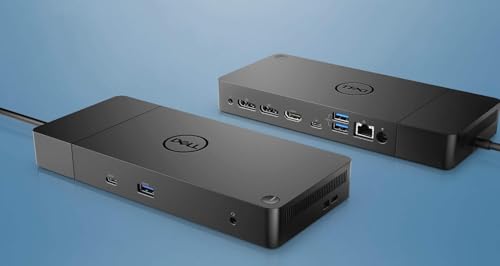
The Dell WD19 is the dock that came before the WD19S. Same basic port layout — USB-C connection, dual DisplayPort, HDMI, USB ports, Ethernet — but from an earlier hardware generation. This particular unit is renewed, which means previously used, inspected, and resold with a 90-day limited warranty instead of Dell’s standard coverage. The 180W power adapter delivers 130W to the laptop through USB-C. For someone whose Dell laptop shipped with a WD19 originally and needs a replacement dock without paying new-unit prices, this renewed listing fills that gap. For someone buying a dock fresh, the WD19S is the current-generation replacement with the same form factor and updated internals.
Twelve ports. Five USB. One HDMI. Dual DisplayPort. 1.29 lbs. 3.5″ x 8.1″ x 1.1″. Compatible with Dell notebooks and tablet PCs. 90-day warranty. Renewed.

DELL WD19 180W Docking Station (130W Power Delivery) USB-C, HDMI, Dual DisplayPort, Black (Renewed)
Key Specifications
| Specification | Detail |
|---|---|
| Total Ports | 12 |
| Total USB Ports | 5 |
| HDMI | 1 |
| DisplayPort | 2 |
| Gigabit Ethernet | Presumed (standard for WD19 series) |
| Audio | Presumed (standard for WD19 series) |
| Connection | USB-C |
| Power Adapter | 180W |
| Power to Laptop | 130W |
| Compatible Devices | Dell Notebooks/Tablet PC |
| Condition | Renewed (previously used, inspected) |
| Weight | 1.29 lbs |
| Dimensions | 3.5″ L x 8.1″ W x 1.1″ H |
| Manufacturer | Dell Computers |
| Warranty | 90 days limited |
WD19 vs WD19S: What Changed
The WD19 and WD19S share the same dock design, the same port layout, and the same form factor. The WD19S is the updated version with minor internal revisions and continued production. If you have used a WD19 before, the WD19S feels identical on the desk. The port locations, the cable, the adapter — all familiar. Dell made the transition from WD19 to WD19S without changing the physical design, which means a WD19S replacement dock fits exactly where the WD19 used to sit.

For buyers choosing between this renewed WD19 and a new WD19S, the difference comes down to warranty and price. The renewed WD19 has 90 days of coverage. A new WD19S carries Dell’s standard warranty. If the price gap justifies the shorter warranty for your situation, the renewed WD19 provides the same desk experience. For the current-generation Dell WD19S, see the Dell WD19S USB-C review.
130W Power Delivery
The 180W adapter delivers 130W to the laptop through USB-C. That is enough to charge Dell Latitude models (45-65W) at full speed with significant headroom, and Dell Precision workstations (65-90W) at full or near-full speed. The remaining 50W powers the dock’s own operations — driving displays, USB ports, Ethernet, and audio. 130W to the laptop is higher than the WD19S at 90W (with the 90W adapter variant), making this renewed WD19 with the 180W adapter a better charging match for higher-power Dell laptops than the lower-wattage WD19S configurations.
Renewed: What That Means in Practice
Renewed means the dock was previously owned, returned, inspected for functionality, and resold. Cosmetic wear is possible — scuffs on the housing, marks on the ports from repeated plugging, minor scratches. Functional performance should match a new unit. The 90-day warranty covers hardware failure during that period. After 90 days, there is no coverage. For a dock that sits permanently on a desk and does not travel, cosmetic wear is irrelevant. The risk is hardware failure outside the warranty window, which is a judgment call based on the price savings versus the peace of mind of a new unit with a longer warranty.

Dell Notebooks Only
The compatible devices field says “Dell Notebooks/Tablet PC.” The WD19 was designed for Dell’s business laptop ecosystem — Latitude, Precision, XPS. Non-Dell laptops may connect and receive basic USB-C functionality (data, possibly display), but Dell-specific features like ExpressCharge and Dell-optimized power management will not function on non-Dell hardware. For a universal dock that works across all laptop brands, the Targus QV4K or HP USB-C Universal Dock serve that need.
Drawbacks
| Consideration | Detail |
|---|---|
| Renewed / Used | Previously owned. Cosmetic wear possible. |
| 90-Day Warranty | Much shorter than a new Dell dock warranty. |
| Previous Generation | WD19S is the current replacement. |
| Dell Only | Designed for Dell notebooks and tablet PCs. |
| Sparse Port Detail | No USB speed breakdown or display resolution provided. |
| No macOS Support Listed | Compatible devices says Dell only. |
Where This Dock Fits in Dell’s Lineup
The Dell dock lineup from oldest to newest: WD15 (legacy, barrel connector charging), WD19 (this unit, USB-C, 130W PD), WD19S (updated WD19, current USB-C entry), WD19TB (Thunderbolt 3, 130W), WD22TB4 (Thunderbolt 4, modular), WD19DCS (Precision workstation, 210W). The renewed WD19 sits between the legacy WD15 and the current WD19S. For buyers who already own a WD19 and need a second unit or a replacement, the renewed price point makes sense. For first-time buyers, the WD19S provides the same design with current-generation internals and a full warranty. For the complete Dell dock comparison, see the Dell WD19TB review.

Who This Dock Is For
Dell laptop owners who need a WD19 replacement or second unit at a renewed price with 130W PD: Same dock, lower cost, 90-day warranty. If your desk already had a WD19 and it failed, this renewed unit drops into the same setup without changing cables or monitor positions. 130W charges most Dell business laptops at full speed. For a new-unit Dell dock with a full warranty, see the Dell WD19S review.
First-time dock buyers or non-Dell laptop owners: The WD19S provides the same design with current internals and a longer warranty at a slightly higher price. Non-Dell laptops may not receive full functionality from a Dell-designed dock.
Final Verdict
The Dell WD19 renewed is a previous-generation Dell dock at a reduced price with a 90-day warranty. Twelve ports, 130W PD from a 180W adapter, dual DisplayPort plus HDMI, five USB ports, at 1.29 lbs. The hardware is proven — the WD19 served Dell’s business laptop ecosystem for years before the WD19S replaced it. The renewed condition and short warranty are the trade-offs for the lower price. For a Dell laptop owner who knows the WD19 and needs another one, this is a straightforward purchase. For anyone else, the WD19S is the current model to consider.
Frequently Asked Questions
Is this new or used?
Renewed. Previously owned, inspected, and resold. May show cosmetic wear. 90-day limited warranty.
What is the difference between the WD19 and WD19S?
Same design, same form factor, same port layout. The WD19S is the updated current-generation version. The WD19 is the previous generation. On the desk, they feel identical.
Will this work with my HP or Lenovo laptop?
The compatible devices field says Dell notebooks and tablet PCs. Non-Dell laptops may connect for basic USB-C functions but Dell-specific features will not work. For a universal dock, consider the Targus QV4K or HP USB-C Universal Dock.
Is 130W enough to charge my Dell Precision?
130W charges Latitude models (45-65W) at full speed. Precision models up to 90W charge at full speed. Precision models that ship with 130W+ adapters may charge at reduced speed or maintain battery without gaining charge under heavy load.
Disclosure: As an Amazon Associate, I earn from qualifying purchases.

I evaluate docking stations the way they actually get used — against real bandwidth budgets, power-delivery ceilings, and the OS handshakes that quietly cap what a port can do — not spec-sheet promises. Every constraint that can break a multi-display setup is disclosed before any affiliate link.
Docking Station Intelligence
The standards are confusing by design. These three panels decode what manufacturers won’t explain clearly. Applicable to every docking station.
The USB-C Confusion Matrix
The USB-C connector is the single greatest source of buyer confusion in docking stations. The physical plug looks identical whether it carries USB 2.0 at 480 Mbps or Thunderbolt 5 at 120 Gbps — a 250x difference in capability hidden behind the same shape. Manufacturers exploit this by labeling everything "USB-C compatible" without specifying which protocol runs through it. Two docks can look identical on the outside and behave completely differently once you plug them in.
The hierarchy matters because it determines everything: how many monitors your dock can drive, how fast files transfer, whether your laptop charges while docked, and whether you need third-party drivers. Here is the real capability ladder, from slowest to fastest:
The practical takeaway: if your laptop has Thunderbolt 4, buy a Thunderbolt dock. If it only has generic USB-C, verify whether it supports DisplayPort Alt Mode before buying anything with multi-monitor claims. Our buying guide walks through verification steps for every major laptop brand.
Power Delivery: What the Watts Mean
Power Delivery (PD) determines whether your docking station can charge your laptop while you work, or whether you need a separate charger cluttering your desk. The math is simple but rarely explained: your laptop draws a specific wattage under load, and the dock must match or exceed it. If the dock delivers less than your laptop needs, the battery slowly drains even while plugged in — defeating the purpose of a docking station entirely.
Check the laptop manufacturer’s recommended power supply and the dock’s rated host power. Shared charging budgets vary by dock: powering peripherals does not reduce host charging on every model. USB-C charging also depends on the laptop, cable and negotiated power profile. A lower-power supply may charge slowly or allow battery drain under load; a fixed 15–20W margin is not a universal requirement.
Check your laptop’s original charger wattage — that’s your baseline. Our FAQ covers how to find this for every major brand.
Native Display vs DisplayLink: The Hidden Factor
This is the decision most buyers don’t know they’re making. When a docking station outputs video to your monitors, it uses one of two fundamentally different methods: native (the dock passes your laptop’s GPU signal directly to the monitor) or DisplayLink (the dock compresses video over USB and a software driver renders it). The difference is invisible in marketing materials but profoundly affects your daily experience.
Native output through DisplayPort Alt Mode or Thunderbolt uses the host graphics system. DisplayLink transports encoded display data over USB using compatible software. Its responsiveness and CPU/GPU load vary with the computer, software, resolution and workload; fixed latency, CPU and battery percentages are not universal specifications. Protected-video playback also depends on the display path, operating system and service. Check DisplayLink system requirements for your configuration.
DisplayLink can add displays through compatible USB connections, including USB-A, and can serve systems with limited native display outputs. Native limits depend on the exact computer and operating mode. For example, M3 MacBook Air and MacBook Pro support two external displays with the lid closed under Apple’s stated conditions. Choose the display method against your computer, software permissions and workload.
Native (Alt Mode / Thunderbolt)
DisplayLink (USB compression)
Choose a native or DisplayLink dock by checking the exact host, dock, operating system and monitor combination. Native output is often preferable for latency-sensitive workloads; DisplayLink can be useful for additional productivity displays and compatible USB-A hosts. Neither connector shape nor a generic bandwidth number proves compatibility.
COMMAND CENTERCOMMAND CENTER
Six tools that decode the confusion manufacturers create. Port protocols, power budgets, display configurations, compatibility, desk planning, and future-proofing. Full buying guide →
Port Protocol DecoderWhat does your connection type actually support? Glossary
Power Delivery CalculatorCan this dock keep your laptop charged?
Display Configuration PlannerCan your dock push enough pixels?
Laptop-to-Dock CompatibilityWill this dock work with YOUR laptop?
Desk Setup ArchitectWhat ports do you actually need?
Select everything you need to connect: