
ORICO USB C Docking Station Review
Discover the ORICO USB C Docking Station's clever multitasking magic, transforming your workspace with 9 essential ports. Say goodbye to cable chaos today!
Two HDMI ports, both rated 4K@60Hz, in an aluminum stick that weighs 2.11 ounces. That is the pitch of ORICO’s PW11-8PH, and it is a different one from the usual travel hub: instead of covering every connector you might meet in a conference room, it commits to running two monitors properly. Around the pair of HDMI ports sit two USB-A ports and one USB-C port at 5 Gbps, SD and TF slots that read at the same time, and a USB-C power input that passes up to 100W through to the laptop. There is no Ethernet, no VGA, and no headphone jack. The body is gray aluminum, 4.53 x 1.75 x 0.67 inches, and it takes up about as much room in a bag as a marker pen.
Full-featured USB-C required (DisplayPort Alt Mode for the HDMI ports, Power Delivery for charging). Plug and play, no driver. Charger and power cable not included. No warranty duration listed in the Amazon data.

ORICO USB-C Docking Station Dual Monitor, 8-in-1 USB-C Hub with 2 HDMI
Key Specifications
| Specification | Detail |
|---|---|
| Total Ports | 8 |
| HDMI | 2 (4K@60Hz each; HDMI 2.0 or better cables and monitors required) |
| USB-A | 2 (5 Gbps) |
| USB-C Data | 1 (5 Gbps) |
| USB-C PD | 1 (100W input, charger not included) |
| SD Card Reader | 1 (SD 3.0, simultaneous with TF; listing quotes up to 104Mbps) |
| TF/MicroSD Reader | 1 (simultaneous with SD) |
| Ethernet | None |
| VGA | None |
| Audio Jack | None |
| Dual Display Modes | Windows: two independent screens. macOS: both HDMI ports show the same picture (no A+BC mode) |
| Full-Featured USB-C Required | Yes (DP Alt Mode for video, PD for charging) |
| Enclosure | Aluminum, gray |
| Weight | 2.11 oz |
| Dimensions | 4.53 x 1.75 x 0.67 inches |
| Compatible OS | Windows 10+, macOS 10.15+, Linux, Android 9+, iOS 17+, iPadOS 13.4+ |
| Model | PW11-8PH |
| Manufacturer | ORICO |
| Warranty | Not specified in Amazon data (Amazon 30-day return only) |
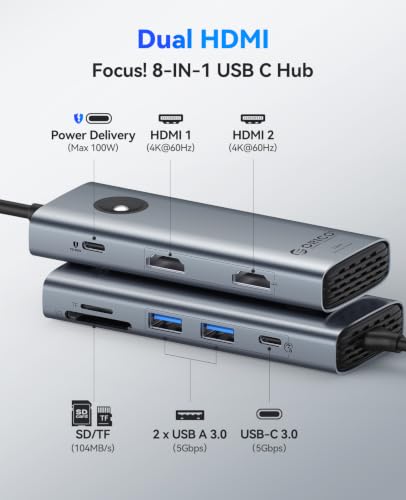
Two HDMI Ports at 4K@60Hz
60Hz is the number that matters here. At 4K@30Hz a screen looks sharp until you scroll or drag a window, when the motion turns into a visible stutter. At 60Hz that stutter is gone, and a 4K monitor on this hub feels the same as one plugged straight into the laptop. ORICO rates both HDMI ports at 4K@60Hz and asks that the laptop, the cables, and the monitors all support HDMI 2.0 or higher, which is the version that carries 4K at 60 frames. An older HDMI 1.4 cable in the drawer will hold a 4K monitor back to 30Hz on its own.

One check before you count on two 4K screens at 60Hz at the same time. The listing rates each port, but does not say what happens with two 4K monitors attached together. Everything the hub outputs arrives through the laptop’s single USB-C port in DisplayPort Alt Mode, and on laptops that only offer DisplayPort 1.2 over USB-C, two 4K screens share that bandwidth and one or both fall to 30Hz. Laptops with DisplayPort 1.4 have the headroom. Look up which version your USB-C port carries before buying this for a pair of 4K panels; two 1080p or 1440p monitors sit comfortably inside either version.
Operating system decides how the two ports behave. On Windows each HDMI port drives its own screen, so you get three separate desktops counting the laptop. ORICO says plainly that macOS does not support two distinct external screens through this hub, which is the A+BC mode in its wording. On a Mac the two HDMI ports show the same picture, so the second port is useful for a presentation feed, not for a second working desktop.
USB and Card Readers at 5 Gbps
Three data ports, two USB-A and one USB-C, all at 5 Gbps. ORICO puts that as a 1GB file in about two seconds, which is the ceiling of the interface rather than what a drive will deliver; a portable SSD will land near it, a spinning drive or a USB stick will not. Three ports is enough for a keyboard receiver, a mouse, and an SSD, and no more, so anyone with a printer, a webcam, and a drive on the desk will still need a second hub or a wireless keyboard.
The SD and TF slots are SD 3.0 and read at the same time, so a camera card and a drone card can both sit in the hub while you copy. ORICO quotes the slots at up to 104Mbps on the listing; UHS-I cards are rated 104 MB/s, and the number matches that ceiling, so read the unit on the listing with that in mind.

100W PD: Charger Not Included
The USB-C PD port accepts up to 100W from your own charger and passes it to the laptop while the hub is in use. Neither a charger nor a power cable comes in the box, and ORICO reminds buyers that the laptop’s USB-C port must support Power Delivery for any of this to work. The listing does not say how much the hub keeps for itself, and every pass-through hub keeps some, so expect the laptop to report a little less than the charger’s rating. With a 65W or 100W laptop charger, that still leaves plenty.
Aluminum at 2.11 Ounces
At 2.11 ounces this is one of the lightest dual-HDMI hubs sold, and it manages that in aluminum rather than plastic. That is the right choice for a hub that may be driving two 4K screens, charging a laptop, and reading a card at once: aluminum spreads and sheds the heat instead of holding it, so the hub gets warm to the touch rather than hot. The gray finish suits a MacBook or a Dell XPS, which is the crowd ORICO names on the listing, and at 4.53 by 1.75 by 0.67 inches it slides into the pen pocket of a laptop sleeve.
“Full-Featured USB-C” Requirement
The HDMI ports only produce a picture if the laptop’s USB-C port supports DisplayPort Alt Mode, and charging only works if that same port supports Power Delivery. Most MacBooks, Dell XPS, HP, and Surface machines from the last few years qualify, and ORICO also lists iPad Pro and Air, the iPhone 15 family, and Android phones and tablets, with minimums of Windows 10, macOS 10.15, Android 9, iOS 17, and iPadOS 13.4. Budget laptops sometimes ship a USB-C port that handles data only; on one of those the USB and card ports work and the HDMI ports stay dark. Check the port’s specification, or the small DisplayPort logo next to it, before ordering.
Drawbacks
| Consideration | Detail |
|---|---|
| No Ethernet | Wired networking needs a separate adapter. |
| No VGA | Older projectors need an HDMI-to-VGA adapter. |
| No Audio Jack | No 3.5mm output. |
| macOS Mirrors the Two HDMI Ports | No separate second desktop on a Mac. |
| Dual 4K@60Hz Depends on the Laptop | Not stated for two 4K screens at once; DisplayPort 1.2 ports will drop to 30Hz. |
| USB 3.0, Not Gen 2 | 5 Gbps, not 10 Gbps. |
| Only Three Data Ports | Two USB-A and one USB-C for everything that is not a display or a card. |
| Charger Not Included | You supply the USB-C PD charger and cable. |
| Warranty Not Specified | Amazon data lists only the 30-day return window. |

How It Compares to the Acer 9-in-1
These two hubs make opposite bets. The Acer 9-in-1 carries HDMI, VGA, three USB-A ports, Gigabit Ethernet, PD, and SD/TF, and its single HDMI runs at 4K@30Hz: the conference-room hub, ready for whichever cable hangs from the projector. The ORICO gives up VGA and Ethernet to fit a second HDMI port and lifts both to 4K@60Hz, in an aluminum body that weighs less than half as much. If you present in unfamiliar rooms or need a wired network, the Acer is the safer kit. If you sit down at the same desk with two monitors and want them smooth, the ORICO is the better dock. For the Acer, see the Acer 9-in-1 USB-C Hub review.
Who This Hub Is For
Windows laptop users with two HDMI monitors on the desk: Two independent screens at up to 4K@60Hz, laptop charging through the same cable, and a keyboard, mouse, and SSD on the three USB ports. Check the laptop’s DisplayPort version if both monitors are 4K.
Photographers and drone pilots: SD and TF read together at SD 3.0 speed, and the 2.11 oz weight and aluminum body make it a hub you keep in the camera bag rather than the desk drawer.
Mac users who want one external monitor plus a mirrored feed: The second HDMI port will not give a Mac a separate desktop, but it will send the same picture to a projector or a TV while the first monitor stays on the desk.
Buyers who need Ethernet, VGA, a headphone jack, or 10 Gbps USB: None of those are here. For hubs that carry them, see our docking stations hub page.
Final Verdict
ORICO’s PW11-8PH is a dual-monitor dock first and a hub second. Two HDMI ports at 4K@60Hz, 100W pass-through charging, and a pair of card readers that work together cover the desk setup most laptop users actually run, and the 2.11 oz aluminum body means it travels without a thought. The trade-offs are clear on the listing: no Ethernet, no VGA, no audio, three data ports at 5 Gbps, a charger you buy yourself, no warranty duration on record, and a Mac that will mirror rather than extend across the two HDMI ports. For a Windows laptop with a DisplayPort 1.4 USB-C port and two monitors waiting, this is one of the lightest and cheapest ways to run both at full speed. For a Mac, or for a bag that has to be ready for any projector, look at the Acer 9-in-1 instead.
Frequently Asked Questions
Can a MacBook run two different screens from the two HDMI ports?
No. ORICO states that macOS does not support two distinct external screens through this hub. Both HDMI ports show the same picture on a Mac. On Windows each port drives its own screen.
Will both monitors run 4K at 60Hz at the same time?
Each port is rated 4K@60Hz, but the listing does not address two 4K screens together. It depends on the DisplayPort version behind your laptop’s USB-C port: DisplayPort 1.4 has the bandwidth, DisplayPort 1.2 will drop one or both to 30Hz. Both monitors and both cables also need to be HDMI 2.0 or better.
Does it have Ethernet or VGA?
No. This is an 8-in-1 built around two HDMI ports. For HDMI plus VGA plus Gigabit Ethernet in one hub, see the Acer 9-in-1 review.
Is a charger included?
No. The PD port passes up to 100W from your own USB-C charger and cable, and your laptop’s USB-C port has to support Power Delivery.
Can I use SD and MicroSD at the same time?
Yes. Both card readers work simultaneously.
Disclosure: As an Amazon Associate, I earn from qualifying purchases.

I evaluate docking stations the way they actually get used — against real bandwidth budgets, power-delivery ceilings, and the OS handshakes that quietly cap what a port can do — not spec-sheet promises. Every constraint that can break a multi-display setup is disclosed before any affiliate link.
Docking Station Intelligence
The standards are confusing by design. These three panels decode what manufacturers won’t explain clearly. Applicable to every docking station.
The USB-C Confusion Matrix
The USB-C connector is the single greatest source of buyer confusion in docking stations. The physical plug looks identical whether it carries USB 2.0 at 480 Mbps or Thunderbolt 5 at 120 Gbps — a 250x difference in capability hidden behind the same shape. Manufacturers exploit this by labeling everything "USB-C compatible" without specifying which protocol runs through it. Two docks can look identical on the outside and behave completely differently once you plug them in.
The hierarchy matters because it determines everything: how many monitors your dock can drive, how fast files transfer, whether your laptop charges while docked, and whether you need third-party drivers. Here is the real capability ladder, from slowest to fastest:
The practical takeaway: if your laptop has Thunderbolt 4, buy a Thunderbolt dock. If it only has generic USB-C, verify whether it supports DisplayPort Alt Mode before buying anything with multi-monitor claims. Our buying guide walks through verification steps for every major laptop brand.
Power Delivery: What the Watts Mean
Power Delivery (PD) determines whether your docking station can charge your laptop while you work, or whether you need a separate charger cluttering your desk. The math is simple but rarely explained: your laptop draws a specific wattage under load, and the dock must match or exceed it. If the dock delivers less than your laptop needs, the battery slowly drains even while plugged in — defeating the purpose of a docking station entirely.
Most ultrabooks need 45–65W. Standard business laptops need 65–100W. Gaming and workstation laptops can demand 100–140W or more. The dock’s advertised PD wattage is the maximum it can deliver to your laptop — but this drops if you charge other devices (phones, tablets) through the dock simultaneously. Always leave a 15–20W margin above your laptop’s requirement.
Check your laptop’s original charger wattage — that’s your baseline. Our FAQ covers how to find this for every major brand.
Native Display vs DisplayLink: The Hidden Factor
This is the decision most buyers don’t know they’re making. When a docking station outputs video to your monitors, it uses one of two fundamentally different methods: native (the dock passes your laptop’s GPU signal directly to the monitor) or DisplayLink (the dock compresses video over USB and a software driver renders it). The difference is invisible in marketing materials but profoundly affects your daily experience.
Native output through DisplayPort Alt Mode or Thunderbolt uses your laptop’s actual graphics hardware. There is zero added latency, full DRM support for streaming services, no CPU overhead, and no driver to install. DisplayLink, by contrast, adds 5–15ms of latency (noticeable in video calls and cursor movement), blocks DRM content on connected monitors (Netflix, Disney+ show black screens), consumes 3–8% of your CPU constantly, and requires a driver that Apple’s macOS security updates occasionally break.
DisplayLink exists for one reason: Apple Silicon base chips (M1, M2, M3) can only drive one external display natively. If you need two or more monitors on a base MacBook Air or 13” MacBook Pro, DisplayLink is your only option. For everyone else — Windows users, Mac Pro/Max chip users, Intel/AMD laptops — native is always the better choice.
Native (Alt Mode / Thunderbolt)
DisplayLink (USB compression)
The bottom line: if your laptop supports native multi-display output, always choose a native dock. DisplayLink is a workaround, not an upgrade. See our glossary for detailed definitions.
COMMAND CENTERCOMMAND CENTER
Six tools that decode the confusion manufacturers create. Port protocols, power budgets, display configurations, compatibility, desk planning, and future-proofing. Full buying guide →
Port Protocol DecoderWhat does your connection type actually support? Glossary
Power Delivery CalculatorCan this dock keep your laptop charged?
Display Configuration PlannerCan your dock push enough pixels?
Laptop-to-Dock CompatibilityWill this dock work with YOUR laptop?
Desk Setup ArchitectWhat ports do you actually need?
Select everything you need to connect: